The best kids laptop or first computer for most families costs roughly $276 to $828 CAD ($200 to $600 USD). What you buy within that range matters more than the number on the price tag.
This page contains affiliate links. If you buy through these links, we may earn a small commission at no extra cost to you. Full disclosure.
A Chromebook at $370 CAD ($269 USD) will serve a 10-year-old doing homework and video calls better than a $621 CAD ($450 USD) Windows laptop with a slow hard drive and 4GB of RAM. A used desktop tower will handle light gaming better than a new budget laptop at the same price. Choosing a kids laptop or desktop depends on three things: what your kid actually does, how old they are, and whether you’re buying something that lasts three years or five. For a child who games at a desk or needs easier repairs, a desktop computer can be a better first purchase than a cheap laptop.
Last updated: September 2, 2026.
This guide breaks down four real options, with real prices from real vendors as of April 2026, and honest trade-offs on each one. Prices are shown in CAD first with approximate USD in brackets, converted at 1 USD = 1.38 CAD (April 2026 average). Actual Canadian retail prices vary by store. The personal build section uses exact receipt prices from Canada Computers.
Table of Contents
If the mouse is part of the setup, the CPS and click speed test checks whether rapid presses register consistently before a game or school session.
Start Here: What Is the Computer Actually For?
Before picking a form factor or a budget, be clear on the use case. The answer changes everything.
Schoolwork and video calls only: A Chromebook at $275-375 CAD ($200-270 USD) is the right call. Chrome OS has parental controls built in, almost nothing to maintain, and battery life that Windows can’t match at this price range.
Schoolwork plus some gaming or creative work: A Windows laptop at $485-690 CAD ($350-500 USD), or a prebuilt desktop at $550-830 CAD ($400-600 USD), depending on whether portability matters for your first computer.
Gaming as a real priority: You’re spending $830 CAD ($600 USD) minimum for a laptop or $966 CAD ($700 USD)-plus for a desktop that will actually handle modern games. Budget for that honestly, or buy a console instead.
Multiple kids sharing one computer: A desktop with a dedicated monitor makes more sense than a laptop that disappears into someone’s backpack.
Option 1: Chromebook ($275-390 CAD / $200-280 USD)
The ASUS Chromebook CX15 is the right kids laptop for most elementary and middle school students; check Amazon.ca for the current price. You get a 15.6-inch 1080p IPS display, 8GB of RAM, 128GB of eMMC storage, and Wi-Fi 6, all running Chrome OS on Intel’s Celeron N4500.
PCWorld rated it a top sub-$415 CAD ($300 USD) pick, calling out the spacious keyboard and 1080p display as standout features for the price. Tom’s Guide gave it similar marks in their budget Chromebook roundup.
The drawbacks are real, though. PCWorld noted the screen quality is mediocre compared to pricier models, the fans are audible under load, and Chrome OS can’t run Windows software. If your kid needs desktop Photoshop or a specific Windows application for school, this computer won’t work. Full stop.
Storage is a genuine constraint too. 128GB fills up faster than you’d expect once offline files and cached data accumulate. Google Drive integration is the intended workaround, which requires an internet connection for most tasks. For a kid doing schoolwork at home with reliable Wi-Fi, that’s fine. For a kid who travels or commutes, it’s worth knowing.
Savings move: Certified refurbished Chromebooks from HP and Asus can be worth comparing when the seller provides a clear warranty and return policy. Chrome OS updates don’t degrade older hardware the way Windows does, so a certified refurbished Chromebook from two years ago is still a capable school machine today.
Option 2: Best Kids Laptop on Windows ($415-690 CAD / $300-500 USD)
For families that need Windows, the Acer Aspire Go 15 is the strongest kids laptop option heading into 2026. PCWorld gave it a strong review, specifically noting the price-to-performance ratio and IPS display as highlights for the category.
A useful base configuration pairs Intel Core i3-N305, 8GB LPDDR5, 128GB storage, 15.6-inch 1080p panel. A useful step-up configuration adds Intel Core i3-N355, 16GB DDR5, and a 512GB SSD. For a machine that needs to last four or five years of growing school demands, the $689 CAD ($499 USD) config is worth the extra $311 CAD ($225 USD). The 128GB base storage isn’t enough for Windows 11 plus apps plus a few years of accumulated files.
The limitations are worth naming directly: battery life is 6-7 hours under real use, the build is all plastic with noticeable flex, and the keyboard isn’t backlit. None of those are dealbreakers for a kid’s school machine, but they’re there.
The Lenovo IdeaPad 1 is the main alternative in the same hardware class. Similar hardware class, comparable school performance, slightly different keyboard feel. Good backup option when the Acer is out of stock.
The Dell Inspiron 15 3520 sits at $620-690 CAD ($449-500 USD). Dell’s build quality edges out Acer and Lenovo at comparable prices, and the support ecosystem is better if something goes wrong under warranty. The performance-per-dollar is slightly worse, but for a kid who’s hard on hardware, the durability often justifies it. Tom’s Guide has consistently placed it as a reliable budget pick for school use.
Savings move: Dell and Lenovo both offer 5-15% education pricing through their websites with a valid school email. Back-to-school sales in August and September are a useful time to compare these models at Amazon.ca, Best Buy Canada, and Costco.
Option 3: Prebuilt Desktop ($550-830 CAD / $400-600 USD, plus peripherals)
A desktop first computer at this price gives you more processing power per dollar than a laptop, easier repairability if something breaks, and a longer useful life because individual components can be upgraded. The trade-off is obvious: it doesn’t move.
The Acer Aspire TC-1775 at around $827 CAD ($599 USD) packs a 14th Gen Intel Core i5-14400, which is a noticeably faster processor than anything in the laptop category at this price. BGR listed it among the most reliable budget desktops available right now. It handles schoolwork, light gaming on integrated graphics, and multitasking without complaint. If your kid wants to start gaming seriously in a year or two, there’s an upgrade path to a dedicated GPU without replacing the whole machine.
What’s not included: monitor, keyboard, mouse, and the Windows 11 Home license (which the TC-1775 does include). Budget an additional $138-207 CAD ($100-150 USD) for a 1080p monitor suited to work, gaming, or both and $41-69 CAD ($30-50 USD) for a basic keyboard-and-mouse combo. Total setup cost is around $1,007-1,104 CAD ($730-800 USD) to be realistic about it.
For tighter budgets, the HP Pro 400 G9 Mini Desktop comes in under $552 CAD ($400 USD), weighs under 3 pounds, and mounts behind a monitor to keep the desk clear. The Celeron processor limits it to school tasks and light media, but for document editing, Google Classroom, and video streaming it’s more than adequate. HP ships it bare-bones, so you’ll need the same peripherals budget.
Savings move: Costco and Sam’s Club often bundle desktop-plus-monitor combos for $69-110 CAD ($50-80 USD) less than buying separately. Worth checking before buying components individually.
Option 4: Building Your Own (Honest Take for 2026)
Building a first computer used to be the obvious money-saving move. In 2026, that’s no longer straightforwardly true.
RAM prices rose 90-95% through early 2026, driven by AI infrastructure demand pulling allocation from consumer channels. SlashGear and BGR both covered this shift in detail, and the conclusion is consistent across sources: for most budget builds under $1,104 CAD ($800 USD), a prebuilt now offers comparable or better value than buying parts separately.
The GamersNexus January 2026 “Cheap Bastard” build is the most honest example of what a careful budget builder can achieve right now. Parts: AMD Ryzen 5 5500 (~$127 CAD / ~$92 USD), Intel Arc B570 GPU (~$276 CAD / $200 USD), 16GB DDR4 RAM (~$137 CAD / ~$99 USD), ASRock B550M-HDV motherboard (~$97 CAD / ~$70 USD), Crucial 1TB NVMe SSD, Lian Li 550W PSU (~$69 CAD / ~$50 USD), mid-tower case. Total: ~$921 CAD ($668 USD) for the parts.
Add a monitor (~$138 CAD / $100 USD), keyboard and mouse (~$55 CAD / $40 USD), and Windows 11 Home (~$138-166 CAD / $100-120 USD via OEM key), and you’re at $1,242-1,311 CAD ($900-950 USD) all-in. For that budget you get a genuinely capable gaming machine that outperforms any prebuilt at $966 CAD ($700 USD). If your kid wants to game seriously, building at this level still makes sense. For a school-only first computer, it absolutely doesn’t.
The build also has educational value that doesn’t show up on a spec sheet. If your kid is 12 or older and genuinely curious about how computers work, an afternoon building one together as a first computer project is worth doing for that reason alone. PCPartPicker is the right tool for checking compatibility and comparing live vendor prices across Newegg, Amazon, and B&H before buying anything.
A Real Build: What I Put Together for My 6-Year-Old’s Birthday
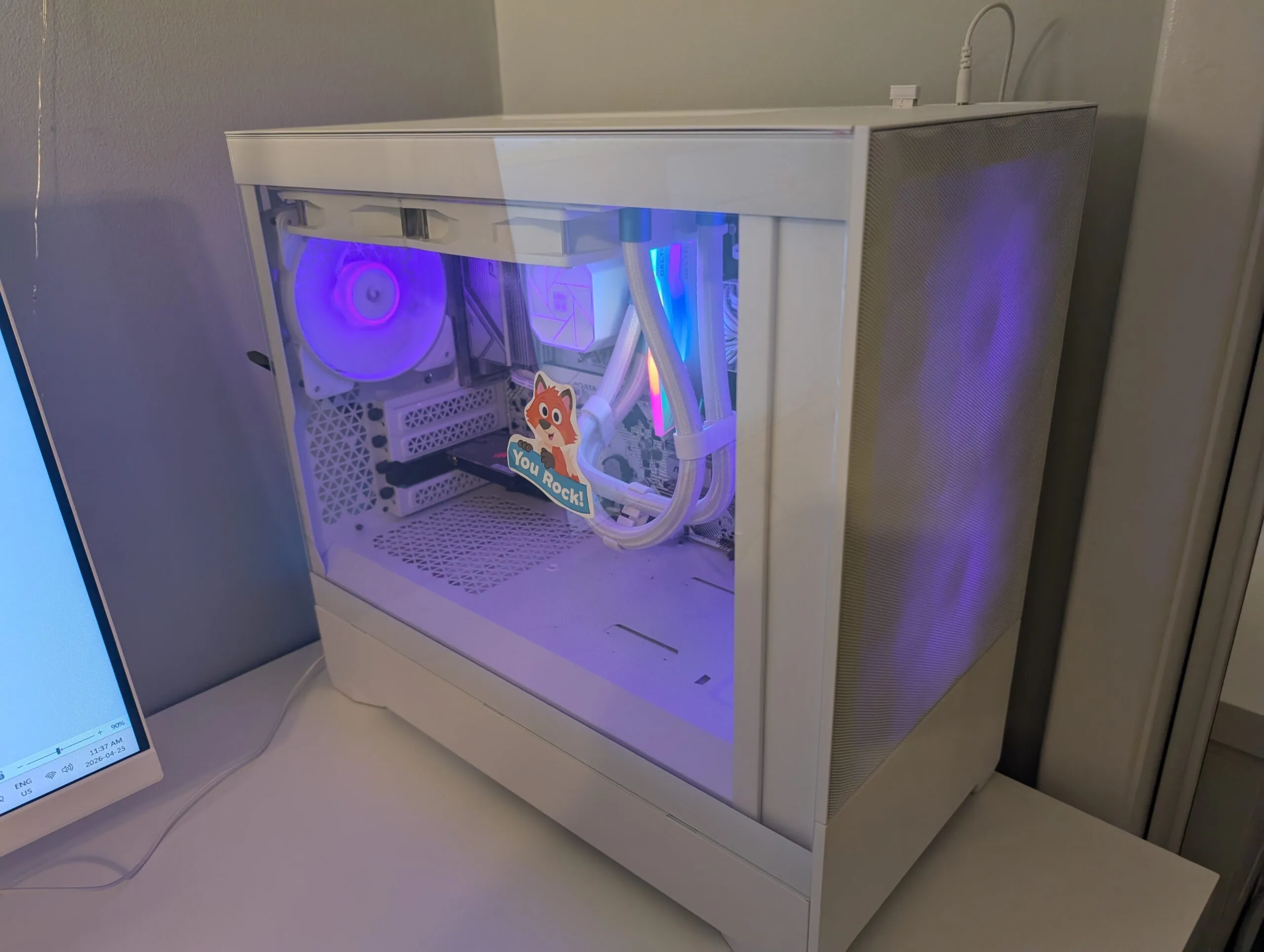
For some context on what a real build actually looks like in Canada, I built my daughter’s first computer for her birthday last month (she turned 6). The specs are overkill for a 6-year-old doing light web based games and watching YouTube kids, I’ll be honest about that. The thinking was simple: build something that doesn’t need replacing for eight years rather than buying a $552 CAD machine she outgrows in two and the AM5 socket is still relevant.
Everything was ordered from Canada Computers. The combo bundle is what made the cost reasonable. Buying the CPU, motherboard, and RAM as a bundle saved $575 CAD off the individual prices. I already had a power supply and an SSD sitting unused from a previous build, which knocked a couple hundred CAD more off. Total out the door was $1,190.12 CAD, including delivery, environmental fees, and Ontario HST.
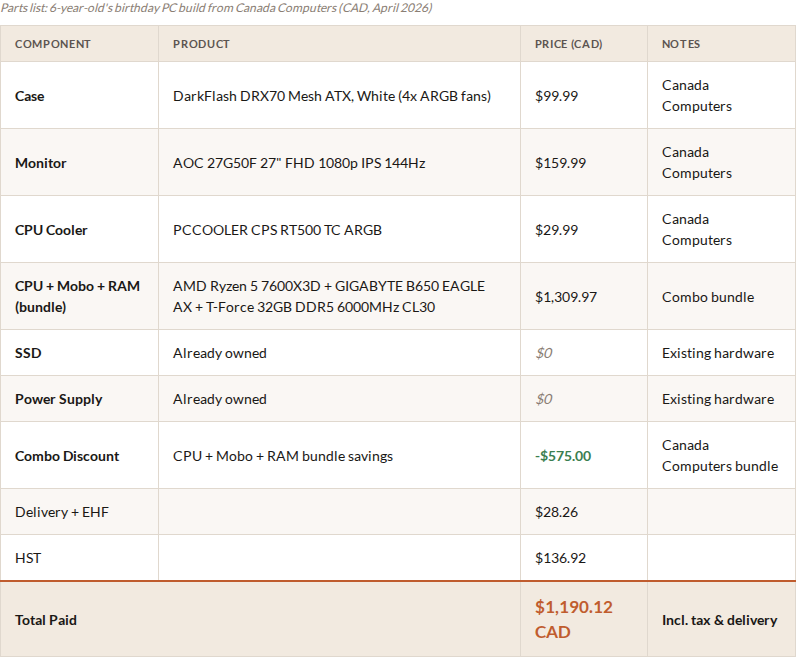
A few notes on the parts. The DarkFlash DRX70 case comes with four ARGB fans already installed, which matters at $99.99 CAD because good case fans are $28-41 CAD ($20-30 USD) each separately. Mesh front panel means airflow is solid without extra work. The PCCOOLER cooler handles the 7600X3D at stock speeds without noise, and the $29.99 CAD price is hard to argue with for what it is.
One honest caveat on the Ryzen 5 7600X3D for a child’s build: it’s a 3D V-Cache chip optimized specifically for gaming frame rates. A standard Ryzen 5 7600 would have cost $80-100 CAD less and performed identically in Minecraft and Roblox. The 7600X3D justifies itself in three or four years when she’s actually pushing the machine at high settings in demanding games. That was the argument I made to myself at the time.
The bigger takeaway for anyone building in Canada is the combo deal. Canada Computers, Newegg, and other computer retailers sometimes bundle the CPU, motherboard, and RAM below the cost of the same parts bought separately. Check the combo page before pricing individual components. A $575 CAD discount on $1,300 CAD worth of parts is 44% off the three most expensive components in the build.
Side-by-Side Comparisons
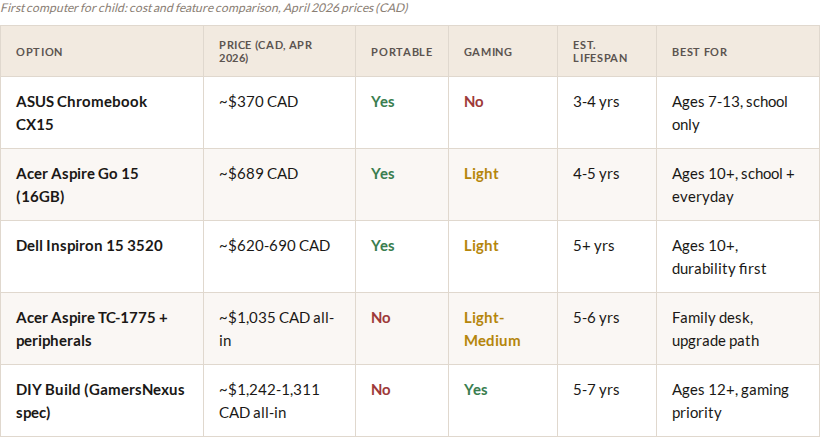
| Option | Price (Apr 2026) | Portable | Gaming | Lifespan | Best For |
|---|---|---|---|---|---|
| ASUS Chromebook CX15 | ~$370 CAD ($269 USD) |
Yes | No | 3-4 yrs | Ages 7-13, school only |
| Acer Aspire Go 15 (16GB) | ~$689 CAD ($499 USD) |
Yes | Light | 4-5 yrs | Ages 10+, school + everyday |
| Dell Inspiron 15 3520 | ~$620-690 CAD ($449-500 USD) |
Yes | Light | 5+ yrs | Ages 10+, durability first |
| Acer Aspire TC-1775 + peripherals | ~$1,035 CAD (~$750 USD) |
No | Light-Medium | 5-6 yrs | Family desk, upgrade path |
| DIY Build (GamersNexus spec) | ~$1,242-1,311 CAD (~$900-950 USD) |
No | Yes | 5-7 yrs | Ages 12+, gaming priority |
Where to Actually Save Money
Back-to-school sales (August-September) are the single best buying window. Amazon, Best Buy, Walmart, and Costco all run laptop and Chromebook promotions in this window. If your kid doesn’t urgently need a computer before fall, waiting saves real money.
Certified refurbished is underrated. Amazon Renewed and Best Buy’s Geek Squad Certified Refurbished programs carry 90-day to one-year warranties on tested hardware. For Chromebooks specifically, a refurbished unit from one or two years ago performs comparably to new because Chrome OS doesn’t slow older hardware the way Windows does.
Education pricing is real and easy to use. Dell and Lenovo both offer 5-15% off through their websites with a school email. Apple’s education store takes around $138 CAD ($100 USD) off the MacBook Air. If your school runs on a specific platform, ask the IT department if there are bulk-purchase discounts for families.
Watch PCPartPicker’s price history if you’re building. Individual component prices fluctuate by 15-25% week to week. Setting a price alert on a specific GPU or RAM kit can save $41-83 CAD ($30-60 USD) on a build without any compromise on the parts you wanted.
Who Should Spend More
If your kid is in a design or media arts program that requires Adobe Creative Suite, the budget Windows laptops will frustrate them. Premiere and Lightroom need real dedicated RAM and a faster processor. You’re looking at $966 CAD ($700 USD)-plus for a laptop that handles those tools without constant pausing.
If gaming is a genuine priority rather than an aspiration, set the budget at $897-1,104 CAD ($650-800 USD) for a gaming desktop or a purpose-built gaming laptop. Anything less and you’re buying a machine that’s already behind on current titles and will feel outdated in 18 months.
Who Should Spend Less
If your kid is under 10 and mostly doing school assignments, Zoom calls, and YouTube, a $221-262 CAD ($160-190 USD) certified refurbished Chromebook covers everything they need. Spending $500 on a kids laptop running Windows for a third-grader doing Google Classroom is real money that could wait two or three years when their actual needs are clearer.
If the computer is for a bedroom where it’ll sit unused half the time, start cheap. A $370 CAD ($269 USD) Chromebook that gets light use is better than a $690 CAD ($500 USD) laptop that gets the same light use. The use case drives the spend, not the other way around.
Our pick: For most children who need schoolwork, web access, and video calls, start with an age-appropriate Chromebook. As an Amazon Associate I earn from qualifying purchases.
Frequently Asked Questions
What age should a child get their first computer?
Most families find that ages 8-10 is when a dedicated computer starts making real sense, usually tied to school assignments that need a keyboard. Tablets work well for younger kids who mostly consume content. When homework starts requiring document creation, spreadsheets, or research, a first computer becomes worth it.
Is a Chromebook good enough for a kid?
For most kids under 13 doing school tasks, yes. Chrome OS runs Google Docs, Sheets, Google Classroom, Khan Academy, YouTube, and video calls without issue. The caveat is software compatibility. If the school requires a specific Windows application, or if your kid needs Microsoft Office installed locally rather than through a browser, a Chromebook won’t work. Check the school’s software requirements before buying.
Is building a PC cheaper than buying one in 2026?
For budget builds under $1,104 CAD ($800 USD), generally no. RAM prices rose significantly in early 2026 due to AI infrastructure demand, narrowing the gap between building and buying. At the $1,104 CAD ($800 USD)-plus range for a gaming-capable machine, building still offers better performance per dollar. SlashGear and BGR both covered this shift in detail if you want the full breakdown.
How much RAM does a kids laptop need?
A kids laptop running Windows 11 needs at least 8GB in 2026. 16GB is better and extends the useful life of the machine by two or three years. For a Chromebook, 8GB handles typical school use without issue. Don’t buy 4GB on anything running Windows, the browser alone will slow it down within a year.
Mac or Windows for a kid?
Depends almost entirely on what the school uses. If the school is Google Workspace-based, Chrome OS or Windows both work. If the school uses Microsoft 365 heavily, Windows is easier. Mac is worth considering if your household already runs Apple devices and you value the ecosystem integration, but the entry MacBook Air at $1,517 CAD ($1,099 USD) is hard to justify as a first computer when $689 CAD ($499 USD) Windows laptops do the same school tasks. The exception is if your school’s art or media program specifies Mac-based software.
The Short Version
Match the machine to the actual use case, not the use case you imagine might exist in two years. A $370 CAD ($269 USD) Chromebook with 8GB of RAM handles school better as a kids laptop than a $621 CAD ($450 USD) Windows laptop with 4GB and a hard drive. Start specific with a first computer that fits today’s needs, upgrade when the demands actually change.
Once the hardware is sorted, getting the physical setup right matters for kids too. The ergonomic desk setup checklist covers monitor height, keyboard placement, and the adjustments that apply to younger users at a shared desk. And if a monitor arm is on the list, the monitor arm vs. monitor stand guide breaks down which option actually makes sense for a kid’s workspace. If you still need the screen itself, the 27-inch monitor under 300 guide compares five practical options without turning a child’s first setup into a premium build.