
Product links were checked October 17, 2026. Check the retailer page for current prices and availability. This article contains affiliate links. If you buy through them, The Desk Brief may earn a commission at no extra cost to you. See our affiliate disclosure.
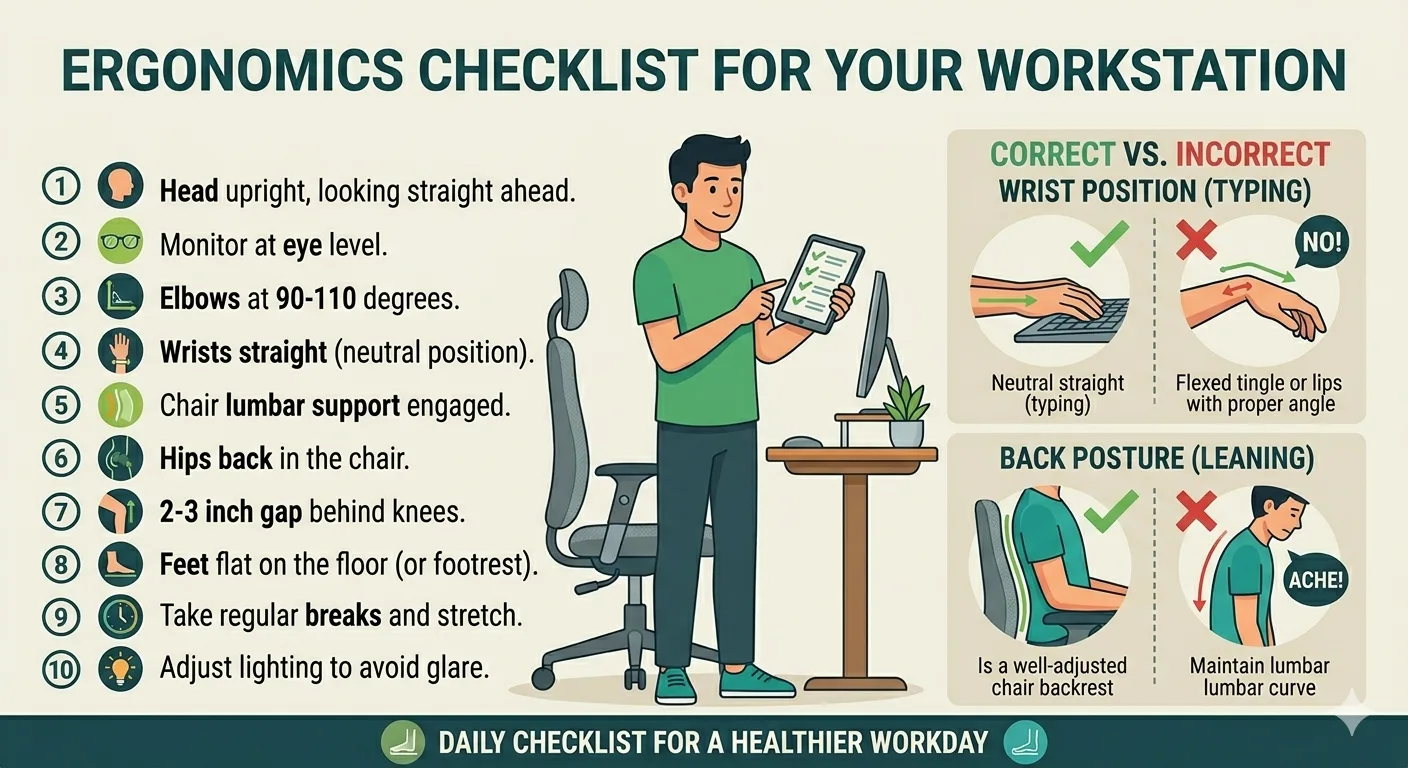
An ergonomic desk setup starts with the chair, not the monitor or the accessories. Set chair height first, then seat depth and back support, desk and keyboard height, monitor position, armrests, mouse placement, lighting, and secondary items. Work in that order and change one thing at a time. Most people can finish this eight-step ergonomic desk setup checklist in about 30 minutes.
Last updated: October 17, 2026.
The goal isn’t to copy a diagram perfectly. It is to fit the workstation to your body and the work you actually do. The National Institute for Occupational Safety and Health defines ergonomics around fitting tasks and job demands to workers, while the Canadian Centre for Occupational Health and Safety warns that a chair labelled ergonomic still may not fit a particular person.
Try the free adjustments before buying anything. If one step still can’t be made to fit, that failed step tells you what equipment might help. Buying an expensive chair before measuring seat depth is not an ergonomic strategy. It is just expensive guessing.
12 Ergonomic Desk Setup Mistakes to Check First
- Adjusting the monitor before the chair. Chair and foot support establish the seated reference point for everything above them.
- Letting the feet dangle. Set the chair for relaxed elbows, then add a footrest if the feet no longer reach the floor.
- Ignoring seat depth. Leave about two or three finger widths behind the knees while keeping the back against the backrest.
- Forcing exactly 90 degrees everywhere. Stable support and relaxed joints matter more than holding a diagram’s angles all day.
- Accepting the desk’s default height. The keyboard belongs near relaxed elbow height. A suitable model from the Canadian standing desk comparison can solve that mismatch, but only if its minimum range fits.
- Raising the keyboard’s rear feet automatically. A steeper board often bends the wrists upward rather than making typing more ergonomic.
- Putting the monitor too high. Begin with its visible top at or slightly below eye level, then account for progressive lenses.
- Treating arm’s length as an exact distance. Start there, then adjust for text size, screen size, vision, and the task.
- Keeping armrests that block the desk. Lower, shorten, or remove them when they stop the chair from approaching the keyboard.
- Letting a number pad push the mouse outward. Keep the mouse beside the keyboard so the upper arm can stay close to the torso.
- Turning lumbar support into a pressure point. It should meet the lower-back curve without forcing one posture. The office-chair lumbar support guide explains the adjustment and add-on options.
- Standing all day. A sit-stand desk adds another position. It doesn’t make one fixed posture healthy indefinitely.
How to Use This Ergonomic Desk Setup Checklist
Sit the way you normally work, not in the posture you can hold for a photograph. Then make the eight adjustments below in sequence. Chair height determines elbow height, elbow height determines keyboard position, and seated eye level determines monitor position. If you skip ahead, you’ll often have to redo the later steps.
- Chair height
- Chair depth and back support
- Desk height and keyboard placement
- Monitor height and distance
- Armrest height
- Mouse and peripheral placement
- Lighting and glare
- Secondary items and a one-hour check
Keep the existing equipment when it can reach the right position. A stack of sturdy books can diagnose a monitor-height problem before you spend money on a stand. Our office chair fit calculator and desk height calculator can turn body measurements into useful starting numbers, but comfort and fit still get the final vote. OSHA’s computer workstation positions provide a useful visual reference for the same sequence.
Step 1: Set Chair Height and Support Your Feet
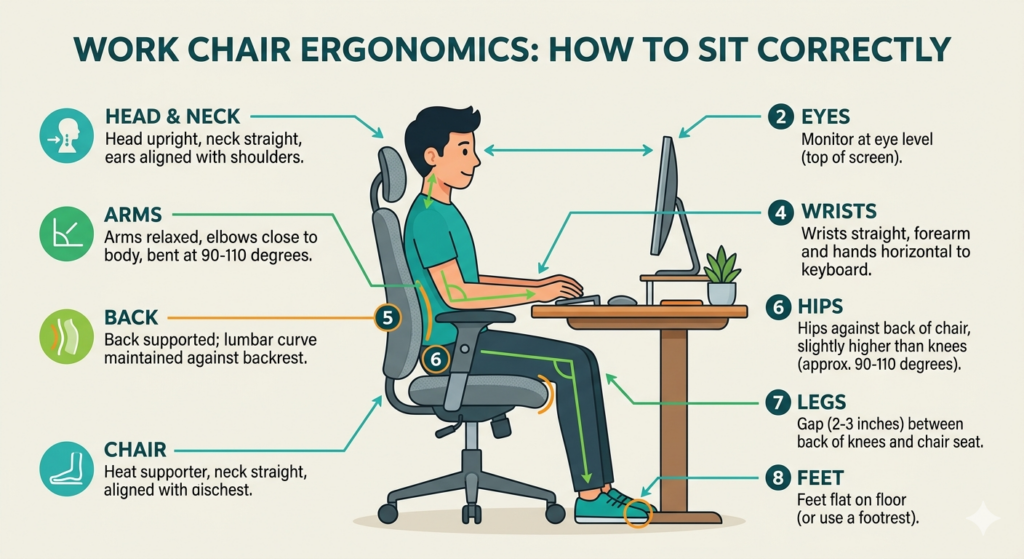
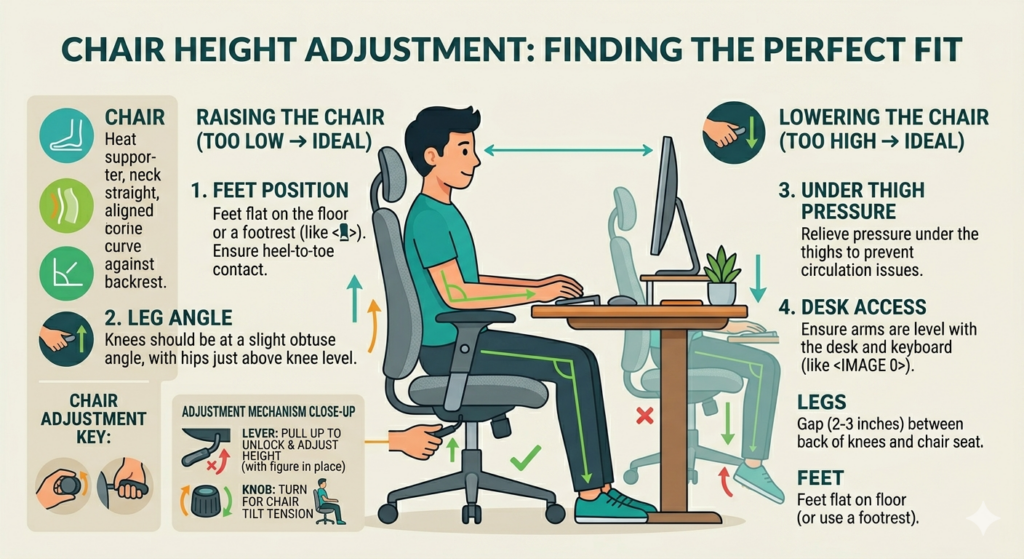
Sit fully back in the chair with your shoulders relaxed. Raise or lower the seat until your feet rest flat on the floor and your thighs are roughly parallel to it. Your knees can be near 90 degrees or slightly more open. The exact angle matters less than stable feet and no hard pressure under the thighs.
The check: you shouldn’t have to point your toes toward the floor, and the front edge of the seat shouldn’t dig into the backs of your legs. If lowering the chair fixes your feet but puts the keyboard above your elbows, leave the chair at the correct height for the desk and add a footrest. This is a workstation problem, not a reason to dangle your feet.
The Mount-It! adjustable footrest is a current option. Its platform measures 18 by 14 inches, tilts from 0 to 30 degrees, and has three listed heights from 4.3 to 6.7 inches. The foot-operated adjustment is useful once you’re seated. It is wide and fairly tall even at its lowest setting, so measure the knee space under the desk before ordering it.
A chair with too little adjustment may still block the rest of the setup. Before replacing it, use the ergonomic chairs under CA$300 guide to compare the features that affect fit, then enter your measurements in the chair fit calculator. Don’t move to Step 2 until your feet and thighs are supported.
Step 2: Set Chair Depth and Back Support
Slide back until your pelvis and lower back meet the backrest. You should have a small gap between the seat edge and the backs of your knees, commonly two or three finger widths. CCOHS frames the goal more usefully: avoid pressure behind the knees while keeping the back, buttocks, and thighs supported.
If the gap is too small, shorten the seat pan with its depth slider. A seat that is too long can push you forward and separate your back from the backrest. If the seat is too short, you lose thigh support. Chairs without a depth adjustment have no clever fix for a badly mismatched seat pan.
Set the backrest slightly reclined as a starting point, around 100 to 110 degrees rather than bolt upright. Position adjustable lumbar support around the inward curve of the lower back, then reduce its depth if it feels like a fist rather than support. The chair should make it easier to sit back without forcing one exact pose.
If replacement is unavoidable, the SIHOO M57 ergonomic chair is a current option. It has adjustable lumbar depth and height, three-way armrests, an adjustable headrest, mesh construction, and a listed three-year warranty. Its important drawback is the fixed seat depth. It can be a reasonable budget chair for the right proportions, but it can’t adjust itself into being the right size. Our budget ergonomic chair guide explains why fit and return terms matter more than the word ergonomic.
Step 3: Match Desk Height and Keyboard Placement
With the chair set, let your upper arms hang naturally and bend your elbows. The keyboard should sit near elbow height, allowing the forearms to stay roughly level and the shoulders relaxed. Your wrists should remain straight rather than bent upward to reach the keys.
Most fixed desks don’t move, so this step exposes the compromise. If the surface is too high, raise the chair only if a footrest can keep the feet supported. If that still doesn’t line up the elbows and keyboard, a lower keyboard tray is the direct fix. Our correct desk height guide and personalized desk height calculator give you a measured starting point.
The VIVO MOUNT-KB05E clamp-on keyboard tray is a current option. Its platform is about 27 by 11 inches, slides under the desk, and carries both a keyboard and mouse. The clamps avoid drilling. They also require a desk no thicker than 1.25 inches, a square edge, and 32.5 inches of clear width, so this tray fails on many framed or bevelled desktops.
Centre the letter keys with your body, not the full width of a keyboard that includes a number pad. Keep the feet on the back of the keyboard folded unless a different angle keeps your wrists straighter. If you want a soft place for pauses, the HyperX Tenkeyless Wrist Rest and uses gel-infused memory foam with stitched edges. It is 362 mm wide and too short for a full-size keyboard. A wrist rest is for resting between typing bursts, not for pressing the wrists into foam while typing.
A height-adjustable desk solves more body sizes than a tray, but it costs much more and doesn’t guarantee a good standing position. Read whether a standing desk is worth it before replacing furniture. The Uplift V3 review shows what a premium frame adds and what it doesn’t.
Step 4: Set Monitor Height and Viewing Distance
Sit back, look straight ahead, and let your eyes relax slightly downward. A practical starting point is the top of the visible screen at or a little below eye level, with the main work area below that. People who use bifocals, trifocals, or progressive lenses may prefer the display lower so they don’t tilt their head back to read through the near-vision portion.
Start at roughly an arm’s length, then move the display until ordinary text is clear without leaning forward. CCOHS monitor-positioning guidance notes that viewing-distance recommendations vary and should be tailored to the user, screen, task, and vision. Use our correct monitor height guide for a practical starting point.
Try the factory stand first. A sturdy riser is the cheaper answer when the screen only needs to move upward and will stay there. A monitor arm earns its extra setup when you need depth adjustment, rotation, desk-space recovery, or frequent changes between users. The monitor arm versus monitor stand guide lays out that decision without pretending everyone needs an arm.
The VIVO STAND-V001 single monitor arm is a current option. It supports listed 75 by 75 mm and 100 by 100 mm VESA patterns, screens up to 22 pounds, and regular monitors up to 32 inches. The fixed centre pole provides height adjustment, but it isn’t a gas-spring arm that floats through a wide vertical range. Skip it for a non-VESA display, a glass desk, or any monitor above the weight limit.
A laptop creates a separate problem because its screen and keyboard are attached. Raise the screen with a laptop stand, then use an external keyboard and mouse at elbow height. Raising the whole laptop without external input simply trades neck bending for raised shoulders and bent wrists.
Step 5: Adjust Armrest Height and Width
Rest your forearms lightly on the armrests in the position you use for typing. Your shoulders should remain relaxed. If the rests push the shoulders upward, lower them. If they sit so low that you lean sideways to reach them, raise them or leave them unused.
Width and length matter too. Armrests that flare outward don’t support the arms near the keyboard, while long rests can strike the desk edge and stop the chair from moving close enough. CCOHS advises adjusting or removing armrests when they prevent access to the keyboard. A removable armrest is better than a permanently bad one.
Don’t buy pads just because the chair’s armrests feel firm. Pads add height, which can create the shoulder shrug you’re trying to remove. If the chair has fixed rests that are wrong in both height and width, revisit the ergonomic chair comparison rather than stacking cushions on a fit problem.
Step 6: Bring the Mouse and Frequent Tools Closer
Place the mouse directly beside the keyboard and on the same level. You should reach it with the upper arm near your torso, not by sliding the shoulder forward. A wide full-size keyboard can push a right-handed mouse surprisingly far away, which is one reason a compact keyboard sometimes helps more than an exotic mouse.
Keep the wrist in a neutral position and use a comfortable mix of arm and hand movement. There isn’t one correct sensitivity for everyone. Set the pointer speed high enough that you can cross the screen without repeated lifting, but low enough to stop accurately. Move the phone, notebook, and documents you touch all day into the same easy reach zone.
For a cramped desk, the Kensington Orbit Wireless Trackball K70990WW. The device stays still while a finger moves the 40 mm ball, and its ambidextrous body connects by Bluetooth or a 2.4 GHz receiver. Four sensitivity settings and a scroll ring cover ordinary office navigation. The drawback is real: a trackball has a learning curve and is a poor surprise purchase for someone who dislikes changing input habits.
Move rarely used chargers and paper supplies farther away. If the cables themselves fight the new placement, our cable management guide starts with the power strip and main bundle instead of selling a clip for every wire. Good desk ergonomics should reduce reaching without turning the surface into storage.
Step 7: Control Lighting and Screen Glare
Turn the monitor off and look at the dark panel. Reflections of a window, ceiling light, or lamp reveal the glare sources your eyes have been working around. Place the screen perpendicular to windows when possible, use blinds for changing daylight, and move direct lights out of the reflection path.
Set screen brightness so the display doesn’t look like a lamp in a dark room or a grey sheet in daylight. Text should remain readable without squinting or leaning toward it. If you keep moving closer, return to the monitor-position guide before blaming brightness alone.
A task lamp is best for paper and detailed work. A monitor light bar saves surface space and lights the keyboard without aiming directly at the screen. The Quntis Computer Monitor Lamp and offers touch controls, adjustable colour and brightness, plus automatic dimming. Its clamp can conflict with a webcam or fit poorly on a thick, curved, or unusually shaped monitor. Check our monitor light bar guide before assuming a bar will fit.
Screen colour filters can feel more comfortable in the evening, but they don’t correct glare, distance, small text, or an uncorrected vision problem. Lighting fixes should make the setup easier to see, not make medical promises. If headaches or visual symptoms continue, speak with an appropriate health professional.
Step 8: Add Secondary Items and Run the Final Check
Only add accessories after the seven primary positions work. A document holder helps when you repeatedly copy from paper, especially if it can sit near monitor height. A wrist rest gives the hands a place to pause. Cable routing prevents a cord from tugging the mouse or catching a chair wheel. Our full desk cable guide is useful once the equipment has stopped moving.
For a laptop used all day, a stable laptop stand plus external input devices separates screen height from keyboard height. A footrest belongs only where chair and desk height leave the feet unsupported. Bias lighting behind a monitor can soften the contrast with a dark wall, but it doesn’t replace task lighting for paper.
The One-Hour Ergonomic Desk Setup Check
Work normally for an hour, then check your body and the workstation. Your feet should be supported, your shoulders relaxed, and the mouse reachable without sliding the upper arm forward. You should also be able to read text without moving your head toward it and sit back while keeping the keyboard close.
If one answer is no, trace it to the earliest relevant step. Raised shoulders often lead back to chair or keyboard height, while leaning forward can point to monitor distance, text size, vision, or backrest fit. Change one variable, work again, and reassess. The correct monitor height guide can confirm the display starting point without forcing you to redo the chair.
What This Checklist Can’t Fix
An ergonomic desk setup can’t diagnose or treat persistent back, neck, wrist, or visual symptoms. It also can’t make one posture appropriate for an entire workday. NIOSH describes ergonomics as reducing workplace risk factors, not as a cure, and CCOHS treats guidance as a starting point that must be adapted to the person.
Change position regularly and take brief movement or visual breaks that fit the work. A standing desk creates another useful posture, not a superior one that should be held all day. If the desk must serve both heights, run the checklist once while seated and again while standing. Sleep timing after the workday is separate from fixing desk posture.
Ergonomic Desk Setup FAQ
What is the correct desk height for typing?
There isn’t one desk height for every adult. Set the chair and foot support first, then place the keyboard near elbow height with relaxed shoulders and straight wrists. Fixed desks commonly force shorter users to raise the chair and add a footrest. Use the correct desk height walkthrough for the full measurement process.
Should the top of the monitor be at eye level?
The top of the visible screen at or slightly below eye level is a sound starting point for many people. Progressive or bifocal lenses can make a lower position more comfortable. Check the result with the correct monitor height guide, then adjust until you can read naturally without tilting the head up or leaning forward.
Is an ergonomic chair worth it?
A chair is worth replacing when the current one can’t support the feet and thighs, fit the seat depth, support the back, or let you approach the keyboard. Price doesn’t guarantee those things. The person who will use it should check the dimensions and return policy, then try it in the real workspace. Start with the chair guide, not a brand name.
Is a monitor arm better than a riser?
A riser is cheaper and easier when the monitor only needs a fixed height increase. An arm is better when you need depth adjustment, rotation, frequent repositioning, or the desk space occupied by the factory stand. Read the monitor arm and riser comparison and verify VESA compatibility before buying.
How do I set up a laptop ergonomically?
A laptop alone can’t put its screen near eye level while keeping its keyboard near elbow height. Raise it on a stable stand and add an external keyboard and mouse. Our laptop stand recommendations explain the tradeoffs, including wobble, ventilation, portability, and the desk space each design uses.
The short version: support the feet, keep the keyboard near relaxed elbows, place the main screen around an arm’s length away with its top no higher than eye level, and bring the mouse close. Recheck the setup when equipment, vision, tasks, or comfort changes. The best ergonomic desk setup is adjustable enough that you don’t have to hold one supposedly perfect pose all day.
Very helpful thank you!