Last updated: November 11, 2026.
Monitor Cable and Port Checker
Pick your port, resolution, and refresh rate. The checker calculates whether the bandwidth is enough, or if you need a different cable.
1. Your cable or port
2. Your display settings
10-bit needed for HDR content
4:2:2 or 4:2:0 reduce bandwidth but blur text
What would work instead
This tool runs entirely in your browser. No data is sent to any server.
Table of Contents
- How the Checker Works
- Bandwidth Basics: Why Cables Have Limits
- Every Port Compared
- Common Setups and What They Need
- What Is DSC and Should You Worry?
- Cable Buying: What to Look For
- Cable and Port Checker FAQ
- The Short Version
How the Checker Works
Choose the port or cable type, resolution, and refresh rate you want to use. The checker estimates the video data rate for that combination, then compares it with the usable payload of the selected link. Open the advanced options if you also need to account for 10-bit or 12-bit color and chroma subsampling.
The basic calculation is horizontal total × vertical total × refresh rate × bits per color channel × color channels. Horizontal and vertical totals include blanking intervals, which are timing data sent between visible rows and frames. That is why multiplying 3840 × 2160 × 60 × 24 understates the bandwidth needed for a typical 4K 60 Hz signal.
The result is an estimate, not a hardware scan. The checker cannot see the link rate supported by your exact GPU, laptop, dock, adapter, monitor, or cable. It also uses one timing model for each resolution. A monitor that supports reduced-blanking timings may need slightly less bandwidth, while a television timing can need more. If a result sits close to the limit, check the display manual for its supported timing, color depth, and input-specific refresh rates.
A connection works only at the highest mode supported by every part of the path. A full-rate HDMI 2.1 output connected to an HDMI 2.0 input runs at HDMI 2.0 limits. The same rule applies when a dock, KVM switch, or adapter sits between the computer and display.
Bandwidth Basics: Why Cables Have Limits
Display links divide data across electrical lanes. The number of lanes, the rate of each lane, and the encoding method determine how much picture data reaches the display. The advertised link rate is the gross rate. The usable video payload is lower because the link also needs encoding and control data.
DisplayPort 1.2 HBR2 runs four lanes at 5.4 Gbps each, or 21.6 Gbps gross. Its 8b/10b encoding leaves 17.28 Gbps for payload. DisplayPort 1.4 HBR3 raises the gross rate to 32.4 Gbps and the payload to 25.92 Gbps. VESA lists both HBR3 figures. DisplayPort 2.0 and 2.1 use more efficient 128b/132b encoding. At the optional four-lane UHBR20 rate, VESA specifies a maximum 77.37 Gbps payload.
HDMI has the same gross-versus-usable distinction. HDMI 2.0 carries 18 Gbps gross and 14.4 Gbps after TMDS encoding. A full-rate HDMI 2.1 Fixed Rate Link carries 48 Gbps gross and about 42.67 Gbps of payload after 16b/18b encoding. Not every product that advertises HDMI 2.1 implements the full 48 Gbps rate, so the device specification still matters.
Resolution is only one part of the load. Moving from 60 Hz to 120 Hz doubles the data rate. Moving from 8-bit to 10-bit color adds 25 percent. Full 4:4:4 chroma preserves color detail for every pixel and is the right default for desktop text. Chroma 4:2:2 or 4:2:0 reduces the color data, which can make a mode fit, but small text and colored edges can look softer.
Every Port Compared
These are maximum link capabilities, not a promise that every device with the connector reaches them. The DisplayPort figures assume four lanes at the named maximum rate. The HDMI 2.1 figure assumes a full 48 Gbps FRL implementation. Representative modes use full 4:4:4 chroma; exact limits vary with timing and color depth.
| Port | Maximum usable video payload | Representative native mode | DSC support |
|---|---|---|---|
| HDMI 1.4 | 8.16 Gbps | 1080p 120 Hz or 4K 30 Hz | No |
| HDMI 2.0 | 14.4 Gbps | 4K 60 Hz at 8-bit | No |
| HDMI 2.1, full-rate FRL | 42.67 Gbps | 4K 120 Hz at 10-bit | Yes, if both devices implement it |
| DisplayPort 1.2, HBR2 | 17.28 Gbps | 4K 60 Hz at 8-bit | No |
| DisplayPort 1.4, HBR3 | 25.92 Gbps | 4K 60 Hz at 10-bit or 1440p 165 Hz | Yes, if both devices implement it |
| DisplayPort 2.0/2.1, UHBR20 | 77.37 Gbps | 4K 240 Hz or 8K 60 Hz at 10-bit | Yes |
| Thunderbolt 3 | Display traffic shares a 40 Gbps link | Implementation varies, commonly up to two 4K 60 Hz displays | Depends on the tunneled DisplayPort connection |
| Thunderbolt 4 | Display traffic shares a 40 Gbps link | Up to two 4K 60 Hz displays or one 8K 60 Hz display | Depends on the source and display |
| Thunderbolt 5 | Display traffic shares an 80 Gbps bidirectional link, with up to 120 Gbps transmit boost | Up to two 8K 60 Hz displays with DSC | Yes, if the complete path supports it |
| USB-C DisplayPort Alt Mode | Varies by DisplayPort rate and two-lane or four-lane operation | Same as the negotiated DisplayPort link | Depends on the source, cable, dock, and display |
Two labels deserve extra caution. DisplayPort 2.1 devices can support HBR2, UHBR10, UHBR13.5, or UHBR20, so look for the actual UHBR rate. USB-C describes the connector, not its video capability. DisplayPort Alt Mode can use all four high-speed lanes for video or use two lanes while the other two carry USB data. That lane choice can halve the available DisplayPort bandwidth.
Common Setups and What They Need
The figures below use the checker’s default 8-bit, 4:4:4 setting and its built-in timing totals. Treat them as planning numbers. A display with a different timing standard can land a little above or below them.
1080p at 144 Hz. The checker estimates 8.6 Gbps. HDMI 2.0, DisplayPort 1.2, and newer links have room. Some monitors accept 1080p 144 Hz over HDMI 1.4 by using a tighter timing, while others cap that input at 120 Hz. The monitor manual is the deciding source.
1440p at 165 Hz. The estimate is about 16.0 Gbps. DisplayPort 1.2 HBR2 can fit it on paper, but HDMI 2.0 cannot at full 4:4:4 under this timing. DisplayPort 1.4 gives more margin and is the safer choice when the monitor supports it.
4K at 60 Hz. The estimate is 14.3 Gbps at 8-bit and 17.8 Gbps at 10-bit. HDMI 2.0 just fits the 8-bit mode. DisplayPort 1.2 also fits 8-bit. For 10-bit color without chroma reduction, use DisplayPort 1.4 or a full-bandwidth HDMI 2.1 connection.
4K at 120 Hz. The estimate is 28.5 Gbps at 8-bit and 35.6 Gbps at 10-bit. Full-rate HDMI 2.1 carries either mode without DSC. DisplayPort 1.4 needs DSC under this timing model. HDMI 2.0 does not carry full-chroma 4K 120 Hz.
4K at 240 Hz. The estimate is 57.0 Gbps at 8-bit and 71.3 Gbps at 10-bit. A four-lane UHBR20 DisplayPort link has enough payload for either estimate. HDMI 2.1 and DisplayPort 1.4 need DSC. The GPU, monitor, and anything between them must all support the same compressed mode.
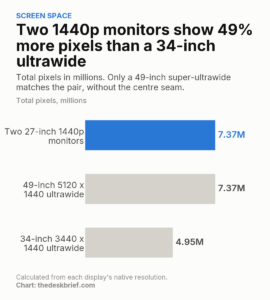
3440 × 1440 ultrawide at 144 Hz. The estimate is 18.4 Gbps at 8-bit. DisplayPort 1.4 and full-rate HDMI 2.1 fit. HDMI 2.0 and DisplayPort 1.2 do not fit this timing at full 4:4:4. A 5120 × 1440 display at 240 Hz is far more demanding, so check the monitor’s required port, DSC support, and cable certification rather than assuming every ultrawide behaves the same way.
What Is DSC and Should You Worry?
Display Stream Compression is a low-latency video compression standard from VESA. It reduces the data sent across the cable, commonly by about 3:1 for 8-bit RGB, then reconstructs the image inside the display. VESA describes DSC as visually lossless, which means viewers could not distinguish the compressed result from the source in its image-quality testing. It is not mathematically lossless.
For normal desktop work and gaming, DSC is not something I would avoid. It is how many 4K high-refresh monitors deliver their advertised modes over DisplayPort 1.4 or HDMI 2.1. The compression works on each frame with low latency, so it is not comparable to streaming a heavily compressed video file.
The practical concern is compatibility. The GPU or laptop must encode DSC, and the monitor must decode it. A dock, adapter, KVM switch, or capture device in the middle must also pass the required signal. A DisplayPort 1.4 or HDMI 2.1 label does not prove that a specific product implements DSC. Check the manufacturer’s specifications whenever the target mode only fits with compression.
Cable Buying: What to Look For
For HDMI 2.0-class modes: look for a Premium High Speed HDMI Cable with the official certification label. HDMI Licensing Administrator tests that category for the full 18 Gbps gross rate used by 4K 60 Hz and related modes.
For HDMI 2.1 modes up to 48 Gbps: buy a certified Ultra High Speed HDMI Cable and scan the certification label on the package. Cables use official performance category names, not HDMI version numbers. A product advertised only as an “HDMI 2.1 cable” is giving you less useful information than a valid certification label.
For DisplayPort 1.4 HBR3: choose a VESA-certified HBR3 or DP8K cable. For DisplayPort 2.1, match the cable to the link rate. DP54 covers UHBR10 and UHBR13.5, while DP80 covers UHBR20. The highest number on the monitor is irrelevant if the GPU supports a lower UHBR rate.
For USB-C: confirm three separate items. The computer’s port must support DisplayPort Alt Mode or Thunderbolt, the cable must carry the required video lanes, and the display or dock must accept the mode. A USB-C charging cable can be perfectly good at charging and still have no high-speed lanes for video. A dock can also reserve two lanes for USB data, leaving less bandwidth for the display.
For adapters: read the output specification, not just the input connector. A DisplayPort-to-HDMI adapter with an HDMI 2.0 output remains limited to HDMI 2.0 modes even when connected to a faster DisplayPort source. Many USB-C and DisplayPort adapters are directional, so confirm that the computer is on the source side and the monitor is on the display side.
Do not pay extra for vague claims about sharper digital pictures. Pay for the correct certification, enough length, and a sensible return policy. A marginal cable may work at 60 Hz but flicker, blank out, or fall back to a lower refresh rate at the link’s maximum setting.
Cable and Port Checker FAQ
Can HDMI 2.0 do 4K 120 Hz?
Not at full 4:4:4 chroma. Some HDMI 2.0 devices can expose a 4K 120 Hz mode by reducing the signal to 8-bit 4:2:0, but the source and display must both support that exact timing. For clear desktop text and fewer compatibility limits, use full-rate HDMI 2.1 or DisplayPort with enough bandwidth or DSC.
Is DisplayPort better than HDMI?
Neither connector is always better. Use the input that supports the highest common link rate and the features you need. DisplayPort is common on high-refresh computer monitors and supports Multi-Stream Transport. HDMI is standard on televisions and carries features such as eARC. For one monitor, the exact port implementation matters more than the connector name.
Does my cable version need to match my port version?
Match the cable’s certified data rate to the mode you want, not just the version printed beside the port. HDMI cables use names such as Premium High Speed and Ultra High Speed. DisplayPort cables are certified for rates such as HBR3, DP54, or DP80. The connection negotiates down to the slowest source, cable, adapter, or display in the path.
My monitor has USB-C. Will it work with my laptop?
It will work only if the laptop’s USB-C port outputs DisplayPort Alt Mode or Thunderbolt and the cable carries the required video lanes. USB-C is a connector shape, so it does not guarantee video, USB4, Thunderbolt, or charging. Check the laptop, cable, and monitor specifications separately.
Do I need an expensive monitor cable?
No. You need a cable certified for the required data rate and long enough for the setup. A higher price does not improve the picture when two cables carry the same digital mode reliably. Replace a cable if you see flickering, brief black screens, sparkles, or a missing refresh-rate option near the bandwidth limit.
The Short Version
Start with the resolution, refresh rate, color depth, and chroma you actually want to use. The checker estimates the payload and shows whether the selected link fits natively, needs DSC, or runs out of bandwidth. Then confirm the exact link rate in the GPU, laptop, dock, adapter, and monitor specifications. Buy a certified cable for that rate. The connector shape alone is never the full answer.