GPU compatibility checker results are only useful if they test the motherboard slot, power supply, case clearance, firmware, operating system and the rest of the PC.
The short answer is that most desktop graphics cards can work in more PCs than the marketing makes obvious. The long answer is where power connectors, compact cases and older prebuilt systems start collecting victims. A card fitting into a PCIe slot does not mean it fits under the side panel or that the power supply can run it safely.
This guide gives you a manual GPU compatibility checker you can finish before spending money. It does not need a bottleneck percentage, because those calculators reduce games, resolutions and workloads to one suspiciously tidy number. You need six checks and the exact model numbers printed on your parts.
Table of Contents
- GPU Compatibility Checker: The Six-Gate Test
- Start With the Motherboard Slot
- Power Is More Than a Wattage Number
- Measure the Case Before Ordering
- Firmware and Platform Traps
- When a GPU Upgrade Makes Sense
- Who Should Skip This Upgrade
- GPU Compatibility Checker FAQ
- The Short Version
GPU Compatibility Checker: The Six-Gate Test
Write down the exact PC, motherboard, power-supply and case models before opening another shopping tab. If the PC is a prebuilt, use its service tag or serial number to find the manufacturer manual. “Dell 500-watt PSU” is not a model, and a photograph of the label is often faster than guessing.
- Slot: Confirm a full-length PCIe x16 slot is available and not blocked.
- Power: Check total PSU capacity, connector type, cable count and PSU quality.
- Space: Compare the card’s length, height and slot thickness with measured clearance.
- Firmware: Check UEFI, Resizable BAR and any vendor-specific requirements.
- Software: Confirm the card has a driver for your operating system.
- Balance: Decide whether the CPU, memory and intended resolution justify the card.
A pass on all six means the upgrade is defensible. A failed power or space check means stop. A weak CPU balance is different: the card may still work, but you may be paying for frames the processor cannot prepare.
Start With the Motherboard Slot
A modern desktop card normally uses a full-length PCIe x16 connector. The card can often operate in an older PCIe generation because the standard is designed for interoperability, but the physical slot must be wired and positioned correctly. Tiny x1 slots are not substitutes, and a second x16-shaped slot may have fewer electrical lanes.
The slot generation is rarely the first reason to reject an upgrade. The Intel Arc B580 setup guide, for example, accepts a full-size PCIe 3.0 or newer x16 slot. It also requires more platform homework than the connector alone suggests, including Resizable BAR, UEFI mode and a supported operating system.
Check the motherboard manual for the primary graphics slot, then look inside the case. A Wi-Fi card, capture card or thick CPU cooler can complicate access. On a compact board, a wide graphics card can cover every remaining expansion slot. That is compatible in the narrow sense and inconvenient in every useful one.
Power Is More Than a Wattage Number
The PSU label is your next stop. Read the rated wattage and model, then inspect the available PCIe power leads. Do not assume that two plugs hanging from one cable are equivalent to two separate cables when the card maker specifies separate feeds. Do not use a SATA-to-PCIe adapter to rescue an office power supply that was never built for a graphics card.
Current official specifications show why board power is not the same as PSU size. Intel lists 190 W for the Arc B580 but calls for a 600 W supply. AMD lists 220 W and a 650 W minimum for the RX 9070, while the RX 9070 XT moves to 304 W and a 750 W recommendation. NVIDIA lists 250 W and 650 W for the RTX 5070. The remaining capacity is for the CPU, drives, fans, conversion losses and transient load.
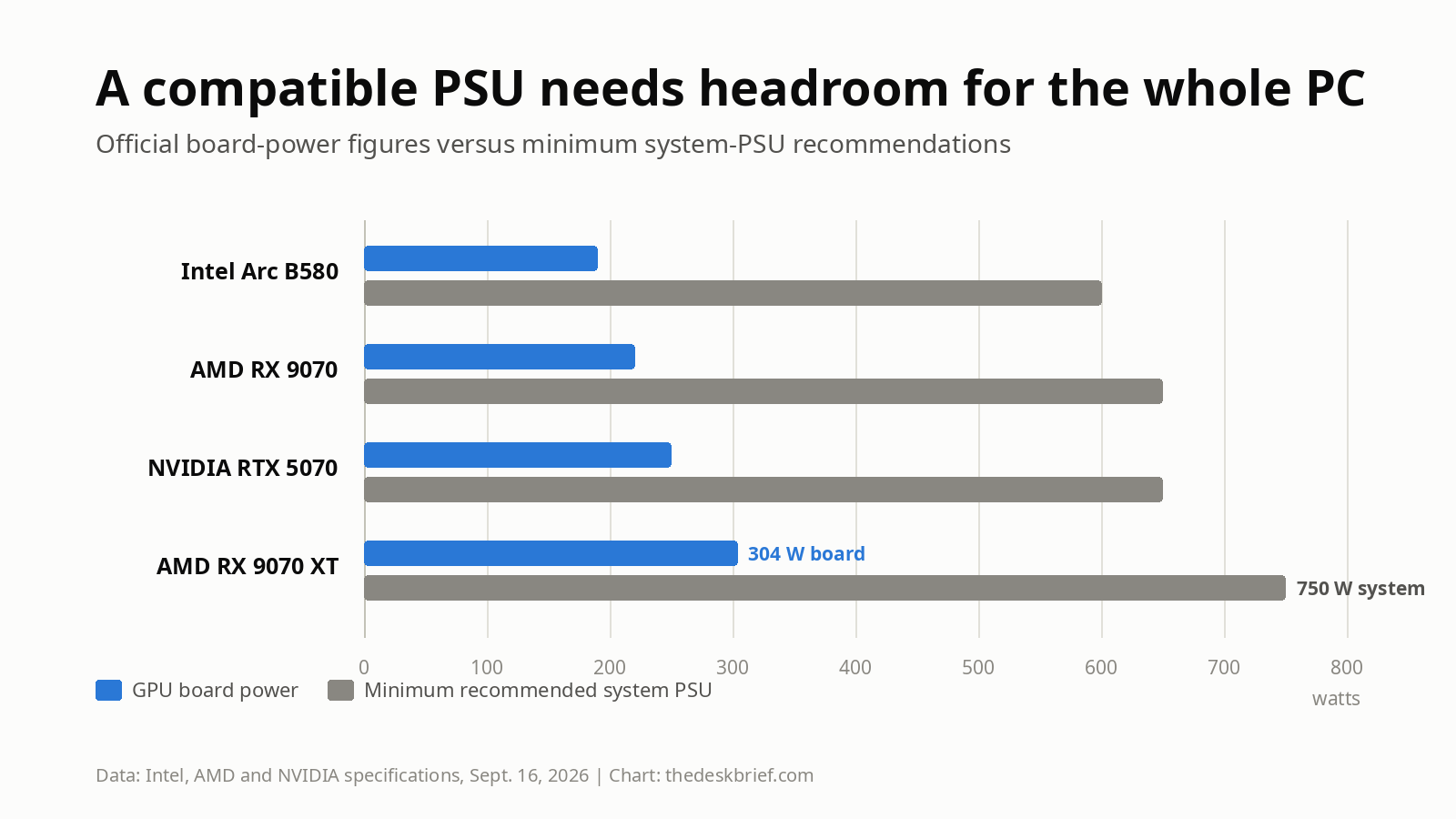
Those recommendations are starting points, not permission slips. NVIDIA says its system-power figure is based on a particular high-end CPU configuration, and partner cards can use different limits and connectors. Match the exact card, not merely “RTX 5070.” If replacing the PSU turns a simple upgrade into a rewiring project, compare that total cost with a new system before ordering.
Measure the Case Before Ordering
Case compatibility has three dimensions. Measure from the rear expansion bracket to the first obstruction for length. Count the slots the card will occupy for thickness. Measure from the motherboard surface toward the side panel for height, including room for the power cable to bend without being crushed.
Use the card manufacturer’s drawing, not a retailer’s category label. Intel’s reference B580 is 272 by 115 by 44 mm and occupies two slots. NVIDIA’s RTX 5070 Founders Edition is 242 mm long, 112 mm wide and two slots thick, but partner versions vary. A product family name tells you the GPU chip. It does not tell you the cooler size.
Front radiators, drive cages and bundled cables reduce usable length. Small-form-factor prebuilts can also use low-profile brackets or proprietary chassis layouts. Leave airflow around the fans instead of treating the final millimetre as a personal challenge.
Firmware and Platform Traps
Older systems deserve a BIOS check before purchase. Update the motherboard firmware while the old graphics configuration still works, confirm UEFI boot, and look for Above 4G Decoding and Resizable BAR. Intel says the Arc B580 needs Resizable BAR enabled for optimal performance, with Compatibility Support Module disabled and GPT partitioning used for Windows.
This is where an online GPU compatibility checker can miss the plot. A database can match a PCIe slot and a wattage number, but it may not know that an OEM motherboard has a locked firmware menu or that its power supply uses proprietary connectors. Read the support page for the exact PC model. If the manufacturer never offered a discrete GPU in that chassis, assume nothing.
Driver support matters too. Intel lists Windows 10 64-bit 22H2 or newer, Windows 11 64-bit and Ubuntu 22.04 or newer for its current Arc desktop guide. Other cards have their own supported systems. A card displaying a boot screen is not proof that your preferred operating system has a maintained driver.
When a GPU Upgrade Makes Sense
Upgrade the card when the six checks pass, the current CPU still meets your workload, and the machine has a conventional PSU and case. A higher-resolution monitor or GPU-heavy local AI workload can shift more of the work toward the graphics card, making an upgrade useful even when the CPU is not new.
Do the budget in the right order: card, possible PSU, adapters you are actually allowed to use, and any cooling changes. Then check the site’s current Canadian GPU price trend data. A technically compatible card at the wrong price is still the wrong card.
Memory can become the next constraint in an older machine. If the system has one memory module, the 1×32 versus 2×16 RAM guide explains why capacity and channel configuration are separate decisions. If the shopping list now includes a GPU, PSU, RAM and CPU, you are no longer doing a cheap graphics upgrade. You are assembling a new PC one receipt at a time.
Who Should Skip This Upgrade
Skip the standalone card if the case cannot accept it, the OEM PSU cannot be replaced cleanly, or the firmware lacks a requirement the card needs. Also pause when the CPU is already the hard limit in your main work. Compatibility prevents failure; it does not create value.
A laptop owner should stop immediately unless the machine has a documented external-GPU path. Laptop graphics are normally soldered and not a desktop-style upgrade. If portability matters more than repairable desktop parts, compare the broader tradeoffs in the gaming laptop versus MacBook guide.
Finally, skip the upgrade if you cannot identify the PSU. Opening the case for a label is mildly annoying. Replacing a damaged board after trusting a generic calculator is more annoying and has worse timing.
GPU Compatibility Checker FAQ
Is an online GPU compatibility checker reliable?
It is reliable as a shortlist, not as the final answer. Verify the exact motherboard slot, PSU model and connectors, card dimensions, firmware requirements and operating-system support yourself. The case interior and proprietary prebuilt parts are common gaps in automated databases.
Can a PCIe 5.0 graphics card work in a PCIe 4.0 slot?
Usually, yes. PCIe devices are designed to negotiate a supported link generation. You still need the correct physical slot, enough electrical lanes, compatible firmware and the card’s required power. Check the exact card and motherboard manuals before buying.
Does a stronger graphics card always need a new PSU?
No. Keep the existing unit if it is a reputable model with adequate capacity, the specified connectors and enough age and warranty life left to trust. Replace it when capacity or connectors fail the card maker’s requirements, or when an OEM unit cannot support the upgrade safely.
Will an old CPU stop a new GPU from working?
Not automatically. An older CPU can limit frame rates or reduce the value of a fast card without making the card electrically incompatible. Judge the combination against your games, resolution and work rather than a single bottleneck percentage.
The Short Version
A GPU compatibility checker should confirm six things: slot, power, space, firmware, software and system balance. The first five decide whether the card can run correctly. The last decides whether buying it is sensible.
Most standard desktop PCs with a full PCIe x16 slot are promising candidates. Compact prebuilts with proprietary power supplies are the danger zone. Get the exact model numbers, measure the case, read the card maker’s requirements and count the full upgrade cost. Ten minutes with a tape measure beats a return label.