You can reduce RAM usage on Windows 11 for free, and right now that is a smarter move than buying a memory upgrade. DDR5 prices have climbed into ugly territory this year, so the 8GB or 16GB already sitting in your machine has to stretch further than it did twelve months ago. The catch is that a stock Windows 11 install quietly spends memory on things you never asked it to run.
This is a practical guide, not a pile of registry myths. I will walk through what actually eats memory on a normal desk PC, which built-in settings claw it back, and which popular “speed up your PC” tricks are a waste of an afternoon. None of it costs money, and none of it means opening the case.
One honest caveat before we start. Freeing memory will not turn an 8GB laptop into a workstation, and if you truly run out of RAM every single day, more RAM is still the real fix once prices settle. What these steps do is stop Windows from burning memory on background clutter, which is where most people lose a gigabyte or two without noticing.
Table of Contents
- Why Freeing RAM Beats Buying It Right Now
- How Much RAM Is Windows 11 Actually Using?
- How to Reduce RAM Usage on Windows 11
- The Tricks That Are Not Worth Your Time
- FAQ
- The Short Version
Why Freeing RAM Beats Buying It Right Now
Memory is the one PC component you cannot casually upgrade in 2026. TrendForce reported that the DRAM industry’s revenue jumped 81% quarter over quarter in the first quarter of the year, and its July 2026 report projects conventional DRAM contract prices rising another 13% to 18% through the third quarter. TrendForce also noted that record-high contract prices have pushed PC and smartphone buyers to their affordability limit. In plain terms, a memory kit costs a lot more than it did last summer, and adding sticks is no longer the cheap, obvious answer it used to be.
That is exactly why software cleanup earns its keep this year. If you want the full picture on pricing, our guide on whether to buy RAM now or wait lays out the timing, and the memory shortage driving the increases explains why this is not a quick blip. You can also track live numbers on our Canadian RAM price tracker. When a hardware fix is this expensive, a free software fix is worth an hour of your time.
How Much RAM Is Windows 11 Actually Using?
Before you change anything, open Task Manager (Ctrl+Shift+Esc), click the Performance tab, and look at the Memory graph, then switch to the Processes tab and sort by memory. This is the one honest measurement you have, and Microsoft points people to the same Task Manager view in its own performance guidance. You will usually find a handful of apps doing most of the damage, and they are rarely the ones you actively use.
The Windows 11 Weather app is a good example of how bloated a small feature can get. In a test published by Windows Latest and reported by Notebookcheck, the built-in Weather app was consuming more than 1.2GB of RAM even while sitting idle. Expanding the process tree in Task Manager showed why: nine separate Chromium subprocesses running under a single weather widget. Apple’s native Weather app on macOS used roughly 247MB in the same test, which makes Microsoft’s version about five times heavier. The reason is that Windows 11’s Weather is not a native app at all. It is an MSN web app running through Microsoft’s Edge WebView2 engine, which spins up multiple Chromium subprocesses and carries the memory overhead of a browser to draw a temperature.
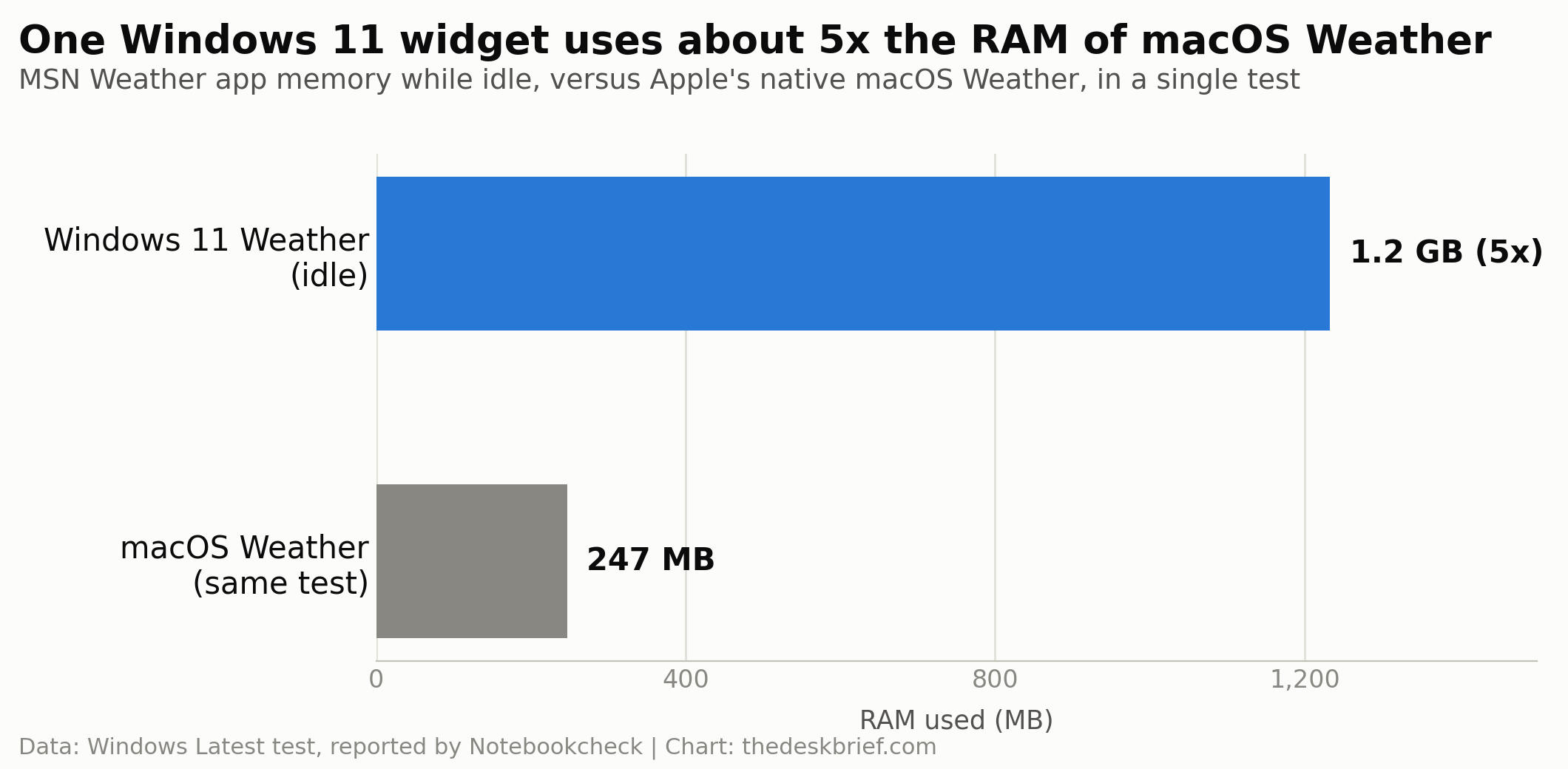
Two things keep this honest. Windows Latest ran a single test and did not publish the build, hardware, or repeated runs needed to prove every machine burns a gigabyte on weather, so treat it as a strong example rather than a guaranteed number. And on a system with 32GB, one greedy widget barely registers. On an 8GB laptop it is roughly 15% of everything you have, which is the exact machine that cannot afford a pricey upgrade this year. The takeaway is not to panic about a weather widget. It is that web-wrapped apps and background services add up fast, and Task Manager will show you which ones matter on your PC.
How to Reduce RAM Usage on Windows 11
The steps that reduce RAM usage on Windows 11 the most are the boring ones, and they line up with Microsoft’s own performance advice. Work through them in order, checking Task Manager after each so you can see what actually moved the needle on your machine.
Cut startup and background apps
Open Settings, then Apps, then Startup, and turn off anything you do not need the moment you log in. Microsoft flags startup apps as a direct cause of slow boots and heavy background usage, and the usual suspects are chat clients, launchers, and updater helpers that quietly sit in memory all day. In the same Settings area you can open an app’s Advanced options and set its background permission to Never, which stops it from waking up to do nothing useful. This one change often recovers the most memory on a cluttered PC.
Treat your browser as the real culprit
On most desk PCs the browser, not Windows, is the biggest memory hog. Every open tab is effectively its own little program, and a wall of thirty tabs plus a stack of extensions will eat more RAM than the entire operating system. Close tabs you are hoarding, use a reading list or a bookmark instead of leaving pages open, and prune extensions down to the ones you actually use. If you like keeping tabs around, most modern browsers have a memory-saver or sleeping-tabs setting that suspends idle tabs, and turning it on is the single most effective way to reduce RAM usage on Windows 11 for anyone who lives in the browser.
Close, restart, and let Windows breathe
Memory leaks are real, and an app that has been open for a week can hold far more RAM than it needs. Microsoft’s plain advice still works: close apps you are not using and restart the PC now and then, which clears leaked memory and resets background processes. If Task Manager shows one process ballooning over hours, that program is the problem, and quitting or reinstalling it does more than any tweak. A weekly reboot is unglamorous and genuinely helps.
Leave the page file mostly alone
When physical memory fills up, Windows moves less-used data to a page file on your drive so nothing crashes. People love to disable it to save RAM, which is backwards and can cause apps to close unexpectedly when memory runs short. Leave virtual memory on automatic. If you are on a slow hard drive and feel the stall when memory is tight, the honest fix is an SSD, not turning off the safety net. This is the one place where a small hardware spend, a cheap drive rather than pricey RAM, is still worth it.
The Tricks That Are Not Worth Your Time
Some of the most-searched advice is junk. RAM cleaner and memory optimizer apps promise to free gigabytes with one click, but they mostly force data out of memory that Windows was using on purpose, so the system just reloads it seconds later and feels slower, not faster. Free memory is not wasted memory. Windows uses spare RAM as cache to keep things quick, and a full-looking memory graph is often a healthy one.
ReadyBoost, the old trick of plugging in a USB stick as extra memory, does nothing useful on a modern PC with an SSD, and it was never a substitute for real RAM. Registry tweaks that claim to unlock hidden memory are the same story. If a setup guide tells you to disable the page file, edit obscure registry keys, or install a background app to manage memory, close the tab. The changes that actually reduce RAM usage on Windows 11 are the built-in ones above, and running heavy local software, like local AI models, is the only case where you genuinely need to add memory rather than manage it.
FAQ
How much RAM should Windows 11 use at idle?
A clean Windows 11 desktop with nothing open typically sits in the 2GB to 4GB range once background services load, and that is normal. What matters is headroom while you work. If Task Manager shows memory pinned near 100% during ordinary tasks, that is your signal to trim startup and background apps.
Does the Windows 11 Weather app really use 1GB of RAM?
In one Windows Latest test it used more than 1.2GB even while sitting idle, roughly five times Apple’s macOS Weather app. That was a single test, not a universal guarantee, but it reflects a real pattern: web-wrapped apps built on WebView2 carry browser-sized overhead. Check your own number in Task Manager before you worry about it.
Will a RAM cleaner app reduce RAM usage on Windows 11?
Not in any way that helps. These tools flush memory Windows was deliberately using as cache, so the data reloads moments later and the system can feel slower. Skip them and use the built-in Startup, Background apps, and browser settings instead.
Is 8GB still enough for Windows 11?
It is workable for browsing, office apps, and video, but it is tight, and one heavy browser session or a bloated background app can push it to the edge. With memory this expensive, cleaning up what you have buys real breathing room until an upgrade makes financial sense again.
The Short Version
With DDR5 prices where they are, the fastest ways to reduce RAM usage on Windows 11 cost nothing. Open Task Manager to find the real hogs, cut startup and background apps, treat your browser and its tabs as the main offender, and restart the machine now and then. Leave the page file on automatic, and ignore RAM cleaners, ReadyBoost, and registry tweaks entirely.
None of this replaces real memory when you genuinely need it, and once prices ease, more RAM is still the clean answer for heavy work. Until then, a stock Windows 11 install has more slack than it looks, and an hour with the built-in settings is the most affordable upgrade available in 2026.