
A minimalist desk setup isn’t a shopping aesthetic. It’s a desk where every visible object earns the space it takes. Start by removing things, not by buying a matching lamp, keyboard, planter, and mug in the same shade of beige.
Put the monitor, keyboard, and mouse back first. Add a task light only if the room needs one. Then solve the cables before judging the result. That sequence produces a cleaner desk for less money than an accessory haul ever will.
Product links were checked September 13, 2026. Check each retailer for current prices and availability. This page contains paid links; The Desk Brief may earn a commission at no extra cost to you.
What This Guide Covers
- What belongs on the desk
- Why cable management matters most
- Three complete setups by budget
- The upgrades that change the look
- What to keep off the desk
- What most minimalist guides get wrong
The Foundation: What Actually Belongs on a Desk
The honest list is short: one display, one keyboard, one pointing device, and perhaps one lamp. A laptop can replace the display when portability matters, but leaving an open laptop beside a monitor often creates a second screen you barely use and another power cable to hide.
Ergonomics still outranks the photograph. Set the display and input devices around your body, then remove the visual noise around them. The ergonomic desk setup checklist covers the measurements, while the broader work-from-home desk setup guide helps with the room around the desk.
A clean desk setup also needs empty working area. If the keyboard has to be moved before you can sign a document, eat lunch, or sketch something, the surface is storage rather than workspace. Empty space is functional, not unfinished.
Cable Management Is the Whole Game
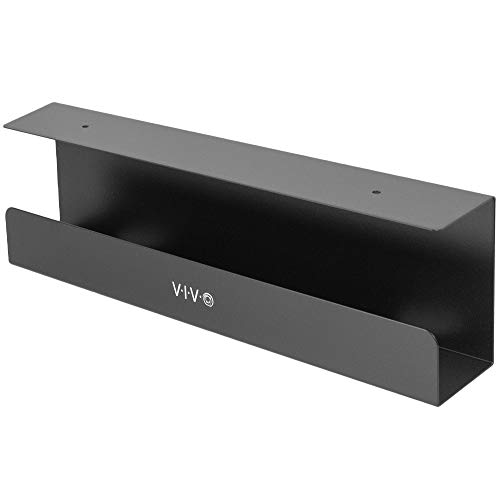
A desk with three visible objects and eight dangling cables isn’t minimalist. Cable management does more for a minimalist desk setup than replacing perfectly good black accessories with white ones. Mount a tray under the rear edge, put the power strip inside it, and run one power cable down a rear leg.
This page contains affiliate links. If you buy through these links, we may earn a small commission at no extra cost to you. Full disclosure.
The VIVO 17-inch under-desk tray. Check the retailer page for the current price. Adhesive clips can keep the monitor and charging leads against the back of the desktop, but use screw-mounted hardware for the power strip and heavy bundles. The full cable management guide explains which pieces solve which mess.
Standing desks need enough slack to reach full height without pulling a connector. Route the bundle with the desk raised, not lowered, and read the standing desk cable management guide before fastening anything. Wireless input devices remove two desktop runs, though their charging cable still needs a home.
Three Minimalist Desk Setups at Three Budgets
These are complete core setups, not staged rooms. A chair, computer, headphones, and storage depend too much on what you already own to pretend one bundle fits everyone. Each minimalist desk setup uses the live U.S. prices shown below and leaves room beneath its budget ceiling.
Under US$500: the sensible starter setup
| Product | Why it is here | Checked price |
|---|---|---|
| SHW 40-inch electric standing desk with drawer | Compact surface and concealed small-item storage | Check current price |
| Philips 241V8LB 24-inch 1080p monitor | Small footprint, 100 Hz panel | Check current price |
| Logitech MK270 wireless keyboard and mouse | One receiver and no input-device cables | Check current price |
| VIVO under-desk cable tray | Gets the power strip off the floor | Check current price |
| Total | Check current price | |
This is the best value of the three. It gives a student, apartment worker, or first-time home-office buyer a compact sit-stand desk and an uncluttered surface for well under US$500. The compromises are a modest 24-inch 1080p display and basic membrane peripherals, not missing essentials.
US$500 to US$1,000: the balanced work setup
| Product | Why it is here | Checked price |
|---|---|---|
| FlexiSpot E6 bamboo 55 x 28-inch standing desk | Larger top and three-stage dual-motor frame | Check current price |
| ASUS ProArt PA278QV 27-inch QHD monitor | More workspace and sharper text | Check current price |
| Keychron C3 Pro mechanical keyboard | Compact wired board with brown switches | Check current price |
| Logitech Lift vertical mouse | Wireless, compact, and more deliberate than a bundled mouse | Check current price |
| HUANUO FlowLift monitor arm | Removes the stock stand from the desktop | Check current price |
| VIVO under-desk cable tray | Contains the power strip and adapters | Check current price |
| Total | Check current price | |
This is the setup I would choose for full-time office work. QHD at 27 inches is a meaningful improvement without letting the display dominate the room, and the arm creates usable space beneath it. The wired Keychron is the one visible cable compromise. If mouse comfort matters more than symmetry, compare the Lift with the options in the ergonomic mouse guide.
US$1,000 and up: premium without turning it into a showroom
| Product | Why it is here | Checked price |
|---|---|---|
| FlexiSpot four-leg 71 x 32-inch standing desk | Wide surface and a steadier four-leg base | Check current price |
| LG 34-inch curved UltraWide QHD smart monitor | One wide screen replaces a dual-display seam | Check current price |
| Logitech MX Mechanical Mini | Wireless compact mechanical keyboard | Check current price |
| Logitech MX Master 3S Bluetooth Edition | Wireless mouse without a receiver occupying a port | Check current price |
| Ergotron LX monitor arm | Supports displays up to 34 inches and clears the stand | Check current price |
| BenQ ScreenBar Pro | Task light without a lamp base | Check current price |
| VIVO two-pack cable trays | Separate power and signal runs under the large top | Check current price |
| Total | Check current price | |
The premium version buys space, stability, and better interaction, not extra decoration. The 34-inch ultrawide keeps one central screen and one display cable where dual monitors need two of each. Read the ultrawide versus dual-monitor comparison before assuming wider is automatically better.
Canadian shoppers can use the same design logic with local stock: start with the best standing desks in Canada, then compare current Amazon.ca wireless keyboard and mouse options and under-desk cable trays. I haven’t converted the U.S. totals because exchange rates, tax, and local stock make that number misleading.
Upgrades That Make the Biggest Visual Difference
1. Cable management
Hide the power strip and adapters first. One neat cable descending behind a leg looks intentional. A woven sleeve around six cords still looks like six cords in a woven sleeve.
2. A monitor arm
An arm removes the broad stock stand, frees the area beneath the display, and makes positioning easier. It isn’t always the right choice for a shallow, weak, or glass desktop. The monitor arm versus monitor stand guide covers the tradeoffs.
3. Wireless peripherals
A wireless keyboard and mouse remove the cables closest to your hands. That’s visually useful, but they shouldn’t be bought solely for the photograph. A good wired keyboard with one routed cable is better than a wireless board you dislike typing on.
4. A desk mat
A plain mat can define the input area and soften keyboard noise. It can also become a giant stained rectangle. Choose a washable surface in a restrained colour and size it to the keyboard and mouse, not the entire desk. The desk mat guide has practical material choices.
A monitor light bar is a fifth-place upgrade, useful when a conventional lamp consumes too much surface. It isn’t mandatory, and a room still needs ambient light. See the monitor light bar guide before paying for controls you won’t use.
What to Keep Off the Desk
- Separate speakers: use headphones or mount a soundbar beneath the desk or display. I use a soundbar at my own desk because it preserves usable surface while still giving me audio without wearing headphones all day.
- The phone charger: put a charging pad in a drawer or on a nearby shelf. Your phone does not need a permanent front-row seat.
- Stacks of notebooks: keep one active notebook in a drawer and digitize the pages worth retaining. Five partly used books are an archive, not a system.
- Desk toys and plant collections: they are clutter. Keep one object you genuinely like if it makes the room better, but do not call twelve objects “personality” because they are colour-coordinated.
Drawers, a nearby cabinet, and a wall shelf count as tools, not cheating. Minimalism concerns what stays available and visible, not whether you own anything. A simple desk setup works when frequently used items are easy to reach and everything else has a deliberate home.
The One Thing Most Minimalist Desk Guides Get Wrong
Matching accessories don’t make a minimalist desk setup. Neither do RGB strips, pegboards covered in gear, or six small organizers. Those can be attractive, but they replace visual disorder with curated visual density. Minimalism is reduction.
Spend an evening removing items and routing the cables before ordering anything. Work at the stripped desk for a week. Add back only what solves a recurring problem. You may discover that the most effective upgrade costs US$0 and leaves the desk looking less like an online setup gallery.
Bottom Line
The best minimalist desk setup has a properly positioned display, comfortable input devices, controlled cables, and enough empty surface to do real work. The under-US$500 bundle covers those basics. The higher budgets should buy better ergonomics, screen space, and stability, not more objects.
Remove first, route second, buy last. That’s less exciting than filling a cart with matching accessories, which is precisely why it works.