A KVM switch for two computers lets one keyboard, one monitor, and one mouse control both machines. KVM literally means keyboard, video, and mouse. Press a button or hotkey, and the switch moves those three connections from the work laptop to the personal PC without making you crawl behind the desk.
Prices checked and links verified September 2026.
This page contains affiliate links. If you buy through these links, we may earn a small commission at no extra cost to you. Full disclosure.
My default pick is the UGREEN single-monitor model because it combines 4K at 60Hz with four 5Gbps USB ports. Buy the Jancane if your needs stop at one HDMI screen, a keyboard, and a mouse. For two monitors, the UGREEN is the value pick, while the TESmart earns its premium with EDID emulation, hotkeys, and a 3.5mm audio output.
By Ryan Billings | Published August 31, 2026.
This is a specification-based buyer’s guide, not a hands-on review. I have not tested these switches. Amazon.com prices and availability were checked for delivery in the United States on August 31, 2026 and can change.
Don’t want to read the whole article? Here are our quick picks.
1Best Overall UGREEN HDMI KVM. Straightforward HDMI switching from a trusted accessory brand.
2Best Budget Jancane two-port HDMI KVM. Basic two-computer sharing at an affordable price.
3Best for EDID and Audio TESmart HKS202-E23. Preserves display handshakes and supports separate audio.
4Best premium option Sabrent USB-KCPD. USB-C power delivery suits modern laptop setups.
As an Amazon Associate I earn from qualifying purchases.
Table of Contents
- What a KVM Switch Actually Does
- How to Choose a KVM Switch for Two Computers
- Five Picks at a Glance
- Best Budget: Jancane HDMI KVM
- Best Overall: UGREEN Single-Monitor KVM
- Best KVM Switch for Dual Monitors: UGREEN
- Best USB-C Pick: Sabrent USB-KCPD
- Best for EDID and Audio: TESmart HKS202-E23
- EDID, Switching, and Audio Explained
- Software KVM Alternatives
- Setup Checklist
- Who Should Skip This
- Frequently Asked Questions
- The Short Version
What a KVM Switch Actually Does
A hardware KVM sits between your computers and the equipment they share. Each computer sends video and USB to the box. The monitor, keyboard, mouse, and any supported USB accessories connect on the other side. The selected computer sees the shared equipment; the other computer stays running in the background.
That distinction matters. A normal HDMI switch shares only a display. A USB switch shares peripherals but leaves video alone. A docking station expands one computer. A proper KVM switch for two computers combines the video switch and USB switch so they change together.
The common home-office version uses one work laptop and one personal desktop. It is the missing connection in many otherwise sensible work-from-home desk setups. The benefit is not merely fewer devices. It keeps the keyboard and mouse in one sensible position instead of parking a second set at shoulder-stretching distance. OSHA’s workstation guidance treats keyboard, pointer, and monitor placement as parts of the same setup, which is exactly how this purchase should be planned.
How to Choose a KVM Switch for Two Computers
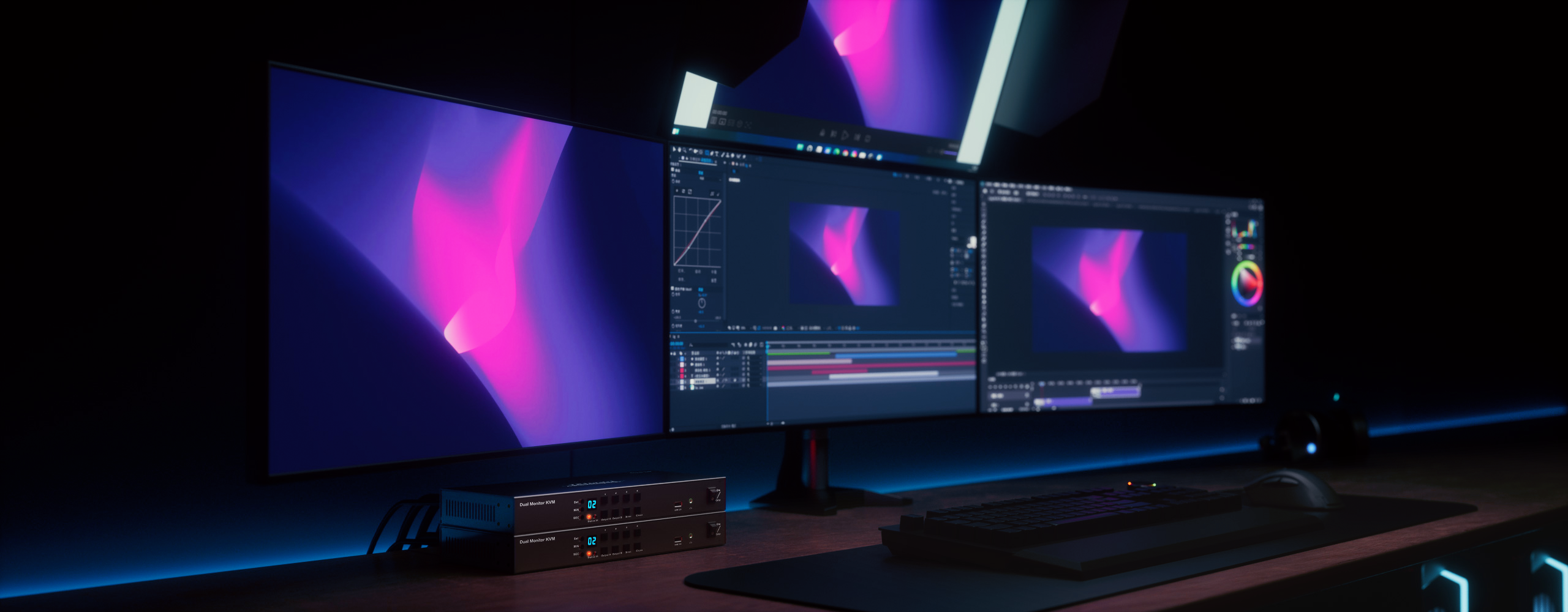
Start at the back of both computers. Count the video outputs that each machine can use at the same time, then match them to the KVM. A dual-monitor HDMI KVM usually needs two HDMI feeds from computer one and two more from computer two. The box cannot manufacture a second video signal because the product page used a photograph with two screens.
Next, match the switch to the monitors. A 4K30 limit means a 4K desktop refreshes 30 times per second. Cursor movement and scrolling look noticeably less fluid than at 60Hz. Buy 4K60 for ordinary office use, even if the current monitor is only 1440p. High-refresh gaming needs a model that explicitly supports the target combination, such as 1440p at 120Hz or 1080p at 240Hz, not a vague “4K” badge.
Then count USB devices. Two ports cover a keyboard and mouse. A webcam, microphone, printer, storage drive, or USB headset needs more ports or a compatible hub. USB 2.0 tops out at 480Mbps, while USB 3.0 is listed at 5Gbps on both UGREEN models here. That difference barely matters to a keyboard and matters quite a lot to an external SSD.
Plan the physical layout before ordering cables. A dual-monitor switch can turn one tidy desk into six HDMI leads, two USB upstream leads, display power cords, computer power cords, and one deeply offended cable tray. The cable management guide covers the clips, trays, and sleeves that keep the wiring serviceable instead of merely hidden.
Five Picks at a Glance
Disclosure: As an Amazon Associate I earn from qualifying purchases. This does not change the price you pay. The retail links below are sponsored.
| Pick | Current price | Displays | Maximum listed video | Shared USB | EDID / switching | Main drawback | Buy |
|---|---|---|---|---|---|---|---|
| Jancane basic HDMI | Check current price | 1 | 4K60 | 2 × USB 2.0 | No EDID listed / button | No hotkey or USB 3.0 | Amazon |
| UGREEN single-monitor | Check current price | 1 | 4K60, 1440p120 | 3 × USB-A 3.0, 1 × USB-C 3.0 | No EDID listed / button or wired controller | No hotkey support | Amazon |
| UGREEN dual-monitor | Check current price | 2 | 4K60 | 3 × USB-A 3.0, 1 × USB-C 3.0 | No EDID / button or wired controller | Needs two HDMI outputs per computer | Amazon |
| Sabrent USB-KCPD | Check current price | 1 | 4K60 | Keyboard and mouse | No EDID listed / button | USB-C video support required | Amazon |
| TESmart HKS202-E23 | Check current price | 2 | 4K60, 1440p120 | K/M plus 1 × USB 2.0 | EDID / hotkey, button, IR | USB 2.0 peripheral port | Amazon |
Best Budget: Jancane HDMI KVM
The Jancane two-port HDMI KVM on Amazon is a current option. Its listing includes two HDMI cables and two 1.2-metre USB 2.0 cables, supports one display up to 4K60, and switches with a button on the box. It draws power from the USB connections, so there is no separate adapter.
This is the rational cheap pick for a 1080p or 1440p office monitor with a plain keyboard and mouse. The included cables remove a hidden US$15 to US$25 shopping list, and there is very little to configure. It is also honest about being basic. There is no listed hotkey, wired remote, EDID emulation, USB 3.0, or dedicated audio jack.
Do not buy it for high-speed storage or a webcam-heavy setup. Its two USB 2.0 ports are already occupied by the keyboard and mouse in the obvious configuration. I would also skip it if the switch needs to live under the desk, since every change requires reaching the physical button.
Best Overall: UGREEN Single-Monitor KVM
The UGREEN HDMI KVM on Amazon is a current option. It routes one HDMI display and shares four 5Gbps ports: three USB-A and one USB-C. The listing supports 4K60, 1440p120, and 1080p240, with HDMI 2.0, HDR, and HDCP 2.2 support.
This is the best KVM switch here for a normal one-monitor work laptop and personal PC. Four fast USB ports leave room for a webcam or storage drive after the keyboard and mouse are connected. The wired desktop controller also lets the metal switch box and its cables live out of sight.
The compromise is display continuity. UGREEN does not list EDID emulation on this model and explicitly says hotkey switching is unsupported. Switching happens from the front button or wired controller. The listing also says both USB upstream cables must be connected for power and data, and a USB-C power cable or adapter is not included.
Best KVM Switch for Dual Monitors: UGREEN
The UGREEN dual-monitor HDMI KVM on Amazon is a current option. It supports two displays at up to 4K60 and shares the same four-port 5Gbps USB arrangement as the single-monitor model. UGREEN includes four HDMI cables, two USB cables, a power adapter, and a wired controller.
For value, this is the best KVM switch for dual monitors in the shortlist. It costs more than the one-monitor UGREEN and includes the extra display path and cables. That is a much easier recommendation than paying the higher price when all you need is two 60Hz office screens and a few USB 3.0 devices.
The catch is at the computer end. Each machine needs two simultaneous HDMI outputs plus USB-A. A laptop with one HDMI port does not qualify without a dock or adapter that can provide the second independent output. UGREEN’s official specification page also confirms that hotkeys and EDID emulation are not supported. When the computer sees a display disconnect during a switch, windows may move or resize.
Both monitors show the selected computer. This model cannot keep PC 1 on one screen and PC 2 on the other. Before buying, verify both computers’ output support and use the correct monitor height guide to place the final pair. Two screens are useful. Two screens arranged like a tennis match are a neck exercise.
Best USB-C Pick: Sabrent USB-KCPD
The Sabrent USB-KCPD on Amazon is a current option. It connects two USB-C computers to one HDMI display, keyboard, and mouse, with video up to 4K60. Two separate USB-C power-delivery inputs can charge both computers at up to 60W when suitable power sources are connected.
The appeal is obvious for two laptops. One USB-C connection per machine can handle video, input devices, and charging instead of requiring separate HDMI and USB upstream cables. Sabrent’s official product page says the switch is compatible with Thunderbolt 3, but the actual video path still requires USB-C DisplayPort Alternate Mode.
That last sentence is the buying test. USB-C describes a connector, not a guaranteed set of features. A charge-only or data-only USB-C port cannot feed the HDMI output. The Sabrent is also a single-monitor device and the manufacturer does not describe it as a 40Gbps Thunderbolt switch. Buy it for cleaner laptop wiring, not because the oval plug has developed a halo.
Best for EDID and Audio: TESmart HKS202-E23
The TESmart HKS202-E23 on Amazon is a current option. It supports two HDMI monitors at 4K60, 1440p120, or 1080p240; switches by front button, keyboard hotkey, or IR remote; and includes EDID emulators on its inputs. A 3.5mm stereo output handles headphones or powered speakers.
Choose it when stable window placement matters more than USB storage speed. TESmart’s official HKS202-E23 page says EDID emulation prevents display settings from changing during a switch. It can also show one computer on each monitor and move keyboard and mouse focus independently, a useful monitoring mode that the cheaper UGREEN does not provide.
The weak point is the shared peripheral connection. Beyond the dedicated keyboard and mouse ports, the extra port is only USB 2.0. That is fine for a printer or scanner and poor value for an external SSD. Each computer also needs two HDMI connections and USB-B. The premium over UGREEN buys EDID, flexible switching, and audio, not simpler wiring.
EDID, Switching, and Audio Explained
EDID is the information a monitor sends about its supported resolution, refresh rate, and other display capabilities. A KVM with EDID emulation keeps presenting that monitor identity to both computers while you switch away. Without it, an operating system may act as though the display was unplugged, then rearrange windows when it returns.
Hotkeys improve convenience, not necessarily the video handshake. The TESmart lets you issue the change from the keyboard, while the UGREEN models require a button or wired controller. None of these listings gives a measured screen-to-screen switching time. Expect the monitor and computer to renegotiate the signal, especially on models without EDID, and ignore any review that turns an undocumented pause into a stopwatch result.
Audio needs an equally literal check. HDMI can carry sound, but a listing that says HDMI does not promise a convenient analog output or independent audio switching. The TESmart explicitly includes a 3.5mm stereo jack. The other four listings do not advertise one. If you use USB headphones, count them as a shared USB device and check whether they work through the general-purpose port.
Software KVM Alternatives
Software can be better when every computer keeps its own monitor and you only want to share the keyboard and mouse. The cursor moves across the edge of one screen onto the other computer over the local network. There is no video switching, no HDMI limit, and no bundle of display cables.
Barrier is the familiar free example, but its upstream GitHub project now points users toward newer development paths. Synergy 3 is the maintained paid option: its personal tiers were US$15, US$19, and US$29 when checked, with Windows, macOS, and Linux support. Synergy states plainly that each computer needs its own screen because the software does not share video.
Software is the wrong answer for a locked-down work laptop that cannot install it, a machine sitting at a login or firmware screen, or a setup where both computers must share one physical monitor. It also routes keyboard and mouse activity across the network, which may conflict with employer security policy. Hardware remains wonderfully boring in those cases.
Setup Checklist
Before connecting a KVM switch for two computers, test each monitor and cable directly with each machine at the intended resolution and refresh rate. That gives you a known-good baseline. Then power everything down and connect one computer at a time so an unlabeled cable problem does not become a six-cable mystery.
- Confirm each computer has the required number and type of video outputs.
- Use cables rated for the intended 4K60 or high-refresh signal.
- Connect every required USB upstream cable, even if the keyboard already lights up.
- Attach external power when the model includes an adapter.
- Set both computers to resolutions the KVM and monitors support.
- Label the computer-side cable groups before routing them under the desk.
After the signal is stable, place the shared keyboard and mouse using the ergonomic desk setup checklist. The entire point is one cleaner, more consistent workstation. If the new box leaves your mouse marooned beside a laptop stand, the cables won and you did not.
Who Should Skip This
Skip a hardware KVM if your monitor already has multiple video inputs and your keyboard and mouse can pair with multiple devices. Manually changing the monitor input plus one Bluetooth device button is clumsier, but it costs nothing. An expensive box should solve more than a mild dislike of pressing two buttons.
Also skip the cheap HDMI models for colour-critical work, 4K gaming above 60Hz, variable-refresh gaming, or unusual ultrawide timings unless the exact mode is listed. Adapters add another negotiation point. A DisplayPort workstation should use a DisplayPort KVM instead of building an HDMI conversion exhibit under the desk.
Finally, do not put a personally purchased USB device between a managed work computer and its peripherals if company policy forbids it. Ask IT. The cleanest desk in the building is not worth an awkward security meeting.
Frequently Asked Questions
Can I use a KVM switch for two computers with dual monitors?
Yes, but the KVM must explicitly support two displays and each computer must supply two usable video signals. The UGREEN needs two HDMI outputs from each computer. A single USB-C cable works only on a KVM dock designed to derive multiple displays from that connection and on a computer that supports the required display mode.
Does a KVM switch add input lag?
A well-matched office KVM should not create an obvious keyboard or mouse delay, but these listings do not provide independent latency measurements. Switching delay is different from input lag: the screen may go black while HDMI reconnects even though input feels normal after the connection is established.
Why do my windows move after switching computers?
The operating system may see the monitor as disconnected when the KVM switches away. EDID emulation keeps a virtual display identity present and can prevent that rearrangement. The TESmart HKS202-E23 includes EDID emulation; the two UGREEN listings here do not.
Can a USB-C KVM charge both laptops?
Only if the model has power-delivery inputs and suitable chargers. The Sabrent USB-KCPD supports up to 60W per computer through two USB-C PD inputs. That may be enough for ordinary laptops and insufficient for a mobile workstation that normally uses a 100W, 140W, or proprietary power adapter.
Is Barrier or Synergy a full replacement for a KVM?
No. Software KVM tools share keyboard and mouse control over the local network, and may share clipboard data, but each computer keeps its own display. They do not switch one physical monitor between two computers and cannot help before the operating system and network software are running.
The Short Version
Buy the UGREEN for one monitor, four fast USB ports, and a wired switch button. Buy the UGREEN for two 4K60 monitors when both computers have two HDMI outputs. Choose the Sabrent when two USB-C laptops and 60W charging matter more than a second screen. Choose the TESmart only when EDID, hotkeys, split-screen control, and a 3.5mm audio output solve real problems.
The best KVM switch is the one whose ports match the computers you already own. Count displays, outputs, USB devices, and cables before ordering. If every computer keeps its own screen, try software first. If one screen must serve both, a hardware KVM switch for two computers is the cleaner answer.