
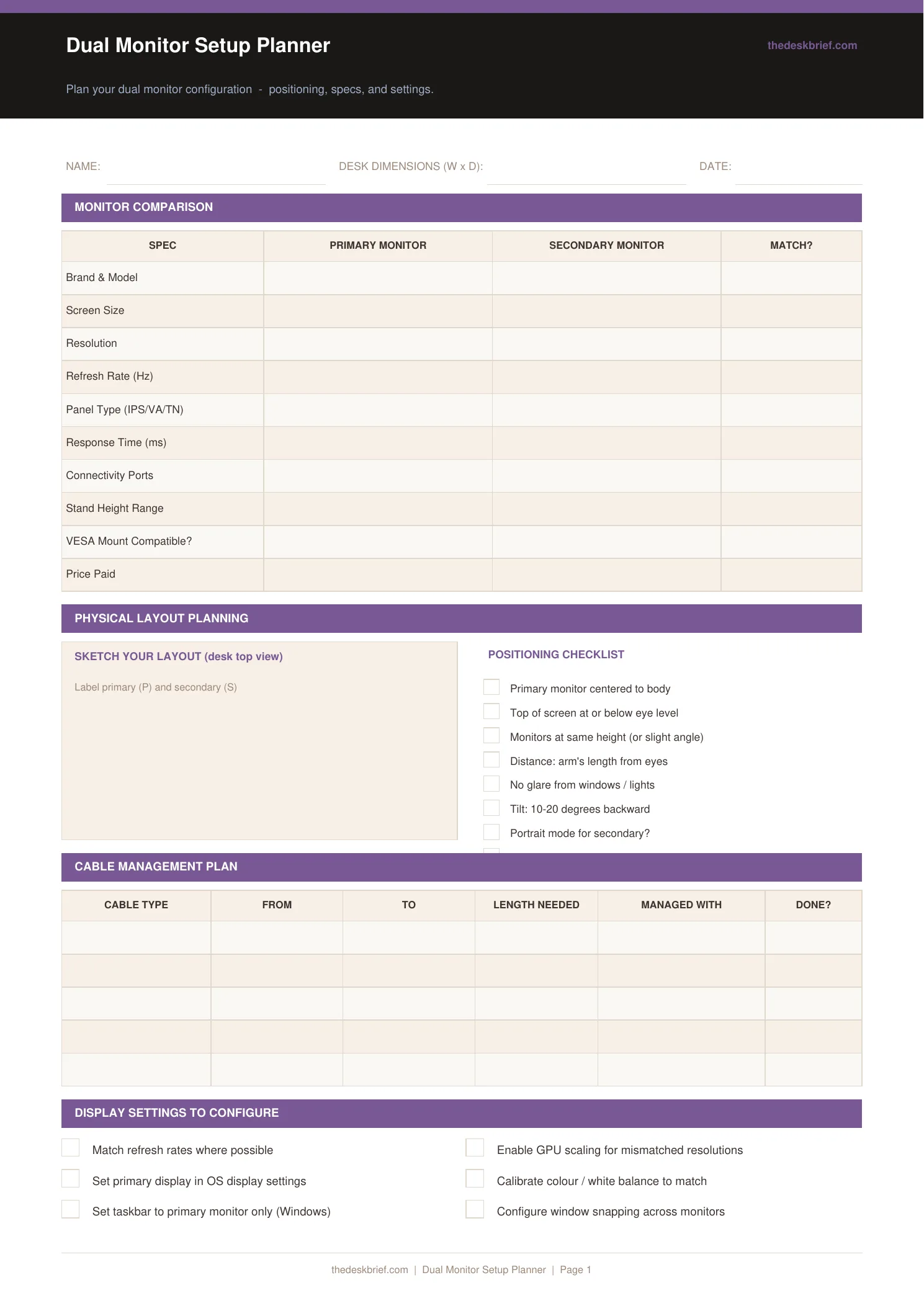
Setting up dual monitors well takes more planning than just plugging in a second screen. This planner walks you through spec comparison, physical positioning, cable management, and display settings.
What’s Inside
- 10-row monitor spec comparison: size, resolution, refresh rate, panel type, ports, VESA, price
- Layout sketch area (desk top view) with positioning checklist for ergonomics
- 5-row cable management table: cable type, from, to, length, management method
- Display settings to configure checklist: scaling, colour match, taskbar, snapping
Print tip: Works on standard letter (8.5×11″) or A4 paper. Print at 100% scale with no page scaling. Designed to be printed and filled in by hand.
How to Use This Template
- Measure your desk before buying anything. Width and depth determine what monitor sizes and stand configurations will actually fit.
- Fill in the spec comparison table for both monitors before finalising your purchase. Resolution mismatch between primary and secondary causes eye strain.
- Sketch your desk layout from above in the diagram area before moving any hardware. This costs nothing and prevents a frustrating physical rearrangement.
- Configure display settings last, after physical positioning is finalised. Settings like scaling and taskbar placement depend on which monitor is physically primary.
Frequently Asked Questions
Should both monitors be the same size?
Ideally yes for a symmetric setup. But many productive dual-monitor setups use a large primary (27-32 inches) and a smaller vertical secondary. What matters most is matching resolution density (PPI) to avoid jarring visual differences.
What is VESA mounting?
VESA is the standard mounting pattern on the back of monitors that allows them to attach to monitor arms or wall mounts. Check both monitors for VESA compatibility if you plan to use a dual arm.
Do I need a specific graphics card for dual monitors?
Most modern integrated and dedicated graphics cards support two or more monitors. Check the port types: HDMI, DisplayPort, and USB-C are the most common. You may need an adapter if ports do not match.
Is this planner free?
Yes, completely free. No email required. Print one copy per setup project.