A DIY NAS can look like the cheap answer when a spare desktop is sitting nearby, but ten years of electricity and maintenance can reverse the calculation. Before I built my DIY NAS, I was considering a UGREEN or another off-the-shelf NAS. Reusing a computer computer I has laying around made the compute cost $0, yet this still didn’t become the money-saving trick I expected.
My direct recommendation is less romantic: most people should buy a two-bay NAS. Build your own only if you already have suitable hardware, want the extra control, and won’t resent becoming the person who fixes storage, containers, backups, and remote access on a Sunday afternoon.
This comparison combines my documented experience with the server I own, current manufacturer specifications, independent testing, and a ten-year electricity model. I haven’t tested the UGREEN DXP2800 or Synology DS225+.
This page contains affiliate links. If you buy through these links, we may earn a small commission at no extra cost to you. Full disclosure.
Table of Contents
- The Short Version
- DIY NAS vs an appliance at a glance
- What 10 years of power costs
- What the appliance premium buys
- What building your own buys
- The lessons my build cost me
- Who should buy an appliance
- Who should build a DIY NAS
- Three products that make sense
- How I researched this comparison
- Frequently asked questions
The Short Version
Buy a NAS appliance if you mainly want shared storage, phone photo backup, media, and a private cloud that doesn’t need to become a hobby. The UGREEN DXP2800 offers stronger hardware and more expansion; the Synology DS225+ trades some hardware value for the more established DSM software environment.
Build a DIY NAS if you have a spare PC, understand that backups cost extra, and actively want to run Linux, Docker, ZFS, and services beyond storage. Mine earns its place through control and useful life, not through a neat payback spreadsheet.
DIY NAS vs an Appliance at a Glance
| Decision point | DIY with reused PC | UGREEN DXP2800 | Synology DS225+ |
|---|---|---|---|
| Upfront cost | $0 for the reused computer; CA$319.98 for two Toshiba N300 4TB drives in 2026 | CA$469.99 official Canadian list price when checked September 25, 2026, plus drives; the direct store was unavailable, but normal retailer stock was verified | CA$539.99 diskless at Memory Express when checked September 25, 2026, plus drives |
| 10-year electricity model | CA$977.09 at the measured 66W midpoint | CA$242.50 at UGREEN’s published 16.38W drive-access figure | CA$251.38 at Synology’s published 16.98W access figure |
| Setup | No honest fixed time: install and configure Ubuntu, storage, Docker, apps, remote access, monitoring, and recovery | Install drives, connect it, and follow UGOS Pro’s guided setup | Install drives, connect it, and follow DSM’s guided setup |
| Maintenance | You own the OS, containers, permissions, memory limits, alerts, and restores | UGREEN integrates the core storage jobs; you still patch, monitor drives, and test backups | Synology integrates the core storage jobs; you still patch, monitor drives, and test backups |
| Software | Ubuntu, Docker, ZFS, and Seafile in my build | UGOS Pro, with Docker and virtual machine support | DSM, including Synology’s storage, sync, photo, and backup apps |
| Expansion | Depends on the PC’s case, SATA ports, power supply, and RAM capacity | Two SATA bays, two M.2 slots, 8GB DDR5, officially expandable to 16GB | Two SATA bays, no M.2 slots, 2GB DDR4, one expansion slot |
| Noise and size | A desktop takes more room; I didn’t document a sound measurement | 231 by 109 by 177 mm; drive and fan noise vary with configuration | 165 by 108 by 232.2 mm; Synology specifies 19.6 dB(A) under its test conditions |
The table exposes the awkward truth. My build had the lowest entry cost because I already owned the expensive part. It also draws about four times the power of either appliance figure used here. Free hardware isn’t free to run.
What 10 Years of Power Costs
During a UPS discharge test, my server drew about 60W to 72W. The 66W midpoint works out to roughly CA$97.71 a year at CA$0.169 per kWh, or CA$977.09 across ten years. That is more than three times the CA$319.98 I paid for the two primary drives.
The same formula produces CA$242.50 for the DXP2800 at UGREEN’s published 16.38W drive-access figure and CA$251.38 for the DS225+ at Synology’s 16.98W access figure. Both companies also publish much lower HDD-hibernation figures, 5.24W for UGREEN and 6.08W for Synology. Your real bill will move with drive choice, indexing, containers, media work, and whether the disks actually sleep.
This is a planning model, not a controlled appliance benchmark. My 66W is an observation from my own configured system, while the appliance numbers come from each manufacturer’s lab and chosen drives. I use the access figures because assuming ten quiet years of perfect hibernation would flatter the appliances. The direction is still hard to miss.
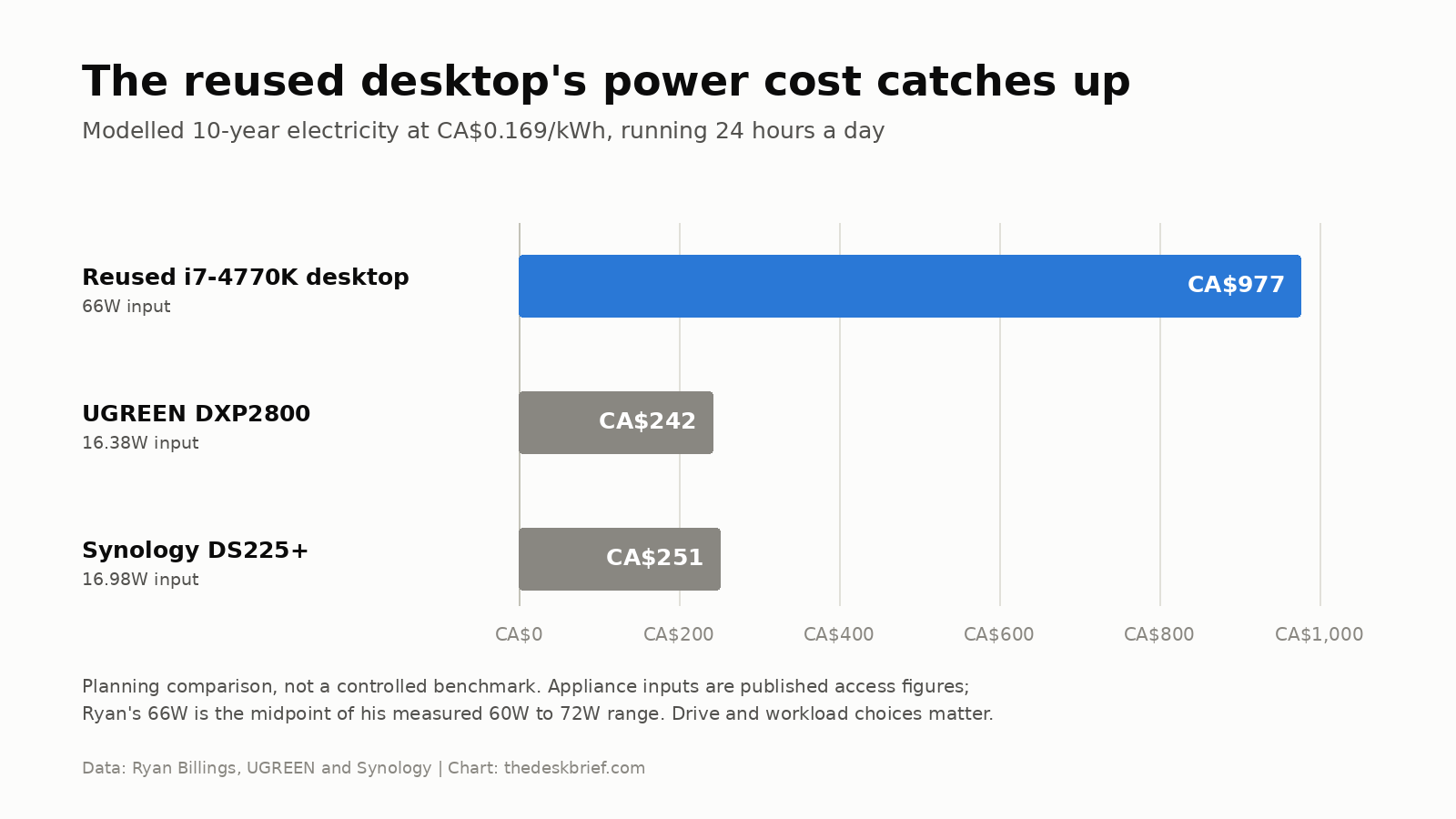
An efficient appliance can recover much of its enclosure premium through lower electricity use. That doesn’t automatically make it cheaper because every option still needs drives, independent backup capacity, and ideally a UPS. It does mean an old gaming desktop should earn its extra power by doing more than basic file storage.
What the Appliance Premium Buys
A two-bay appliance concentrates the unglamorous work into one supported product. The enclosure, drive trays, cooling, operating system, storage interface, user management, update process, and mobile apps arrive as a system. You still need to choose a storage layout and backup destination, but you aren’t integrating every layer yourself.
The UGREEN DXP2800 specifications list an Intel N100, 8GB of DDR5 memory, 2.5GbE networking, two M.2 slots, HDMI, and UGOS Pro. The Synology DS225+ specifications show a Celeron J4125, 2GB of DDR4, 2.5GbE plus 1GbE, and DSM. UGREEN supplies more hardware for containers and expansion. Synology’s case is its mature, integrated software rather than a better component list.
Independent testing adds useful context without turning this into my review. Igor’s Lab measured the DXP2800 at 5.6W in standby and 14.5W during data transfer in its configuration. Dong Knows Tech’s DS225+ testing found that it could make practical use of the 2.5GbE port, while still describing the lack of a 10GbE upgrade as a limit. Different drives and test methods prevent a direct scorecard, but both are built for ordinary always-on storage work.
What Building Your Own Buys
My self-hosted cloud storage build uses Ubuntu, Docker, ZFS, and Seafile Community Edition. I tried Nextcloud first and didn’t like it for this job. Seafile was the more focused Dropbox replacement for me, with local transfers around 380 to 430 Mbps under favourable conditions. That was one observation, not a benchmark.
The old processor wasn’t the bottleneck. A reused computer also let me run a photo library, media services, network-wide DNS filtering, monitoring, and local AI experiments on the same system. That flexibility is the strongest argument for a home server vs a NAS appliance, especially if you enjoy deciding how the stack fits together.
Expansion is more complicated than saying a desktop has more room. It depends on how many bays the case actually has, how many SATA ports and power connectors are available, the power supply’s condition, and whether the network interface is fast enough. A flexible box full of awkward limitations is still an awkward box.
The Lessons My Build Cost Me
The first lesson was memory. My system had 15GB, and a runaway process once exhausted enough RAM that the whole house appeared to lose internet access because the same server also handled DNS filtering. I capped the ZFS cache at 4GB. The incident didn’t prove that ZFS is unreliable. It proved that combining household infrastructure makes one failure look much larger.
The second lesson came from a drive that accumulated 40 pending or uncorrectable sectors while it was still working. I treat that as a replacement signal. Mirroring protects availability after one drive fails, but it doesn’t make a damaged disk healthy or create an independent copy.
The third lesson was more embarrassing. A backup of the operating system silently stopped being bootable. Copying data and seeing a successful job in a log didn’t prove I could restore service. Only an actual boot test exposed the problem.
Power recovery deserves the same treatment. A UPS can shut a machine down safely without making it restart after a long outage. My separate auto power-on guide covers the firmware, UPS, and service checks that close that gap. Recovery is a chain, and every untested link is a guess.
Who Should Buy an Appliance
Buy the appliance if the NAS is supposed to disappear into the background. That includes families protecting photos, home offices centralizing files, and people who want private storage without building their own update and monitoring process. You still need backups and occasional maintenance, but the job has fewer self-selected moving parts.
A two-bay model also makes sense when space, noise, and electricity matter more than maximum expansion. Put two suitable drives in a mirror, add an independent backup, configure alerts, and test a restore. That is enough system for many homes.
Choose UGREEN when the N100, 8GB of memory, two M.2 slots, HDMI, and Docker headroom matter. Choose Synology when DSM and its application ecosystem are worth more to you than the stronger component sheet. Neither choice removes the need to understand where the second and third copies of important files live.
Who Should Build a DIY NAS
Build when you already own a useful computer and want the server itself to be part of the project. The right reader is comfortable installing an operating system, reading logs, replacing a failed service, and documenting a restore. Wanting more bays, more RAM, unusual network cards, or several self-hosted applications can justify the larger box.
Don’t build only because the spare PC feels free. Measure its wall power, inspect its cooling and drive connections, and price backup storage before choosing. Keep the existing cloud account until you have restored real files from every backup tier. Starting small costs less than discovering that your clever storage design has only one trustworthy copy.
A DIY system is also a better fit when storage is only one job. Local AI experiments are a good example because memory, GPU support, and service flexibility can matter more than a tidy two-bay enclosure. My home AI agent setup guide shows how quickly a home server can grow beyond file sharing.
Three Products That Make Sense
UGREEN DXP2800: Better Hardware Value
The DXP2800 is the more interesting appliance for someone who wants storage plus containers. Its N100 processor, 8GB of memory, two M.2 slots, and 2.5GbE port create useful headroom in a small enclosure. Check the UGREEN DXP2800 on Amazon. The compromise is UGOS Pro’s shorter history compared with DSM, and two SATA bays still impose a hard expansion limit.

Synology DS225+: Better Software Fit
The DS225+ makes sense for a buyer who values DSM’s integrated storage and backup tools above raw specifications. Its 2GB of included memory and lack of M.2 slots look stingy beside UGREEN, and the Celeron J4125 is old. The Synology DS225+ listing at Memory Express had online stock when checked September 25, 2026. This is not a hands-on recommendation from me.
WD Red Plus 4TB: A Sensible Two-Drive Starting Point
Western Digital’s Red Plus data sheet identifies its current 4TB models as CMR drives for NAS use. Check the WD Red Plus 4TB on Amazon. Buy two for a mirror if four usable terabytes is enough, then budget for an independent backup rather than pretending the second mirror disk is one.

How I Researched This Comparison
The first-hand sections come only from my documented mir server and the two Toshiba N300 drives I bought for it. Appliance specifications and power figures come from UGREEN and Synology, while the cited independent reviews provide external test context. I also reviewed the current US and Canadian search results and the questions repeated in HomeServer, homelab, TrueNAS, and NAS comparison forums.
The electricity model uses watts divided by 1,000, multiplied by 8,760 hours, CA$0.169 per kWh, and ten years. It excludes taxes, changing utility rates, replacement hardware, backup drives, UPS losses, and the value of setup time. Those omissions are why the result belongs in a decision framework, not on a receipt.
Frequently Asked Questions
Is a NAS worth it for home use?
A NAS is worth it when several devices need the same files, you want local control, or you need more capacity than a simple cloud plan provides comfortably. It isn’t worth it if one external drive and a well-managed cloud backup already solve the problem.
Is an old PC good enough for a DIY NAS?
It can be. My old i7-4770K wasn’t the bottleneck for file service, but power use, RAM, SATA connections, cooling, and physical drive space matter more than the processor badge. Measure the whole computer at the wall before assuming reuse is the economical choice.
Can I move NAS drives from Synology or UGREEN into a DIY server?
Don’t plan on moving appliance drives into another platform and having the array appear unchanged. File systems, RAID layouts, metadata, and application data differ. Treat a platform change as a migration: verify the destination, copy from a separate source or backup, and test the result before erasing anything.
Does RAID 1 replace a backup?
No. A mirror can keep the system available after one drive fails, but deletion, corruption, theft, fire, malware, and a bad administrator command can affect both sides. Keep at least one independent copy and prove that you can restore it.
Which is easier, UGREEN or Synology?
Both provide guided appliance setup. Synology has the longer software track record, while UGREEN’s DXP2800 provides substantially stronger hardware for the money. Ease also depends on the job: a simple shared folder is different from a stack of containers, photo indexing, media services, and remote access.