Self hosted cloud storage looked like a way to stop paying CA$12.99 per month plus tax for Dropbox. It turned into a much more useful project than that, but it did not turn into a clever money-saving trick as I thought it would.
I have enough history with home servers to know the difference. In 2010, my cousin and I built an Ubuntu machine that worked as the house router, handed out network addresses (DHCP), and kept a shared set of files available to everyone. It ran continuously and never failed. In 2021 I retired only its router role because the old networking hardware had become a speed bottleneck and advancements in network speed made it obsolete. The file server side kept serving files.
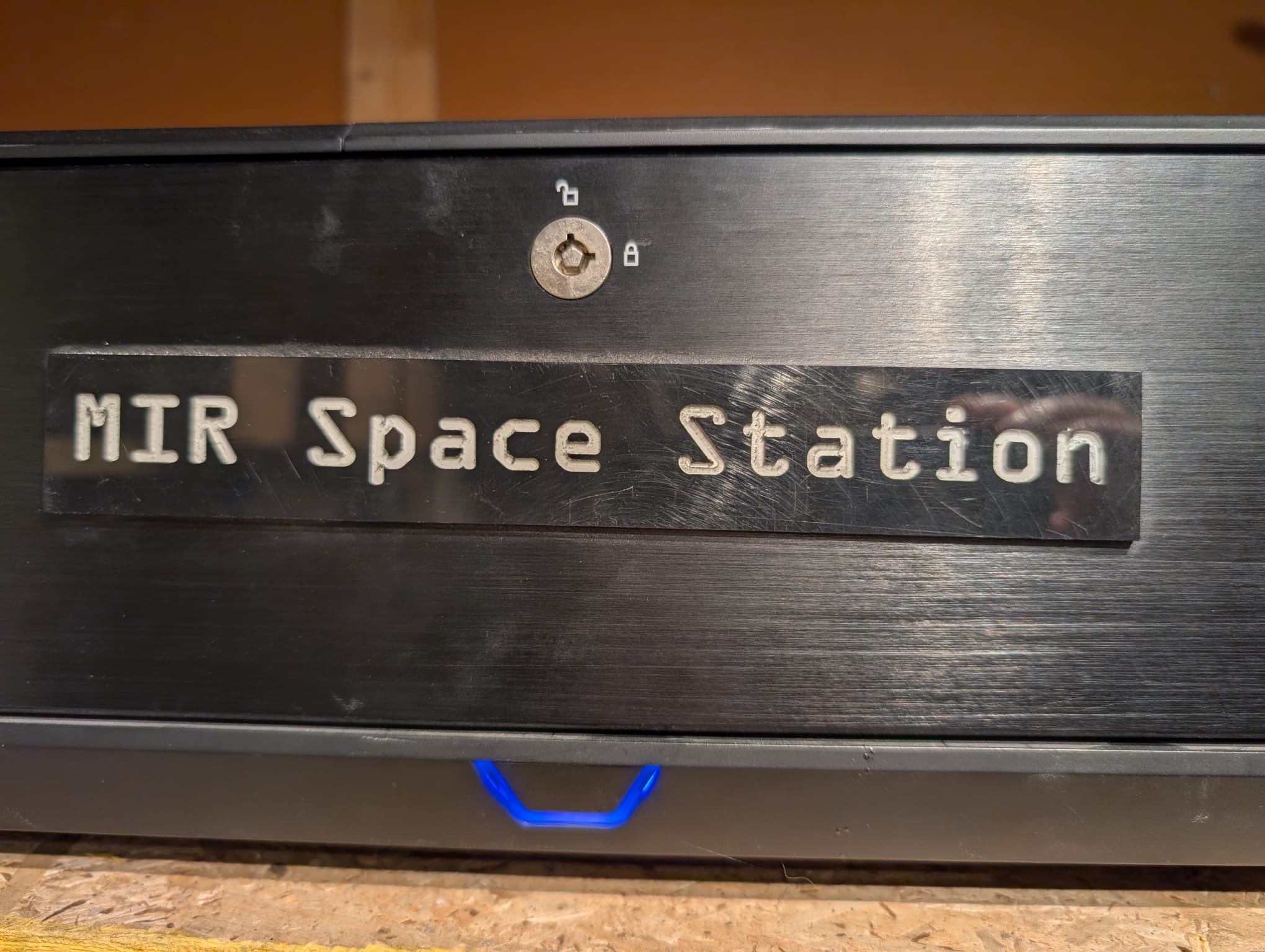
The machine I built in 2026 is version 2, and it has a different job. It is a Dropbox replacement built around Docker, Seafile, and ZFS. It runs on an old Intel Core i7-4770K platform with a mirrored pair of NAS drives (Toshiba N300s), local and offsite backups, a UPS, and private remote access through a mesh VPN.
Those two versions shouldn’t be blurred together. The 2010 server proves that repurposed hardware can deliver well over a decade of useful service. It also taught me where self-hosting stops making sense: consumer mesh networking became better than my old DIY router, while the file-storage job remained useful. The 2026 server is the modern cloud design you might actually copy. It is also the one that crashed, was rebuilt, silently broke its own backup process, stayed offline for seven days after a power failure, and occasionally made the whole house look as if the internet had died.
That is why this is not another guide that says a DIY cloud is cheap, private, and easy. It can be private. It can be capable. It can even be pleasant to use. Easy and cheap depend on what you count.
Table of Contents
- The quick verdict
- From a 2010 Ubuntu router and file server to a 2026 personal cloud
- The DIY router became obsolete. The DIY file server did not
- What self hosted cloud storage actually replaces
- Dropbox alternative: the CA$12.99 monthly bill that started version 2
- Google Drive alternative and the other services you can simply buy
- Backblaze B2, Amazon S3, and the retrieval bill
- One, three, five, and ten years of cloud storage
- What happens when you stop paying
- The honest cost of self hosted cloud storage
- DIY NAS hardware: what I reused and what each part does
- The electricity caveat for hardware you already own
- How to build a home server without copying my mistakes
- Storage layout: mirror, system disk, and recovery tiers
- Nextcloud vs Seafile: why I chose Seafile
- Why the 2026 build uses Docker
- Remote access without port forwarding
- My backup topology and the 3-2-1 principle
- The crash that separated stored data from a recoverable service
- Seventeen rebuild lessons condensed into a recovery checklist
- The bootable OS backup that silently stopped being bootable
- The UPS worked and the server still stayed down for seven days
- When a storage server makes the whole internet look broken
- A drive can be failing while every file still checks out
- Restore testing: turn the hypothesis into evidence
- The maintenance calendar a private cloud needs
- Performance: the old processor was not my bottleneck
- Privacy, security, and the threat model
- Migrating from Dropbox or Google Drive without creating two truths
- What daily use feels like
- What a self hosted Dropbox does not replace well
- Who should not do this
- Who should consider it
- Where I would spend the budget first
- A decision framework before you buy anything
- A practical self-hosted storage build checklist
- Frequently asked questions
- The Short Version
The quick verdict
Build a self hosted cloud storage if you want control, enjoy maintaining systems, and value having your data on hardware you can physically reach. Don’t build it because you expect a quick payback against one ordinary cloud subscription.
My 2026 system is a good Dropbox replacement for synchronized files. Seafile gives me desktop and mobile clients, versioned libraries, sharing, and a web interface. A ZFS mirror protects the live data from a single drive failure. Separate local and offsite copies protect against mistakes, hardware loss, and a failed rebuild. A mesh VPN lets me reach it without opening a file server to the public internet.
The catches are real. Mirroring is not a replacement for backup. A UPS shutdown is not the same thing as an automatic restart. A copied operating system is not necessarily bootable. A container that says “running” may still be unable to authenticate to its database. A scheduled backup can fail silently because its log path does not exist. Every one of those statements comes from something that happened on this server.
For most people who need 100GB to 2TB, a mainstream subscription remains the rational purchase. The provider handles disks, offsite redundancy, power, networking, client updates, account recovery, and most of the ugly operational work. Self-hosting becomes compelling when the work itself has value to you, when your storage needs or privacy model don’t fit a standard plan, or when you already own enough suitable hardware that the cash cost is secondary.
My recommendation is simple: if you are curious, start small and keep your existing cloud account while you prove the restore process. If you only want files to sync, buy the subscription and go do something else.
From a 2010 Ubuntu router and file server to a 2026 personal cloud
Version 1 began in 2010. My cousin and I built an Ubuntu server that sat at the centre of the home network. It routed the internet connection, supplied DHCP, and provided a local file share. At the time, putting those jobs on one repurposed computer made practical sense. Consumer routers were less capable, shared storage appliances were expensive, and an ordinary PC could do both jobs.
That first server ran continuously and did not fail. The important part of that sentence is not Ubuntu or the hardware. It is that a home-built server stopped being a project and became household infrastructure. Once that happens, people stop admiring it and simply expect it to work.
In 2021 I disabled DHCP and retired the router role. I did not retire the file server as all my important files were still on the disk. The old platform had become a bottleneck for a faster internet connection, and consumer eero mesh hardware had finally become good enough (actually really good!) to handle the network without demanding that I remain my own router vendor. The machine kept serving files after the networking job moved elsewhere.
It eventually sat idle for a period around a move. I am deliberately leaving that period vague because the location and dates add nothing to the technical lesson. The useful fact is that version 1 did not die. Its roles changed, and the storage role outlasted the routing role.
Version 2 started in 2026. Dropbox cost CA$12.99 per month plus HST, and I wanted a replacement I controlled. I did not revive the old router design. The new system had a narrower purpose and a modern software stack: an old Intel Core i7-4770K platform, Docker for services, Seafile for synchronized storage, and ZFS for the main data pool.
That separation matters. Version 1 did not run Seafile, Docker, or ZFS. It was an Ubuntu router and file server. Version 2 is the private cloud build described through the rest of this guide.
Reusing the old platform was both sensible and deceptive. It reduced the entry price because the motherboard, processor, case, and much of the supporting hardware already existed. It did not make the project free. Storage drives, backup drives, a UPS, electricity, and replacement parts still count. So does the time spent learning why something that worked yesterday now refuses to start.
The old platform also gave the project continuity. I wasn’t starting with a belief that a desktop computer might survive as a server. I had already watched one do useful work for a decade. What I underestimated was how different a synchronized personal cloud would be from a simple shared folder, especially once containers, databases, remote access, snapshots, and multiple backup layers were involved.
The DIY router became obsolete. The DIY file server did not
The 2021 split is the clearest argument in this article because it cuts against the idea that self-hosting is an identity.
I stopped using my own router when the store-bought option became better. The internet connection had grown faster than the aging hardware could handle comfortably. Consumer mesh systems had improved enough to provide reliable coverage and administration without turning networking into a permanent side job. Keeping the DIY router out of pride would have meant accepting worse performance to preserve a project.
If you would rather buy a current mesh system than manage the router yourself, our Eero Max 7 analysis explains the tradeoffs.
So I disabled DHCP, moved routing to an eero mesh system, and left the file service running. That was not a defeat for self-hosting. It was the right boundary.
Consumer networking and personal storage have different economics. A good mesh kit is a one-time purchase that can immediately improve coverage, throughput, and support. There is little virtue in routing every packet through an old desktop once purpose-built hardware does the job better.
Cloud storage charges recur. The bill grows with capacity and continues for as long as you keep the files there. Local hard drives are a capital expense, and their cost per terabyte tends to improve over time. A file server can also use capacity for several purposes without paying a separate monthly plan for each library.
That does not automatically make local storage cheaper. Backup media, electricity, power protection, replacements, and maintenance can overwhelm the subscription savings. It does mean the make-or-buy decision remains open in a way the router decision no longer did for me.
The principle I carry forward is simple: self-host the part where control or economics produces a real advantage. Buy the part where the commercial product is plainly better. I use commercial mesh networking because it won. I operate file storage because the control, capacity, and long service life still matter enough to accept the work.
That willingness to stop self-hosting one role is also why I am not going to tell you that everyone should build a private cloud. The honest recommendation may be a subscription, a home server, or a hybrid of both. The answer follows the job, not the identity of the person asking.
What self hosted cloud storage actually replaces
A cloud drive is several products hidden behind one icon. It stores bytes, keeps versions, synchronizes changes, exposes files on phones and computers, creates sharing links, manages user accounts, recovers deleted material, and places copies in more than one physical facility. Some services also bundle office software, photo organization, email, identity protection, or device backup.
A home server can replace some of that. It does not replace all of it automatically.
My Seafile setup replaces the part I cared about most: Dropbox-style file synchronization. Files live in libraries, clients synchronize them, and a web interface provides remote access. Seafile stores those libraries as managed blocks rather than a normal folder tree on disk. That design is efficient for synchronization and versioning, but it changes recovery. You cannot assume you will browse the raw server disk and find a familiar collection of documents. You need the application data and its databases, and you need a tested recovery procedure.
A DIY system can also provide private shared folders, automatic phone uploads, WebDAV, media services, or collaborative editing, depending on the applications you add. Each extra application becomes another thing to patch, back up, monitor, and restore. That is the hidden multiplication. A subscription exposes features as checkboxes. A home server exposes them as services with dependencies.
There are also cloud features I do not pretend to replace. Apple’s integrated device backup is not the same thing as copying files to a generic server. Google Docs and Microsoft 365 collaboration are mature platforms, not folders with a web editor bolted on. Dropbox’s account recovery, support, and globally distributed infrastructure are hard to reproduce at home.
The cleanest way to define the project is this: it is a self hosted Dropbox for the files I want under my control, supported by a recovery system I am responsible for. It is not my own miniature version of every cloud company.
Dropbox alternative: the CA$12.99 monthly bill that started version 2
The money was the trigger. Dropbox cost CA$12.99 per month plus HST, which was enough to make me question whether I still wanted to rent the storage and to justify rebuilding the storage role as a modern synchronized service.
At 13 percent Ontario HST, that is CA$176.14 per year: CA$12.99 multiplied by 12, then by 1.13. The tax assumption matters. HST varies by province, and readers elsewhere may pay a different combination of GST and provincial sales tax. Recurring charges have a way of looking small monthly and irritating annually. A reused computer in the house created the feeling that I already owned the alternative.
The phrase “Dropbox alternative” also hides two different questions. The first is whether another service can synchronize files for less. Google Drive, iCloud, OneDrive, Box, and Proton Drive all answer that question in different ways. The second is whether you want to operate the service yourself. That is a much bigger decision.
My confirmed Canadian Dropbox charge is the cost basis everywhere in this article: CA$12.99 per month before tax, CA$155.88 per year before tax, and CA$176.14 per year with 13 percent Ontario HST. Dropbox confirms that Canadian-dollar billing is supported and that tax depends on the billing location. Its Plus plan provides 2TB. I use the Ontario after-tax total for payback because it is the amount that actually leaves the budget under that tax assumption.
The subscription buys more than disk capacity. It buys a polished sync engine, clients, version recovery, sharing, infrastructure in multiple locations, and a company whose paid staff handle failed disks at inconvenient hours. A fair comparison has to put those services on the other side of the ledger.
My self hosted Dropbox gives me control over where the main copy lives and how much storage I can add. It also gives me every maintenance ticket. When the system fails at 2 a.m., there is no provider to call because I am the provider.
Google Drive alternative and the other services you can simply buy
Before building anything, compare it with the boring option. Boring is underrated when the files matter.
The prices below were checked on July 28, 2026. I used official vendor pricing and native Canadian prices where available. Where a vendor exposed only a US or euro price, I converted it using the Bank of Canada rate of US$1 to CA$1.4102. Taxes and temporary introductory discounts are excluded. Storage vendors change offers by country, account, and campaign, so the source date belongs beside the number.
The first lesson is that plan prices aren’t comparable until capacity is normalized. CA$4.99 per month sounds cheaper than CA$13.99. If the first plan contains 200GB and the second contains 2TB, the larger monthly bill is much cheaper per terabyte.
| Service and tier | Capacity | US annual price | CA annual price | US cost per TB/year | CA cost per TB/year |
|---|---|---|---|---|---|
| Dropbox Plus | 2TB | Not used | CA$176.14 including 13% Ontario HST | Not used | CA$88.07 |
| Dropbox Essentials | 3TB | US$216.00 | CA$304.60 converted | US$72.00 | CA$101.53 |
| Dropbox Family | 2TB shared | US$203.88 | CA$287.51 converted | US$101.94 | CA$143.76 |
| Google One Basic | 100GB | US$23.88 | CA$33.48 | US$238.80 | CA$334.80 |
| Google One Standard | 200GB | US$35.88 | CA$47.88 | US$179.40 | CA$239.40 |
| Google One Premium | 2TB | US$119.88 | CA$167.88 | US$59.94 | CA$83.94 |
| iCloud+ | 50GB | US$11.88 | CA$15.48 | US$237.60 | CA$309.60 |
| iCloud+ | 200GB | US$35.88 | CA$47.88 | US$179.40 | CA$239.40 |
| iCloud+ | 2TB | US$119.88 | CA$155.88 | US$59.94 | CA$77.94 |
| iCloud+ | 6TB | US$359.88 | CA$479.88 | US$59.98 | CA$79.98 |
| iCloud+ | 12TB | US$719.88 | CA$959.88 | US$59.99 | CA$79.99 |
| Microsoft 365 Personal | 1TB | US$99.99 | CA$115.00 | US$99.99 | CA$115.00 |
| Microsoft 365 Family | Up to 6TB | US$129.99 | CA$145.00 | US$21.67 | CA$24.17 |
| Box Personal Pro | 100GB | US$120.00 | CA$169.22 converted | US$1,200.00 | CA$1,692.20 |
| Proton Drive Plus | 200GB | US$47.88 | CA$59.88 | US$239.40 | CA$299.40 |
| pCloud Premium Plus annual | 2TB | US$99.99 | CA$141.01 converted | US$50.00 | CA$70.51 |
| pCloud Premium Plus lifetime | 2TB | US$350 once | CA$493.57 converted | US$17.50 at 10 years | CA$24.68 at 10 years |
| Sync Pro Solo | 2TB | US$96.00 | CA$96.00 | US$48.00 | CA$48.00 |
| MEGA Pro I | 3TB | About US$119.60 converted | CA$168.67 | About US$39.87 | CA$56.22 |
Microsoft 365 Family produces the lowest ordinary subscription cost per terabyte, but only if six people use their separate 1TB allocations. It is not one shared 6TB bucket for one person. It also includes desktop Office applications and other services, so assigning the entire price to storage understates the bundle’s value.
pCloud’s lifetime plan produces an attractive ten-year number, but “lifetime” is a product term, not a guarantee that a price paid today will behave like owned hardware forever. The calculation assumes the account, provider, terms, and service remain available for ten years. Its US$350 purchase works out to US$17.50 per TB per year across that period. At three years it is US$58.33 per TB per year. Time is what makes the offer look cheap.
Sync’s normal 2TB renewal price is CA$96 per year on the Canadian offer I checked. The page also showed introductory discounts, which I excluded because a ten-year model should not pretend a first-year sale repeats forever.
MEGA bills its consumer plans in euros and estimates local currency. Its live plan API showed Pro I with 3TB at about CA$168.67 per year when checked. I converted that Canadian amount back to about US$119.60 using the same Bank of Canada rate so both columns use one currency method.
These plans also buy different products. iCloud’s value is Apple integration. Proton and Sync emphasize end-to-end encryption. Dropbox emphasizes mature synchronization and recovery. Microsoft bundles applications. Box’s small personal tier is a poor raw-capacity purchase but may suit a workflow that values its business tools. Per-TB math is necessary, but it isn’t the only decision.
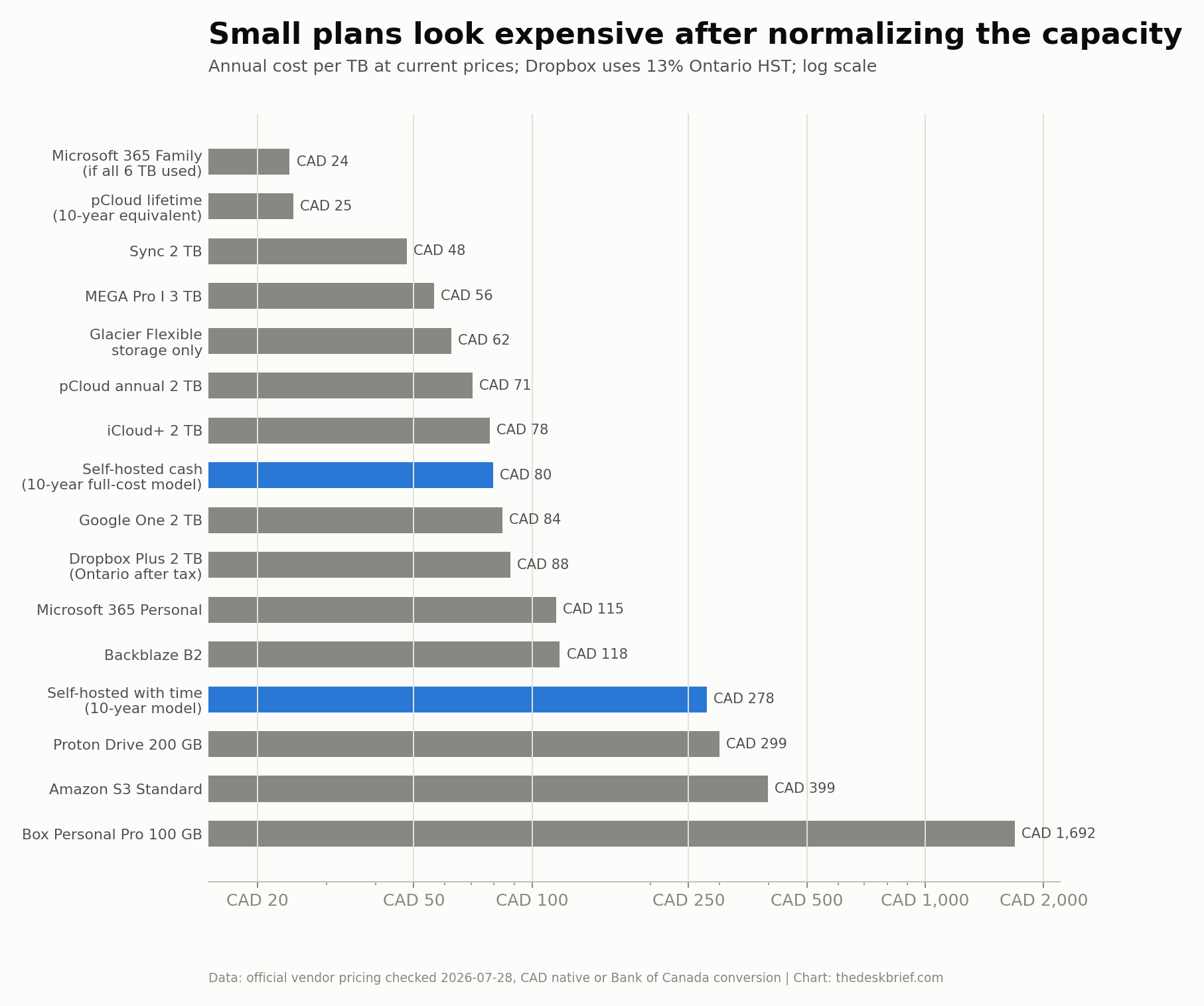
Google One is the most obvious Google Drive alternative to Dropbox because the 2TB prices are almost identical. In Canada, Google lists 2TB at CA$13.99 per month while Apple lists 2TB at CA$12.99. Neither requires buying hardware, measuring power, testing a boot disk, or writing a recovery document.
Sources: the confirmed Canadian Dropbox invoice basis, Dropbox’s Canadian-dollar billing documentation, Dropbox’s tax documentation, Dropbox’s Plus capacity documentation, Dropbox’s official Essentials pricing disclosure, Google One Canada, Apple iCloud+ Canada, Microsoft OneDrive and Microsoft 365 Canada, Box’s official support confirmation of the 100GB personal limit, Proton Drive, pCloud annual plans, pCloud lifetime plans, Sync’s 2TB offer and renewal price, MEGA plans, and the Bank of Canada exchange-rate source. Box’s live pricing page showed US$10 per month when billed yearly but returned HTTP 403 to the automated link checker, so I linked the accessible official support source for capacity and retained the checked price.
Backblaze B2, Amazon S3, and the retrieval bill
Object storage is useful for backup and applications. It is not a drop-in personal cloud. You normally add backup software, a sync layer, or an application in front of it.
Backblaze B2 lists storage at US$6.95 per TB per month, or US$83.40 per TB per year. That converts to about CA$117.61. It includes free egress up to three times average monthly storage. Egress beyond that allowance is US$0.01 per GB. A normal restore of one stored copy can therefore fit within the free allowance, but heavy distribution may not.
Amazon S3 Standard in the US East region is roughly US$0.023 per GB per month for the first pricing tier. One binary terabyte is about US$23.55 per month or US$282.62 per year before requests. Internet data transfer can add roughly US$0.09 per GB after applicable free allowances. Pulling one terabyte out can therefore add around US$83 to US$92 depending on the allowance and billing definition.
S3 Glacier Flexible Retrieval cuts storage to roughly US$0.0036 per GB per month, about US$44.24 per TB per year. The trade is retrieval delay, retrieval requests, data retrieval charges, temporary S3 Standard storage for the restored copy, and outbound transfer. Glacier Deep Archive can store a terabyte for roughly US$12.17 per year at a US$0.00099 per-GB monthly rate, but it has a 180-day minimum and a slower, separately billed recovery path.
| Object tier | US storage per TB/year | CA storage per TB/year | Recovery catch |
|---|---|---|---|
| Backblaze B2 | US$83.40 | CA$117.61 converted | Free egress up to 3x average storage, then US$0.01/GB |
| Amazon S3 Standard | About US$282.62 | About CA$398.53 converted | Requests plus internet transfer, roughly US$0.09/GB after allowances |
| S3 Glacier Flexible Retrieval | About US$44.24 | About CA$62.39 converted | Restore delay, request and retrieval charges, temporary hot copy, egress |
| S3 Glacier Deep Archive | About US$12.17 | About CA$17.16 converted | 180-day minimum, hours-long restore, retrieval and outbound charges |
The archive price is not the recovery price. That distinction matters when the storage exists specifically for disaster recovery. A cheap archive that creates a four-figure transfer bill at larger capacity may still be the right choice, but the egress scenario belongs in the plan before the disaster.
AWS also charges metadata overhead for archived objects and minimum storage durations for Glacier classes. Many tiny files can cost more than a simple terabyte multiplication implies. Pack or design backup sets with those rules in mind.
Sources: Backblaze B2 pricing, Amazon S3 pricing, and AWS archive retrieval options.
One, three, five, and ten years of cloud storage
Monthly prices hide duration. The table below holds today’s price constant and shows Canadian-dollar totals for representative plans. It is a baseline, not a forecast.
| Service | Capacity | 1 year | 3 years | 5 years | 10 years |
|---|---|---|---|---|---|
| Dropbox Plus | 2TB | CA$176 | CA$528 | CA$881 | CA$1,761 |
| Google One | 2TB | CA$168 | CA$504 | CA$839 | CA$1,679 |
| iCloud+ | 2TB | CA$156 | CA$468 | CA$779 | CA$1,559 |
| Microsoft 365 Personal | 1TB | CA$115 | CA$345 | CA$575 | CA$1,150 |
| Microsoft 365 Family | Up to 6TB | CA$145 | CA$435 | CA$725 | CA$1,450 |
| Box Personal Pro | 100GB | CA$169 | CA$508 | CA$846 | CA$1,692 |
| Proton Drive Plus | 200GB | CA$60 | CA$180 | CA$299 | CA$599 |
| pCloud annual | 2TB | CA$141 | CA$423 | CA$705 | CA$1,410 |
| pCloud lifetime | 2TB | CA$494 | CA$494 | CA$494 | CA$494 |
| Sync | 2TB | CA$96 | CA$288 | CA$480 | CA$960 |
| MEGA Pro I | 3TB | CA$169 | CA$506 | CA$843 | CA$1,687 |
| Backblaze B2 | 1TB storage only | CA$118 | CA$353 | CA$588 | CA$1,176 |
| Amazon S3 Standard | 1TB storage only | CA$399 | CA$1,196 | CA$1,993 | CA$3,985 |
The ten-year column is not rhetorical. Version 1 actually ran continuously from 2010 and kept doing its job. Hardware can have that service life. The table also gives the cloud its strongest case: there is no large first-year purchase, no maintenance, professional physical redundancy, and nobody needs to be home when utility power returns.
Holding subscription prices flat for a decade favours the cloud. Prices can rise. The site’s own account of the Microsoft 365 price increase in 2026 documents a current example, while Ars Technica’s published pricing history records Microsoft 365 Personal moving from US$70 to US$100 per year and Family moving from US$100 to US$130 in the United States in 2025. I am not inventing an inflation rate here. The table stays at current prices so readers can see the baseline and then decide what escalation assumption is fair.
What happens when you stop paying
Cloud storage is rented capacity. When a paid plan ends, the account normally falls back to a smaller free allowance or loses paid features. If the stored data exceeds the new quota, synchronization and uploads can stop. Providers may eventually remove content according to their terms and notices. Exact grace periods vary, so do not build a migration plan around a vague memory of one provider’s policy.
The files you already downloaded remain yours. The cloud copy and its service features do not remain available forever without payment.
Self-hosted storage has the reverse property. A cancelled billing relationship cannot lock the disk. The files remain readable as long as the hardware, encryption keys, application format, and recovery knowledge remain available. Seafile’s block format is why “the drive still spins” is not enough by itself. The application and database still matter.
Ownership also leaves you alone with physical risk. If water, theft, fire, or an electrical event removes the server and local backup while the offsite copy is stale, no provider support team is coming to reconstruct the missing interval.
The clean comparison is not ownership good, subscription bad. It is provider continuity and professional redundancy on one side, versus physical control and no recurring access fee on the other.
The honest cost of self hosted cloud storage
The computer in my 2026 build really did cost me nothing. I did not buy a server, mini PC, off-lease desktop, or NAS enclosure. The path I took was hardware I already owned. My compute cost for version 2 was CA$0, and the project money went to drives.
My actual storage receipt is unusually simple: two Toshiba N300 4TB drives at CA$159.99 each, or CA$319.98 total. They are mirrored, so the result is 4TB usable, not 8TB. A mirror halves usable capacity. That CA$319.98 is the project purchase used in the simple payback calculation below.
For a direct comparison with Dropbox, I used CA$176.14 per year, based on CA$12.99 per month plus 13 percent Ontario HST. I modelled three possible continuous draws at CA$0.13/kWh to show how sensitive the result is:
| Server idle draw | Power per year | Net saving per year | Simple payback | Ten-year self-hosted cost | Ten-year saving |
|---|---|---|---|---|---|
| 30W | CA$34 | CA$142 | 2.3 years | CA$662 | CA$1,100 |
| 50W | CA$57 | CA$119 | 2.7 years | CA$889 | CA$872 |
| 80W | CA$91 | CA$85 | 3.8 years | CA$1,231 | CA$530 |
Dropbox totals CA$1,761 over ten years if the CA$176.14 Ontario after-tax cost stays flat. The self-hosted totals in this narrow calculation are the CA$319.98 drive purchase plus ten years of electricity. They do not include backup drives, a UPS, replacement parts, or labour. This is why I call it simple payback rather than total cost of ownership. It still shows the non-obvious part clearly: idle draw moves payback from 2.3 to 3.8 years and changes ten-year savings by CA$570. It also understates the capacity advantage because the mirrored pair provides 4TB usable, roughly twice Dropbox Plus’s 2TB.
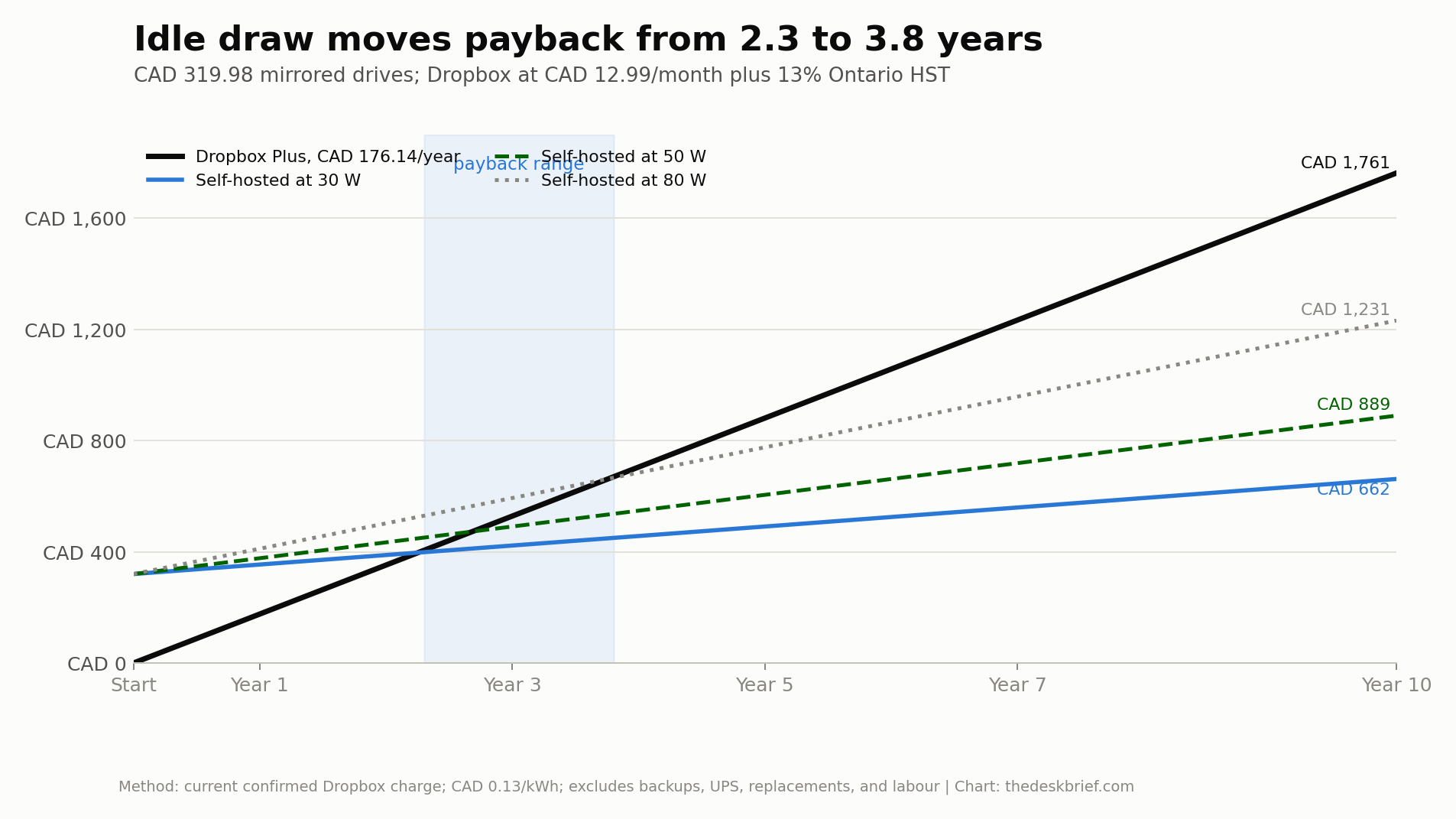
That zero is important, but it is not the whole cost model a reader should use. The working machine needs suitable data drives. A mirror needs two. A local backup needs separate media. An offsite backup needs another copy or rotation. A UPS is not mandatory for every file server, but clean shutdown during an outage is cheap insurance. Drives, fans, batteries, and power supplies age. Electricity arrives every month. Your time is not free simply because nobody invoices you for Saturday.
Here is an honest 4TB usable model built from current Canadian prices and explicit assumptions:
| Cost item | Assumption | Modelled cost |
|---|---|---|
| Primary drives | Two new 4TB NAS drives at CA$264.99 each | CA$529.98 |
| Local and offsite media | Two new 4TB backup drives at CA$229.99 each | CA$459.98 |
| UPS | Current consumer 1500VA unit | CA$259.00 |
| Cables, adapters, or incremental network gear | Explicit allowance, not a quoted bundle | CA$100.00 |
| Computer | Repurposed existing desktop | CA$0 |
| Electricity | 66W measured midpoint at CA$0.169/kWh | CA$97.71/year |
| Ten-year replacements | One mirror refresh, one backup disk, one UPS battery | CA$860.00 |
| Setup time | 25 hours at CA$30/hour | CA$750.00 |
| Maintenance time | Two hours per month at CA$30/hour | CA$720.00/year |
This table is a conservative reader model, not an itemized receipt for my build. I already owned the computer and supporting platform, so my actual compute purchase was zero and my project spending went to drives. The drive prices in the model are based on current Canadian retail listings, not what I remember paying. Canada Computers listed a 4TB WD Red Plus NAS drive at CA$264.99 and a 4TB Seagate desktop drive at CA$229.99. A CyberPower 1500VA battery-backup listing was about CA$259. The exact products and sale prices will move. The method is the useful part: two primary drives, two independent backup targets, and power protection all belong in a conservative starting number for someone building from scratch.
The site’s live SSD price tracker is a better place to watch current solid-state storage than a number frozen in an article. The Samsung 990 EVO Plus analysis and 2026 RAM price guide also show why capacity, endurance, and timing matter when a build needs upgrades.
I measured the 2026 server drawing roughly 60W to 72W during a UPS discharge test. A 66W midpoint running all year consumes about 578kWh:
0.066 kW x 24 hours x 365 days = 578.16 kWh/year
578.16 kWh x CA$0.169 = CA$97.71/year
The CA$0.169 figure is the latest Canada-wide residential estimate I could verify, updated in June 2026 with December 2025 data. The Canada Energy Regulator separately shows why one national number needs caution: regional costs vary enormously and rate structures include different fixed and usage charges. Substitute your marginal all-in cost from a real bill.
| Self-hosted model | 1 year | 3 years | 5 years | 10 years |
|---|---|---|---|---|
| Cash only | CA$1,447 | CA$1,642 | CA$1,938 | CA$3,186 |
| Including time at CA$30/hour | CA$2,917 | CA$4,552 | CA$6,288 | CA$11,136 |
| Cash cost per TB per year | CA$361.68 | CA$136.84 | CA$96.88 | CA$79.65 |
| Cost per TB per year with time | CA$729.18 | CA$379.34 | CA$314.38 | CA$278.40 |
The cash model becomes competitive at multi-terabyte capacity because the large starting storage and backup purchase is spread across years. At ten years, CA$79.65 per usable TB per year is close to 2TB iCloud+ at CA$77.94 and below Dropbox Plus at CA$88.07 under the Ontario after-tax assumption. It is still above a fully used Microsoft 365 Family allocation, pCloud lifetime, Sync, and MEGA on normalized capacity.
Labour reverses the result. Two hours per month is not an extreme allowance when it includes updates, checking backups, rotating offsite media, restore drills, hardware work, and incidents. At CA$30 per hour, time adds CA$7,950 over ten years. A person who enjoys the work may treat that as hobby time. A cost comparison should still show it.
The simple-payback chart and the full-cost table answer different questions. The chart asks how quickly my CA$319.98 mirrored-drive purchase can recover the avoided Dropbox charge after electricity. The table asks what a reader should budget for a recoverable service after backups, power protection, replacements, and time. The first calculation reaches payback. The second can easily cost more than subscribing.
The financial verdict is not that self-hosting can never save money. Well over a decade of service from already-owned hardware can amortize a useful system. Version 1 proved that without failing. The verdict is that capacity and time horizon control the answer. One ordinary cloud plan is a low bar. Several terabytes kept for ten years is a different comparison.
Build it because control, capacity, customization, privacy, or education is worth paying for. If the cash line eventually crosses too, take the savings.
Sources: current Canadian NAS-drive listing, current Canadian 4TB backup-drive example, current Canadian UPS listings, and the Canada Energy Regulator residential-rate comparison.
DIY NAS hardware: what I reused and what each part does
The 2026 DIY NAS is based on an old Intel Core i7-4770K desktop platform that I already had on hand. I did not buy this server or any mini PC for the project. The path I took was hardware I already owned, so the compute cost was CA$0 and the money went to drives. A fourth-generation desktop processor is far from new, but file synchronization, checksumming, and several modest containers do not require a current gaming CPU. Reuse made sense because the platform was available, known to work, and had room for drives.
You do not need to buy a NAS appliance to self-host files. That needs to be said early because a CA$450 to CA$900 diskless enclosure can make the project look inaccessible before the drives are added.
Repurpose the compute and buy the drives new. That is the exact path I took. My processor dates to 2013 and handles Seafile, a media server, network-wide DNS filtering, monitoring, and local AI experiments in Docker. Its limitations have shown up in memory capacity and power efficiency, not in an inability to serve files.
For a reader who has no suitable hardware on hand, an off-lease small-form-factor business desktop is another route. It is not what I bought or used. Refurbished Canadian listings I checked ranged from about CA$281 for an older OptiPlex-class system to CA$470 for a newer six-core model. Local person-to-person marketplaces can be cheaper, but condition and seller claims are harder to verify. Dell OptiPlex, HP EliteDesk, and Lenovo ThinkCentre families are common because businesses replace fleets on schedules rather than waiting for every computer to fail.
The real constraint is often the case. Small-form-factor machines may have only one 3.5-inch bay and a limited number of SATA ports. Tiny systems may require USB enclosures or network storage for the data disks, which adds cables, power bricks, and failure points. Check the service manual before buying. CPU model matters less than drive bays, SATA connections, memory ceiling, cooling, idle power, and firmware behaviour after an outage.
Buy the data drives new. Used hard drives come with unknown power-on hours, handling, workload, and remaining warranty. The disk is the part holding the data, and drives are consumables. One of mine accumulated 40 questionable sectors while it continued to operate normally. A used compute box is a sensible economy. An unknown used drive is a risk purchased at the exact layer you are trying to protect.
The system drive is a 256GB NVMe SSD. The main synchronized data lives on a mirrored pair of 4TB NAS hard drives. A separate 3TB desktop hard drive holds other data outside that mirror. A retired SSD became the target for a bootable operating-system copy. External drives provide local and offsite recovery copies.
I am giving capacities because they help explain the layout. I am not publishing serial numbers, filesystem labels, disk identifiers, or exact device paths. None of those would help you build a safer server.
The mirrored NAS pair is the important part of the live storage design. ZFS writes the data across two drives so either member can fail without immediately losing the pool. It also checksums data, which helps detect corruption that ordinary file copies may not reveal. A scrub verifies stored blocks against those checksums.
The separate 3TB disk is a reminder that not all bytes deserve the same protection tier. Replaceable media, bulky archives, and working data can have different recovery requirements. The mistake is letting that distinction emerge accidentally. Decide what can be downloaded again, what would be annoying to lose, and what would be irreplaceable.
The system SSD is deliberately separate from the main pool. When the operating system failed, the ZFS data survived. That separation turned a potential data disaster into a long rebuild. Long rebuilds are unpleasant. They are still better than losing the only copy.
An old desktop has drawbacks compared with a purpose-built NAS. It may draw more power, take more space, lack hot-swap bays, and depend on aging parts. Consumer motherboards can have awkward automatic-power behaviour. Spare parts become less convenient as a platform ages. The value comes from using what you already own, not from claiming old desktops are technically superior.
Before reusing a PC, inspect the power supply, cooling, drive mounting, SATA capacity, network interface, and firmware options. Confirm that the board can boot without a monitor, restore after power loss, and expose drive health. Check that the case cools the hard drives rather than only the processor. A data drive that spends years cooking behind a solid front panel is not a bargain.
The electricity caveat for hardware you already own
My version 2 compute cost was zero because the hardware was already on hand. The electricity comparison below is a caveat for readers choosing among possible build paths, not a verdict that I should have bought a different machine.
At CA$0.169 per kWh, continuous operation for ten years costs about:
| Continuous draw | Ten-year electricity | Typical interpretation |
|---|---|---|
| 30W | CA$444 | Efficient mini PC or compact NAS plus drives |
| 50W | CA$740 | Reasonably efficient off-lease SFF desktop |
| 66W | CA$977 | Measured midpoint of my 2026 server |
| 80W | CA$1,184 | Older full tower with several drives |
The original CA$0.13 example would put 30W near CA$342 and 80W near CA$911. The latest national estimate I found was CA$0.169, so I used the higher current figure rather than preserving the nicer result. Regional rates vary, and the correct input is the incremental all-in cost from your bill.
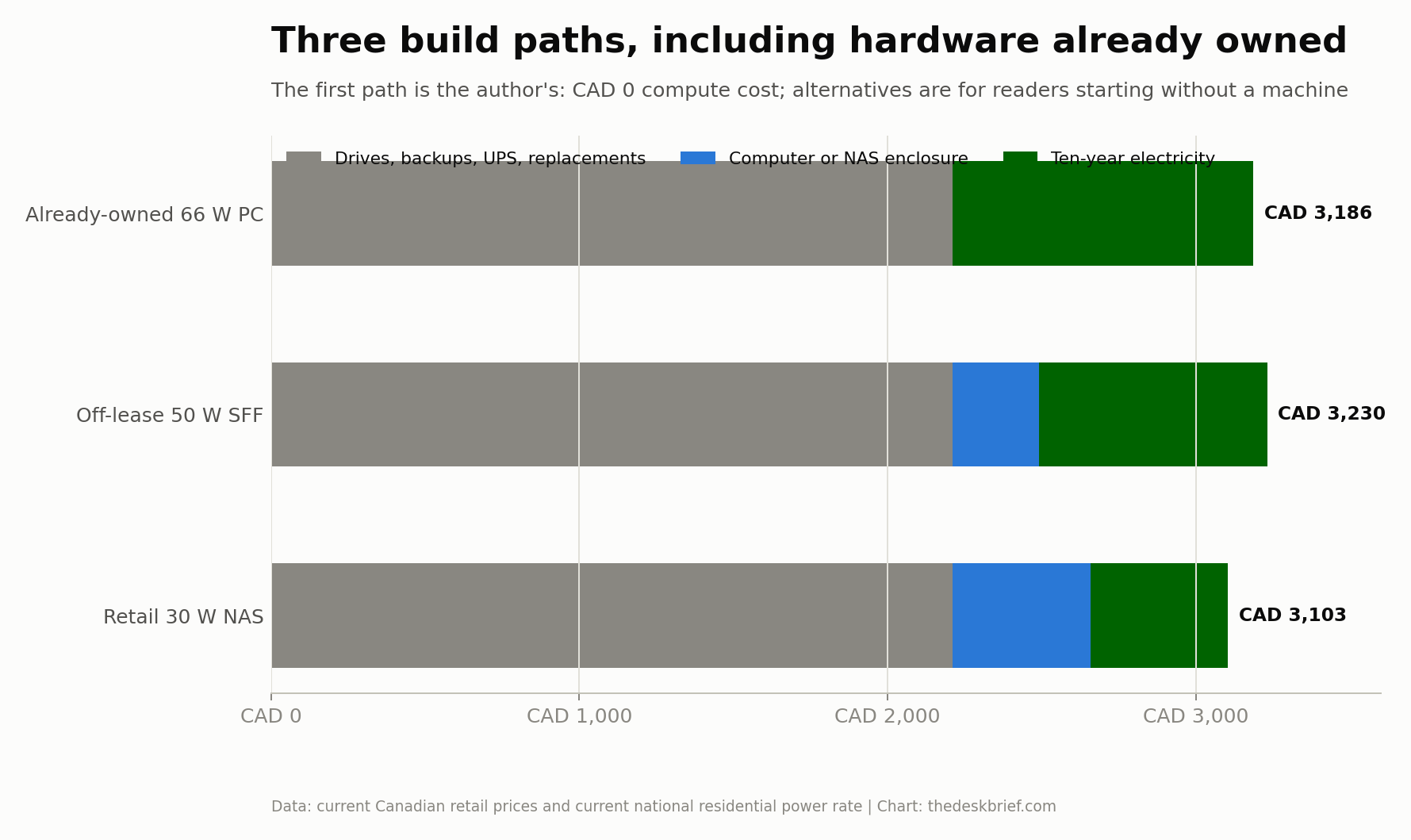
The chart gives all three scenarios the same 4TB usable mirror, local and offsite media, UPS, and replacement plan. The first row is my actual compute path: hardware I already owned, no machine purchase, and the measured 66W midpoint. The off-lease SFF and retail NAS rows are alternatives for readers starting without suitable hardware. They add illustrative acquisition costs of CA$281 and CA$450 and use 50W and 30W respectively.
After ten years, the illustrative totals converge around CA$3,100 to CA$3,230. That is the useful observation, not a retroactive shopping recommendation. Reusing the computer I already had removed the compute purchase and made the project possible immediately. A reader comparing genuinely available choices should measure each option’s idle draw and include that operating cost before deciding.
This does not mean I should have bought a NAS or mini PC. It also does not mean every reader should buy one. A retail two-bay appliance may not run the Docker stack you want, and an SFF chassis may not hold the drives you need. It means a reader’s purchase decision should include lifetime energy:
watts / 1,000 x 24 x 365 x years x CA$/kWhMeasure at the wall if possible. If you are choosing between machines you could actually acquire, compare the ten-year energy difference with their price difference. A CA$250 computer that saves 40W recovers that price difference in about 4.2 years at CA$0.169 per kWh. That arithmetic is a decision tool for a new purchase, not a claim that an already-running build must be replaced.
Modern mini PCs can make sense when storage attaches elsewhere or the workload needs much more compute per watt. The site’s Beelink GTR9 Pro analysis and Lenovo Yoga AI mini PC coverage show how much compute now fits into a compact power envelope. They are not automatic NAS replacements because internal drive capacity still matters.
Power recovery matters as much as power use. The site’s guide to automatic power-on after an outage pairs with my seven-day UPS story later in this article. An efficient server that stays off until somebody gets home is still unavailable.
Sources: the current Canada residential electricity estimate, the Canada Energy Regulator regional comparison, current refurbished SFF example, and a current two-bay NAS enclosure listing.
How to build a home server without copying my mistakes
If you are researching how to build a home server, start with the recovery design rather than the application list. The build order I would use now is:
- Define the files and services that matter.
- Decide how much downtime you can tolerate.
- Design the primary storage and two independent backup paths.
- Choose hardware that meets those needs at an acceptable power draw.
- Install the operating system and record every non-default decision.
- Build storage, confirm mounts, and add safeguards that stop applications when storage is absent.
- Deploy one application, then test backup and restore before adding another.
- Add private remote access.
- Add monitoring for disks, capacity, memory, backups, and power events.
- Simulate failure while the system is still optional.
The first step sounds obvious and is routinely skipped. “All my files” is not a useful category. A synced document library, a photo archive, replaceable media, application databases, container definitions, and operating-system configuration have different backup methods. Seafile, for example, needs both its library data and its databases. Saving only one side is not a complete application backup.
Write down the recovery-time objective in ordinary language. If the server can be down for a weekend, you can accept more manual rebuilding. If other people rely on it for daily work, a weekend rebuild is not a plan. That decision controls how much automation, spare hardware, documentation, and testing you need.
Install less at first. Docker Compose makes multi-container applications repeatable because the services and their relationships can be defined in YAML. It does not make the application stateless. The definitions can survive while the database, secrets, permissions, and generated configuration do not.
Treat mount order as a safety condition. If Docker starts before a storage pool mounts, a container bind mount can point at an ordinary empty directory on the system drive. The application may then write fresh data to the wrong place while appearing healthy. My setup now includes a safeguard so Docker does not begin using storage that is not actually mounted.
Save commands and decisions as you go, but do not put live secrets in a casual notebook. Keep credentials in an appropriate secret store and keep the restore document focused on sequence, dependencies, validation, and where protected material can be retrieved.
The test is not whether the service opens in a browser. The test is whether you can remove a component, recover it from the documented copies, and prove the files are intact.
Storage layout: mirror, system disk, and recovery tiers
A storage diagram is more useful than a shopping list because the relationship between copies determines resilience.
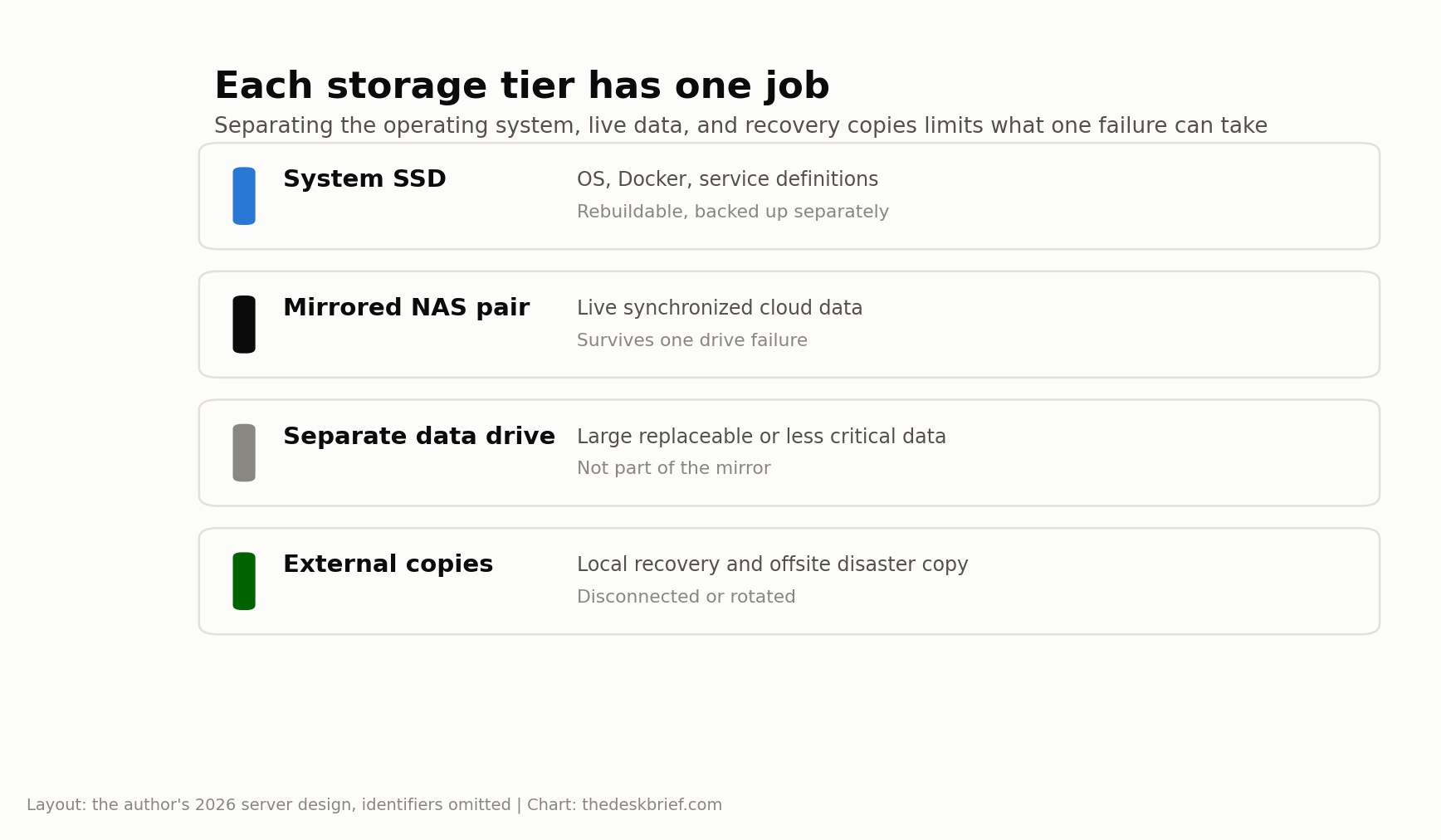
The system SSD contains the operating system, Docker, service definitions, and supporting packages. It should be recoverable without touching the main data. A bootable duplicate can shorten an outage, but only if it has been tested on the actual machine.
The mirrored NAS drives hold the live synchronized libraries. Mirroring improves availability. It does not create history and it does not protect against deletion, ransomware, a bad command, theft, fire, or an application writing damaged data to both members.
The separate data drive carries a different risk level. One of my drives accumulated 40 pending or uncorrectable sectors while it continued to work. A ZFS scrub reported no data errors because the affected sectors were probably unused. That is not a clean bill of health. Drive-health counters and filesystem checks answer different questions. A disk can be on its way out while the current data still verifies.
The external copies exist outside the live storage. One stays local for a fast restore. Another is stored at a different physical location so one incident cannot remove every copy. The offsite disk includes a restore guide with the backup. That last detail matters more than it sounds. Instructions stored only on the failed server are not recovery instructions.
Capacity must be planned across all tiers. My local external drive could not hold every dataset, so I had to choose what belonged there. That is acceptable if the choice is explicit. It is dangerous if a job silently skips data because the destination filled up.
Nextcloud vs Seafile: why I chose Seafile
I tried Nextcloud first in 2026 and did not like it for this job. After reading community discussions, I chose Seafile as the better fit for a focused Dropbox replacement.
That is a personal fit decision, not a declaration that Seafile wins every Nextcloud vs Seafile comparison.
Nextcloud is a broad collaboration platform. Its ecosystem can cover files, calendars, contacts, office integration, communication, photos, and many other applications. If you want one self-hosted workspace and value that ecosystem, Nextcloud is the natural first trial. Its official backup guidance reflects the breadth of the platform: protect the configuration, data, database, themes, and custom applications.
Seafile is more focused on synchronized file libraries. That focus appealed to me. I wanted dependable file sync, not a self-hosted suite that would tempt me to move every digital service onto one aging desktop.
Seafile’s storage model is also a tradeoff. It stores library content as blocks managed by the application, not as a directly readable duplicate of the familiar folder tree. That helps its synchronization and versioning model, but it means the database and block store belong together in backup and recovery. The official Seafile documentation recommends backing up the databases and library data and explains the order needed for consistency.
My actual deployment runs Seafile Community Edition in Docker. I have measured transfers around 380Mbps to 430Mbps under favourable local network conditions. Server CPU use was low, and much of the data was being served from the ZFS cache, so the bottleneck appeared to be the client or network path rather than the old processor. That is one observation on my network, not a universal benchmark.
Nextcloud may be the better choice if you want calendars, contacts, integrated groupware, a large app catalogue, or direct filesystem expectations that fit its design. Seafile may be the better choice if fast, focused file synchronization is the centre of the project. Try both with disposable data before committing.
Do not choose based on a feature grid alone. Back up each test deployment, destroy it, and restore it. The application whose recovery model you understand is safer than the one with the longest feature list.
Sources: Nextcloud backup documentation and Seafile backup and recovery documentation.
Why the 2026 build uses Docker
Docker makes the 2026 stack easier to describe and recreate. A Compose file records services, images, networks, volumes, dependencies, and environment references in one place. That is much better than remembering a trail of one-off shell commands.
It also creates a false sense of completeness if you mistake the recipe for the meal.
During the rebuild, the Compose definitions survived for some services. Several things around them did not. A database account existed but its grants were gone, so the application could start while authentication failed. Some services and host packages had to be reinstalled. A custom binary landed at a different path, which made a backup-status display go blank. Configuration files that had never entered the backup had to be reconstructed.
Docker reported what Docker could see. It could not tell me that the host storage mount was missing, that the application’s account permissions were wrong, or that a scheduled backup depended on a nonexistent log file.
Containers improve repeatability when you back up four layers:
- The Compose definitions and non-secret configuration.
- The application data and databases.
- The host-level services, packages, storage mounts, and network rules.
- A recovery document that joins those pieces in the right order.
Pinning versions can make rebuilds more predictable, but frozen software is not a security strategy. Record the current working version, review release notes, stage upgrades, and keep a rollback path. One Seafile upgrade partially changed configuration and then exposed database and cache problems before the service would start cleanly again.
The official Docker Compose documentation describes Compose as a way to define and run multi-container applications. That is exactly the boundary to remember. It defines containers. Your server is larger than its containers.
Remote access without port forwarding
A personal cloud is not very useful if it only works while you are home. The tempting solution is to forward a router port to the file service. I do not recommend doing that casually.
An internet-facing login page is a permanent security responsibility. You need timely patches, strong authentication, TLS, rate limiting, logs, alerting, and a clear understanding of every proxy and application setting. A mistake is visible to the whole internet.
I use a mesh VPN so authorized devices join a private network and reach the server through that network. The public internet carries encrypted traffic, but the file service is not exposed as an open destination. Access rules can limit which devices or users reach which service.
Tailscale Serve, for example, can provide an HTTPS reverse proxy inside a private tailnet, with tailnet access controls still applying. That is a different threat model from forwarding a public port. It reduces exposure, although it does not remove the need to patch the server or protect accounts.
Private remote access has its own failure modes. Persistent proxy configuration can be fragile after upgrades or rebuilds. Device authorization can expire. A remote user can be locked out if the home internet, server, router, DNS, or VPN coordination layer fails. Keep a documented local path to administration and test access from outside the network before depending on it.
If you genuinely need public sharing links, consider whether a commercial provider should handle that portion. Splitting responsibilities is allowed. You can keep private working data at home and use a small cloud account for files meant to be shared broadly.
Source: Tailscale Serve documentation.
My backup topology and the 3-2-1 principle
The primary server is not a backup. A mirror is not a backup. A snapshot on the same machine is not an offsite backup. Those statements feel repetitive until a failure removes the distinction for you.
The traditional 3-2-1 backup rule says to keep three copies of important data, on two types of media, with one copy offsite. My layout follows the spirit of that model:
- The active copy lives on the server’s mirrored NAS drives.
- A local external drive provides a separate recovery copy.
- Another external drive at a different physical location protects against a site-level loss.
There is also a bootable operating-system copy on a separate internal SSD. That is a recovery accelerator, not a substitute for the data backups.
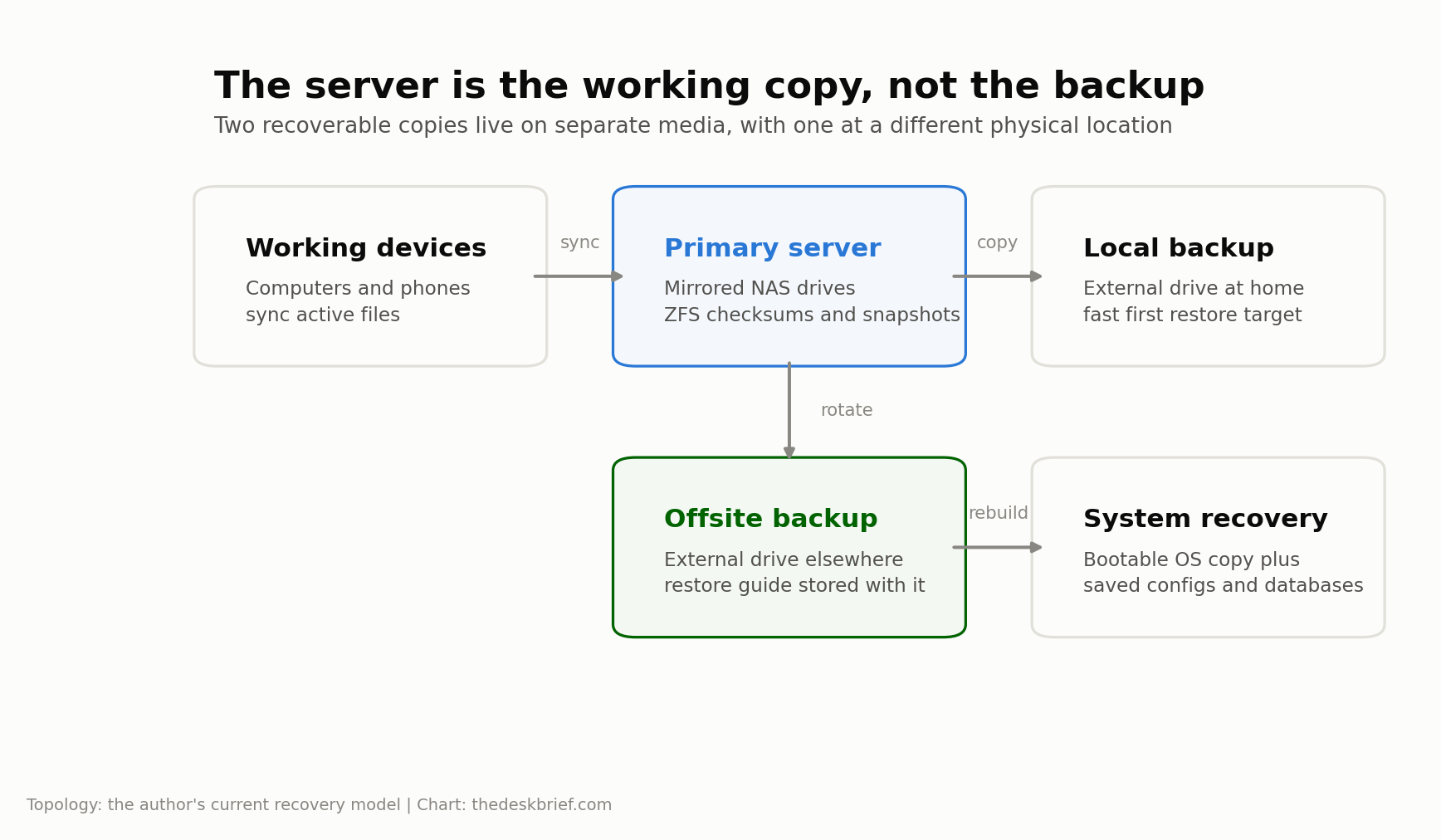
The offsite backup contains the Seafile block store, database dump, necessary configuration, and a restore document. The document is stored with the backup because a procedure that exists only on the dead machine is unavailable at the exact moment it is needed.
Order matters for application-consistent backup. Seafile’s documentation advises backing up the databases before the library data so the data set cannot get ahead of the metadata during the copy. Recovery reverses the dependency: restore the data and databases in a way the application understands, then validate libraries through the application.
Large regenerable data can use a different schedule. One media-service backup excludes bulky metadata from the daily job and captures a fuller copy weekly. That reduces daily churn without pretending the excluded material is irreplaceable. The policy is based on recovery value, not on making every backup directory look complete.
The Cybersecurity and Infrastructure Security Agency’s backup guidance describes the same three-copy, two-media, one-offsite structure. I am mentioning the 3-2-1 backup rule here as a useful model, not claiming that a slogan proves a backup works.
A backup you have never restored is a hypothesis. Test restores turn it into evidence.
Source: UK National Cyber Security Centre backup guidance.
The crash that separated stored data from a recoverable service
The hardest failure in the 2026 build did not destroy the main ZFS data pool. The operating system failed and the pool survived intact.
That sounds like a success, and at the storage layer it was. The mirrored drives had done their job. The files were still there. The service that made those files useful was not.
Rebuilding exposed the difference between data durability and system recoverability. The operating system had to be rebuilt. Docker and host packages had to be restored. Containers had to be recreated. Application configuration had to be found or reconstructed. Databases had to be imported. Permissions had to be repaired. Network access had to be re-established. Monitoring had to be made truthful again.
Some Compose files and scripts survived. Several configurations did not because they had never been included in the backup. A database user still existed after restoration, which initially looked encouraging, but the required grants were missing. The application container could run while the application could not authenticate.
One scheduled backup had been failing silently. The cron job expected to write to a log file whose path did not exist or was not writable. Because the status display depended on that output, the failure was not obvious. Another status component went blank after a binary was installed in a different location from the one a script expected.
There was also a mount hazard. If Docker started before ZFS mounted, bind-mount targets could become ordinary directories on the system disk. Containers would happily use those empty paths and create a parallel, wrong version of the application state.
The crash taught me that “the data survived” and “the service is recoverable” are separate claims. A complete recovery plan needs the bytes, the databases, the configuration, the software versions, the host dependencies, the permissions, the startup order, and a way to verify success.
This is the heart of the project because it is where self-hosting stops being a storage hobby. The useful unit is not the disk. It is the restored service.
Seventeen rebuild lessons condensed into a recovery checklist
The rebuild notes contain 17 numbered gotchas. Some are specific to my stack, but the useful patterns are general.
Back up generated and hand-edited configuration
Compose files do not capture every setting written inside application directories, reverse proxies, search tools, or host services. Inventory configuration by asking, “What did I change after the container first started?” If the answer exists only on the live disk, add it to the protected set.
Export databases deliberately
A database volume may be copyable, but a tested logical dump provides another recovery route and makes the required database names and roles visible. Record how to recreate users and grants. The existence of a username does not prove it can access the restored database.
Preserve permissions and ownership
Containers often run as specific numeric user IDs. Restoring files with the wrong owner can produce confusing partial failures. The directory exists, the container starts, and writes fail. Document ownership expectations without publishing real account names.
Record host packages and services
The host still matters. Storage tools, network helpers, monitoring agents, schedulers, and command-line dependencies may sit outside Docker. Keep a package inventory or provisioning script and mark which services must start before containers.
Protect startup order
Storage should mount before applications. Databases should become ready before dependent services attempt migration. Network and DNS dependencies should not create a circular wait. Use explicit health checks and host service ordering where possible.
Make scripts discover their dependencies safely
A script that assumes a binary lives at one path can fail after a clean install places it elsewhere. Resolve commands through a controlled environment, validate them at startup, and make monitoring report “check failed” rather than going blank.
Treat logs as required outputs
Create log directories with deliberate ownership and permissions. Check that scheduled jobs can write before trusting the schedule. Alert on a stale success timestamp, not merely on the absence of a visible error.
Keep secrets out of informal backups, but keep a recovery path
Do not scatter live passwords through notes. Use a protected credential system and document how an authorized operator retrieves what recovery needs. The plan must survive without making the backup itself an unencrypted bag of credentials.
Validate the application, not just the process
“Container running” is a weak health check. A better test logs in through the normal path, reads a known library, writes a small test item, and confirms the next backup sees the change.
Save a version manifest
Record application, database, cache, and image versions at each known-good backup. Restoring old data into a newer application can trigger migrations you did not plan. Restoring an old image with new configuration can fail differently.
Separate irreplaceable from regenerable data
Back up documents, photos, databases, and configuration aggressively. Cache, thumbnails, transcodes, and downloaded media may be cheaper to regenerate. State that choice so a future operator does not interpret an exclusion as an accident.
Check free space at every destination
A local drive that cannot fit all source data needs a policy, not hope. Estimate growth, reserve working space, and fail loudly before the destination fills.
Keep recovery instructions offline
Store a copy with the offsite backup and another somewhere available without the server. Include the restore order, validation steps, and the location of protected credentials. Do not include private network identifiers in a document that does not need them.
Practice on replacement paths
Test what happens when the original disk identifier changes, a package installs to another path, or a container receives a fresh volume. A recovery process that works only when every name stays identical is fragile.
Rebuild monitoring last, then test that it lies less
Monitoring often depends on the system it observes. After recovery, confirm the monitor can see disk health, backup timestamps, capacity, memory, service health, and power state. Create one controlled failure and verify that the alert arrives.
Review every manual fix
Anything typed during an emergency is a candidate for automation or documentation. If you do not capture it, the next rebuild starts from the same surprise.
Finish with a restore, not a dashboard
Open representative files, compare counts, inspect application logs, and restore a deleted test item. A green dashboard is a starting point. The restored user’s experience is the acceptance test.
The bootable OS backup that silently stopped being bootable
After the crash, I added a nightly operating-system sync to a retired internal SSD. The goal was straightforward: if the main system drive failed, the server could boot from the secondary disk.
The first dangerous mistake was an exclusion rule. The backup omitted a common mount directory, but the ZFS pool was mounted at the filesystem root instead. The sync could therefore try to copy roughly 988GB of live data onto a 115GB target. The fix was an explicit exclusion for the actual pool mount.
The second mistake was subtler. A file-level sync copied the primary system’s filesystem table and boot configuration onto the backup. Those files contained identifiers for the primary disk. Each successful sync could therefore overwrite the backup drive’s own boot references and quietly make it point back to the disk it was supposed to replace.
The solution was a post-sync repair step that restores the backup disk’s correct identifiers and regenerates the bootloader configuration. Then I tested an actual boot from the secondary drive.
This incident is a perfect example of why “backup completed” is not the same as “recovery works.” The copy could be current, complete, and unbootable. The more faithfully it mirrored the source, the more faithfully it copied the source’s identity.
If you maintain a bootable clone:
- Exclude every mounted data pool explicitly.
- Keep the target’s boot identifiers and mount configuration distinct.
- Regenerate the target bootloader after synchronization.
- Shut down and boot from the target on a schedule.
- Confirm the services see the correct storage but cannot write to an unmounted substitute path.
The test interrupts uptime, which is why people avoid it. That inconvenience is the price of knowing.
The UPS worked and the server still stayed down for seven days
From June 29 to July 6, 2026, the server was offline for seven days after a power failure.
The UPS did its primary job. It detected the outage and shut the server down cleanly. The automatic restart process armed a scheduled wake. The motherboard never fired it. Nobody was present to notice, so the server remained off until someone could press the power button.
No data was lost. Services recovered normally after the manual start. Operationally, it was still a seven-day outage.
This was not the failure mode I had centred in the plan. I had worried about a dirty shutdown, filesystem damage, and exhausted battery. The clean shutdown worked. The return from the clean shutdown failed.
A common firmware option called “restore after AC power loss” did not solve this path because the UPS output remained live while the computer shut down. From the power supply’s perspective, there was no full loss-and-return edge after utility power came back. The machine was simply off on a powered outlet.
The stronger design is to have the UPS cut output after shutdown, then restore output when mains power returns, while firmware is configured to boot after AC restoration. A scheduled real-time-clock wake can remain a secondary path. That hardening was identified after the event; it should not be described as if it had already protected the outage.
Test four states:
- Brief outage while the battery has ample charge.
- Long outage that triggers a clean shutdown.
- Utility return after shutdown while UPS output remains active.
- Utility return after the UPS has cut and restored output.
Remote access is only useful while the server is powered. A UPS without a tested restart path can protect data and still fail availability.
When a storage server makes the whole internet look broken
The 2026 machine also runs household network services. That creates leverage and coupling.
During a large file transfer, the ZFS adaptive replacement cache grew until it consumed nearly all of the machine’s roughly 15GB of memory. System load rose and the DNS service failed. Devices around the house reported what looked like an internet outage even though the internet connection itself was fine. The resolver they depended on had been starved.
I capped the ZFS cache at 4GB. That left memory for containers and network services while preserving useful filesystem caching.
A later incident made the same dependency visible from another direction. A runaway process grew to roughly 14.4GB of resident memory on the 15GB system. Docker services and DNS were starved again. To everyone using a phone or laptop, “the server is out of memory” looked like “the internet is down.”
Memory limits and a warning guard were added after that event. The broader lesson is not about one process. It is that centralizing services changes the blast radius.
If a box provides storage, DNS, remote access, media, automation, and monitoring, one resource leak can affect all of them. Split critical services across devices where practical, reserve memory for the host, apply container limits, and maintain a fallback resolver. Do not let the monitoring stack depend entirely on the same DNS path it is supposed to monitor.
This is another reason not to copy a service list from someone else’s dashboard. Every tile adds a dependency. The right number of services is the number you can recover and isolate.
A drive can be failing while every file still checks out
One separate hard drive accumulated 40 pending or uncorrectable sectors while continuing to operate. The filesystem scrub reported no errors.
Those results are not contradictory. The suspect sectors may have been unused. A scrub verifies allocated data against checksums. Drive health statistics report what the hardware has observed across the device. One can be clean while the other is alarming.
I treat pending and uncorrectable sectors as a replacement signal, not a personality quirk. Waiting for the filesystem to lose a file before acting turns a warning into an incident.
Monitor at least:
- Reallocated, pending, and uncorrectable sector counts.
- Interface errors that may indicate a cable rather than a platter.
- Temperature over time.
- ZFS pool state and scrub results.
- Capacity and unexpected growth.
- Backup freshness.
Run scrubs on a schedule appropriate to the storage and workload. Review the result rather than assuming the absence of an email means success. A failed notification path can make healthy and unmonitored look identical.
Mirrors also need an intentional replacement process. Know which physical drive corresponds to the failed member without publishing or guessing identifiers. Label hardware locally, keep a private inventory, and confirm the exact target before any destructive command.
Restore testing: turn the hypothesis into evidence
A useful restore test has levels.
The smallest test restores one deleted file from the most recent backup and opens it. That proves a narrow path: the file was captured, the backup can be read, and the content is valid.
The next test restores an application library into a disposable environment. For Seafile, that means bringing together the block data, databases, configuration, and compatible application version. Browse libraries through the application, compare expected counts, and make a controlled write.
The full test boots replacement system media, mounts the correct storage, restores services in dependency order, and validates local and remote access. It is disruptive. It also tests the steps most likely to fail during an actual emergency.
NIST contingency-planning guidance calls for periodic testing of recovery procedures. The exact cadence depends on the system, but the principle is stable: documentation and media degrade unless exercised.
I would use this practical schedule:
- Monthly: restore a handful of representative files.
- Quarterly: restore a database and application library into an isolated environment.
- Twice yearly: boot the secondary operating-system disk.
- Annually: rehearse a full rebuild from the offsite set and its stored instructions.
- After every major upgrade: create and validate a new recovery point before discarding the old one.
Record duration as well as success. A backup that takes four days to restore may be acceptable for an archive and unacceptable for daily work.
Source: NIST storage infrastructure security guidance.
The maintenance calendar a private cloud needs
Self-hosting becomes manageable when maintenance is routine rather than heroic.
Weekly, I want to know whether backups completed, whether available capacity changed unexpectedly, whether any service is restarting, and whether a drive-health counter moved. This can be a short review if alerts are trustworthy.
Monthly, patch the host and applications through a controlled process. Read release notes for the file platform, database, cache, reverse proxy, container runtime, mesh VPN, and storage tools. Snapshot or back up before changes. Confirm the login, sync, and backup paths afterward.
Quarterly, restore data. Review user access. Remove devices that should no longer reach the private network. Check UPS battery status and test notification paths. Inspect fans and filters because dust is an availability problem with a slow clock.
Twice a year, boot recovery media and run a longer power test. Confirm the machine’s restart behaviour rather than only its shutdown behaviour. Review whether the offsite copy has rotated recently enough to contain the data you would actually miss.
Yearly, revisit capacity and replacement planning. Drives age together when they were bought together. A mirrored pair can therefore approach failure together. Budget for replacement before the first member forces the decision.
Maintenance should also remove complexity. Retire services you do not use. Consolidate scripts. Replace clever implicit behaviour with explicit checks. Update the restore document while the details are familiar.
The task is never “maintain the server.” That is too vague to schedule. The tasks are “restore one file,” “review disk counters,” “apply tested update,” and “boot the backup SSD.” Specific work gets done.
Performance: the old processor was not my bottleneck
The old Intel platform is not fast by current desktop standards, but file serving is often limited by storage and network paths before raw CPU performance.
In my setup, Seafile transfers reached roughly 380Mbps to 430Mbps under favourable local conditions. The server processor was lightly used, and data was coming from the ZFS cache. The observed limit appeared to be elsewhere in the client or network path.
That does not mean every i7-4770K server will deliver the same result. Wi-Fi conditions, client storage, encryption, small-file overhead, compression, network interfaces, switches, and disk state all affect throughput. A large sequential transfer from cache is not the same workload as synchronizing thousands of tiny files.
Measure the user experience that matters:
- Initial upload of a large folder.
- Rescan time after many small changes.
- Remote download over the actual upstream internet connection.
- Mobile photo upload after a trip.
- Restore speed from local and offsite media.
- Server responsiveness while backup and scrub jobs run.
Gigabit networking is enough for many homes. Faster links help only if the storage, client, and workload can use them. Spend first on backup capacity, healthy drives, and reliable power. A benchmark that copies the only copy of your data faster is not resilience.
Privacy, security, and the threat model
Self-hosting changes who can see the storage and who is responsible for protecting it.
Keeping the primary data at home reduces dependence on a cloud provider’s account systems and business policies. It can limit exposure to provider-side scanning or accidental sharing. It also concentrates valuable data on a network you administer.
The word “private” does not mean “secure by default.” The server needs timely patches, strong unique credentials, multi-factor authentication where supported, encrypted remote transport, restricted administration, backups protected from the live account, and logs that can reveal abuse. Full-disk or dataset encryption may protect stolen hardware, but it adds key-management and unattended-boot decisions.
A mesh VPN narrows remote exposure, which is why I prefer it to public port forwarding. It still creates trusted devices and accounts. A compromised authorized laptop can reach whatever the access rules allow.
Ransomware is another reason the backup should not be permanently writable by the same credentials as the live data. Synchronization can copy an encrypted or deleted file perfectly. Snapshots, version history, offline media, and offsite rotation create different recovery points.
Think through five events:
- One data drive fails.
- The operating system disk fails.
- An authorized user deletes or encrypts files.
- The server and local backup are physically lost together.
- The administrator loses access or cannot remember the recovery sequence.
Each needs a different control. A mirror addresses the first. A bootable system copy helps with the second. Snapshots and versioned backups help with the third. Offsite media addresses the fourth. Documentation and protected credential recovery address the fifth.
Do not publish your server’s addresses, names, drive identifiers, or credentials in a tutorial. A reproducible design does not require turning your own infrastructure into an example target.
Migrating from Dropbox or Google Drive without creating two truths
The safest migration keeps the commercial cloud until the self-hosted copy has survived normal use and a restore test.
Start by inventorying data. Separate active synchronized folders, shared folders, cloud-native documents, photo libraries, and old archives. Google Docs files may be references to cloud documents rather than ordinary office files, so export them into formats you can open elsewhere. Shared content may belong to another account and may not migrate with your copy.
Copy into a staging library rather than pointing the new sync client at the only local folder immediately. Compare file counts and total sizes. Hash important archives. Open representative documents, photos, and media. Check names with unusual characters and long paths.
Then choose a direction of authority. During the test period, decide whether changes happen in the old cloud, the new server, or a deliberately synchronized bridge. Letting people edit both creates conflicts and makes it unclear which deletion was intentional.
Move one category at a time. Documents are easier to validate than a phone photo workflow. Shared team folders require account and permission testing. Very large archives may be better copied locally than uploaded through the internet.
Keep the old service read-only for at least one billing cycle if the provider and budget allow it. Test the self-hosted system from every normal device, from outside the home, after a server restart, and after a client has been offline.
Before cancelling, complete a restore from the independent backup, not from the live server. A migration is not finished because the new files appear. It is finished when the new system can lose something and recover it.
What daily use feels like
Most days, the server is boring. That is the goal.
Desktop clients synchronize files. Mobile access works through the private network. The web interface handles the occasional file lookup. Local transfers are fast enough that the old processor does not call attention to itself.
The difference appears in edge cases. A commercial service hides maintenance windows and disk replacements behind a status page. My status page is a list of jobs I own. If remote access fails, I need to distinguish the home connection, power, DNS, server, container, database, storage pool, and VPN path.
Control is pleasant when I want to increase capacity, change retention, or keep data out of a provider account. It is less pleasant when an update changes a configuration format or when a backup dashboard goes blank because a command moved.
The best measure of success is not how many services appear on a dashboard. It is how rarely the storage interrupts the work it supports. Every optional integration has to justify the recovery burden it adds.
For adjacent examples of what a capable local machine can do, I have separate guides to a home AI agent setup, what a local LLM is, and the best local LLMs for coding. Those workloads can share hardware in some builds, but the memory-exhaustion incident is a reason to isolate or cap them rather than treating spare RAM as infinite.
What a self hosted Dropbox does not replace well
A self hosted Dropbox is strongest when the problem is file synchronization and controlled sharing. It is weaker when the product you are leaving is deeply tied to an operating system or collaborative application.
iCloud backs up and coordinates Apple devices in ways a generic file server does not reproduce. You can store photos and documents elsewhere, but replacing the full device experience is a different project.
Google Drive is intertwined with Docs, Sheets, sharing identities, comments, and browser collaboration. Exported files preserve content, not every workflow. Microsoft 365 combines OneDrive with Office licensing and cloud collaboration. If you already need the applications, removing OneDrive may not reduce the bill much.
Dropbox has mature conflict handling, sharing, recovery, and clients across platforms. Seafile covers my core needs, but I would not claim every rare edge case has the same polish.
Public links are another boundary. A commercial provider is designed to serve strangers safely at scale. A private mesh VPN is designed for authorized devices. Exposing a home service to support arbitrary public recipients changes the security job.
Disaster recovery is the largest gap. Cloud providers distribute data and staff across facilities. My offsite drive is a strong personal control, but it is manually rotated and only as current as the last successful copy. A true private cloud with automatic replication across independent locations is possible. It is also a larger system with more cost and more ways to fail.
Hybrid use is often the sensible answer. Keep private or bulky data on the server. Keep a small cloud plan for collaboration, device integration, or public sharing. Architecture does not need ideological purity.
Who should not do this
Do not build a home cloud if your only goal is avoiding a CA$12.99 monthly Dropbox charge. The simple payback works for my CA$0 compute path, but the full cost can be much higher once backups, power protection, replacement parts, and time are included.
Do not build one if you are unwilling to test restores. Copying files and glancing at a green icon is not enough. The project transfers responsibility from a provider to you, and recovery is the responsibility that matters.
Do not build one for people who depend on uninterrupted access unless you are prepared to support them. A seven-day outage because a motherboard did not wake is inconvenient for a hobby and unacceptable for critical work.
Do not build one if your internet upload is too slow for your remote workload. Local gigabit speed cannot fix a weak upstream connection.
Do not expose one directly to the internet unless you understand the security model and will patch it. Port forwarding is not a remote-access strategy by itself.
Do not centralize DNS, storage, automation, media, and experimental workloads on one low-memory box without limits and fallbacks. I learned exactly how a runaway process can make the whole internet appear dead.
Do not use mirroring as your only protection. It keeps the service running after one disk failure. It also mirrors deletion and damaged application writes.
Do not assume old hardware is free. High idle power can consume most of the avoided subscription cost. Aging power supplies, fans, and motherboards have replacement risk.
Do not choose self-hosting because it sounds more private if you will leave software unpatched, reuse passwords, or keep every backup permanently mounted. A well-run cloud account can be safer than a neglected server.
Choose the subscription if you want an outcome. Choose self-hosting if you also want the operational job.
Who should consider it
The project makes sense for someone who already owns suitable hardware, needs more capacity than an ordinary plan offers, and is comfortable treating backups as a separate system.
It suits people who value local control, want to learn Linux, storage, networking, and containers through a useful project, or need custom retention and application choices.
It can be a good fit when local network speed matters. Moving a large working set inside the home does not consume cloud bandwidth, and restoring from a local external drive can be much faster than downloading terabytes.
It also fits a hybrid privacy model. Keep sensitive working data on hardware you control, use encrypted remote access, and retain a small commercial account for collaboration or broad sharing.
The strongest candidate is not the person with the most elaborate parts list. It is the person willing to keep the design understandable. A modest server with two good backups and a written restore procedure is better than a rack of services nobody can rebuild.
Where I would spend the budget first
Spend first on independent backup capacity. A faster processor does not recover a deleted photo. A 10Gbps network does not help when the only copy was on the failed pool.
Next, buy appropriate primary drives and cooling. NAS-rated drives are designed for continuous multi-drive use, but no label eliminates failure. Match capacity so the mirror and backups can grow without running at the edge.
Then buy power protection. A UPS provides time for a clean shutdown and filters short disruptions. Verify that its management path works with your operating system and that the machine will restart after the exact kind of shutdown it performs.
Memory comes before an exotic CPU for a multi-service ZFS machine. Leave headroom, cap caches and containers, and monitor pressure. My old processor was adequate while 15GB of RAM proved easy to exhaust.
Networking comes after the storage and recovery paths. Gigabit Ethernet moves roughly 100MB/s under good conditions, which is enough for many file workflows. Faster links are useful for large local transfers, but only when clients and disks can sustain them.
If you are selecting SSDs for system or cache duties, the site’s Canadian SSD price tracker shows current retail movement, and my Samsung 990 EVO Plus analysis explains why endurance, controller behaviour, and workload fit matter more than a headline sequential number.
Finally, reserve money for the unexciting parts: another external drive, replacement fans, cables, and a UPS battery. Reliability is usually purchased in boring increments.
A decision framework before you buy anything
Answer these questions on paper:
- How much data is irreplaceable today?
- How quickly is it growing?
- Which devices must synchronize it?
- How much downtime is acceptable?
- Who will maintain the server if you are unavailable?
- Where will the offsite copy live?
- How often can that copy be updated?
- What is the measured idle or normal power draw?
- Which cloud features will still require a subscription?
- Can you restore the application without the original system disk?
Then calculate three costs. The first is cash at purchase: drives, backup media, UPS, adapters, and any replacement platform parts. The second is annual operation: electricity, battery and drive reserves, and cloud services you keep. The third is time: build, updates, monitoring, recovery tests, and actual incidents.
Compare that with the service you would honestly buy, not the most expensive enterprise plan you can find. If 200GB is enough, compare with 200GB. If Microsoft 365 is already required for Office, do not treat the entire subscription as storage waste.
Score the non-financial benefits separately. Local control, learning, customization, large capacity, and private access can justify a higher total cost. Putting them in a separate column prevents fake savings math from doing the persuasion.
Run the server in parallel with the cloud for a trial period. If routine maintenance annoys you before the old subscription is cancelled, believe that signal.
A practical self-hosted storage build checklist
Before deployment:
- Inventory data and classify recovery priority.
- Select primary storage with enough room for growth.
- Obtain local and offsite backup media.
- Measure expected server power.
- Confirm firmware boot and power-recovery options.
- Plan private remote access without public port forwarding.
During deployment:
- Install the host and record non-default settings.
- Create the storage pool and save the layout privately.
- Configure mount guards before starting containers.
- Deploy the database and one file application.
- Save Compose definitions and application configuration.
- Create database dumps and data backups in the correct order.
- Add monitoring for backup age, disk health, capacity, memory, and service login.
Before migration:
- Restore a test library into an isolated environment.
- Boot recovery media.
- Simulate loss of one mirror member.
- Test UPS shutdown and return-to-service behaviour.
- Test remote access from an external connection.
- Put restore instructions with the offsite copy.
- Keep the old cloud service active during the trial.
After migration:
- Review backup success weekly.
- Restore files monthly.
- Patch through a controlled process.
- Rotate the offsite copy.
- Re-test after major upgrades.
- Remove services that do not justify their recovery burden.
The checklist is intentionally repetitive about restore. Storage projects naturally focus on adding capacity. The failure history says recovery deserves the same attention before the first real file moves.
Frequently asked questions
Is self hosted cloud storage cheaper than Dropbox?
Usually not after every cost is counted. The narrow comparison uses my CA$319.98 drive purchase, CA$176.14 per year for Dropbox with 13 percent Ontario HST, and CA$0.13/kWh. It pays back in 2.3 to 3.8 years at 30W to 80W. My server measured about 60W to 72W, and at the newer CA$0.169 national electricity estimate a 66W midpoint costs about CA$97.71 per year. Add two backup copies, a UPS, replacements, and time, and the full five-year cost can exceed the subscription even when the computer itself is reused.
It can become financially favourable when you already own efficient hardware, need several terabytes, keep the system for many years, or replace multiple subscriptions. Calculate against the plan you would really buy.
Can I use an old PC as a DIY NAS?
Yes. My 2026 build uses an old Intel Core i7-4770K platform, and the earlier Ubuntu server ran continuously from 2010 without failing. In 2021 I retired its router role because it had become a network bottleneck, but it kept serving files. Check power draw, drive cooling, firmware recovery options, memory capacity, and spare-part availability before treating old hardware as free.
Is ZFS mirroring a backup?
No. A mirror improves availability after one drive fails and ZFS checksums help detect corruption. The mirror still reflects deletion, ransomware, application damage, and administrator mistakes. Keep separate local and offsite copies.
Should I choose Nextcloud or Seafile?
Choose Nextcloud when you want a broad collaboration suite and its app ecosystem. Consider Seafile when focused Dropbox-style synchronization is the priority. I tried Nextcloud first in 2026, then chose Seafile after researching community experience. Test both with disposable data and perform a restore before deciding.
Can I reach a home cloud safely from outside?
Yes, but avoid casually forwarding the file service to the open internet. A mesh VPN can restrict access to authorized devices and users. Keep software patched, use strong authentication, and maintain a local administration path for times when the remote layer fails.
The Short Version
My first home server was built in 2010 on Ubuntu. It routed the household internet connection, supplied DHCP, and shared files continuously without failing. In 2021, faster internet and better consumer mesh hardware made the DIY router a bottleneck, so I retired only that role. The server kept serving files and later sat idle for a period around a move.
Version 2 began in 2026 because paying CA$12.99 per month plus HST for Dropbox made a self hosted Dropbox attractive. This is the separate modern build: an old Intel Core i7-4770K platform running Docker, Seafile, and ZFS, with a mirrored pair of NAS drives and independent local and offsite backups.
It works. Seafile is a good fit for focused file synchronization. The old processor is fast enough for my workload. Private remote access avoids exposing the file service directly to the internet.
It is not a cheap shortcut. At the server’s measured 60W to 72W range, electricity consumes much of the avoided subscription cost. Drives, backups, a UPS, replacements, and time push the honest five-year total higher.
The project survived its most important test because the main ZFS data remained intact after the operating system failed. Rebuilding the service still exposed missing configuration, database grants, host dependencies, broken paths, and a silent backup failure. Later, a UPS shut the server down cleanly and the motherboard failed to wake, producing a seven-day outage. Memory exhaustion twice made household DNS fail and looked like an internet outage.
The practical lessons are clear:
- The server is the working copy, not the backup.
- Keep a separate local copy and another at a different physical location.
- Store restore instructions with the backup.
- Test an actual restore and an actual boot.
- Test recovery after power returns, not only clean shutdown.
- Cap memory-hungry services and keep critical network fallbacks.
- Do not expose a file server publicly unless you are prepared to secure it.
If you want files to sync with no operational hobby attached, pay the provider. If you want control, learning, flexible capacity, and the responsibility that comes with them, a home server can be deeply worthwhile. My own history supports both choices: store-bought networking won, while self-hosted storage kept earning its place.
That is the honest case for self-hosting. It is not that the cloud bill disappears. It is that you decide which costs, risks, and work you would rather own.