
The argument about OLED monitor eye strain is loud, contradictory, and missing the one thing that would settle it: your own eyes in front of the panel for a week. One camp swears an OLED gave them headaches within an hour. Another has used the same model for a year with zero trouble. Both can be telling the truth, because the thing they are reacting to is not one problem with one cause.
So this is not a verdict that OLED is safe or dangerous for your eyes. It is a map of what actually flickers on these screens, what instruments can measure, and where the measurements stop and personal sensitivity takes over. If you know which mechanism is bothering you, you can usually turn it off. If you do not, you end up blaming the whole display for one setting.
Quick verdict: OLED is not automatically easier on your eyes. If discomfort appears only in variable-frame-rate games, disable G-Sync or FreeSync before replacing the display.
Last updated: September 16, 2026.
Are OLED Monitors Easier on the Eyes?
Not automatically. OLED removes the LED backlight used by LCD monitors, so it avoids backlight PWM, but OLED panels can still show a small brightness dip at each refresh and more visible VRR flicker when game frame times swing. Some people find OLED easier to view, while others remain sensitive to its contrast, brightness behavior, or flicker. The panel type alone cannot guarantee comfort.
Table of Contents
- Are OLED Monitors Easier on the Eyes?
- Why OLED monitor eye strain is so hard to pin down
- OLEDs don’t flicker the way LCDs do
- The real OLED flicker problem is VRR
- What instrumented tests can and cannot prove
- What actually helps if screens bother you
- Frequently asked questions
- The short version
Why OLED monitor eye strain is so hard to pin down
Two things make OLED monitor eye strain a mess to diagnose. The first is that “flicker” is not a single phenomenon. A backlight pulsing on and off, a panel dimming its whole image in sync with the refresh rate, and pixels rapidly toggling to fake a color are three different mechanisms, and a given person may react to one and not the others. The second is that sensitivity varies enormously between people, so a display that is invisible to most readers can be genuinely uncomfortable for a minority.
That is why forum threads never resolve. Someone measures a monitor, calls it flicker-free, and a dozen replies insist it gives them headaches. Neither side is lying. The instrument caught the mechanism it was built to catch and missed the one the person is sensitive to. Before you spend money chasing a fix, it helps to separate what the hardware does from what your eyes do with it, the same way we treat display comfort in our guide to the best monitor for eye strain.
OLEDs don’t flicker the way LCDs do
Here is the part that surprises people who arrive already worried. An OLED has no backlight. Each pixel makes its own light, so there is nothing behind the panel being switched on and off to control brightness. That matters because the classic eye-strain villain on cheaper LED-lit LCDs is exactly that backlight, dimmed with pulse-width modulation. PWM lowers perceived brightness by flashing the backlight rapidly, and when the frequency is low, some people feel it as strain even though they cannot consciously see the flashing.
RTINGS’ updated flicker methodology makes the distinction cleanly. OLED monitors do not have backlight PWM, but they do show a brief line-by-line brightness decrease at the refresh rate. RTINGS therefore no longer calls them flicker-free, even though the dip is generally smaller than the change produced by PWM backlight dimming. Most current IPS and VA monitors use steady backlights or PWM above 1,000 Hz, but the behavior still has to be checked model by model.
OLED is not perfectly steady, though, and pretending otherwise is where the “flicker-free” label oversells. OLED-Info points out that these panels still show a small brightness dip tied to the refresh rate, so a 120 Hz OLED has a faint 120 Hz ripple in its light output. For almost everyone that is imperceptible. The honest summary is that OLED skips the single worst LCD mechanism, low-frequency backlight PWM, but it is not a flat, unwavering light source.
The real OLED flicker problem is VRR
If OLED has a genuine flicker weakness, this is it, and it has nothing to do with brightness dimming. It shows up when variable refresh rate is on. TFTCentral’s testing explains the mechanism: an OLED panel tunes its gamma response for a fixed refresh rate, usually its native maximum. When VRR lets the frame rate wander, the panel drifts away from that tuned point, the subpixels over- and under-charge, and the whole image brightness shifts frame to frame. In a game with a fluctuating frame rate, that reads as visible flicker, and it is worst in dark scenes where a small brightness change is easy to notice.
The size of the effect depends on the panel type, and the two dominant OLED technologies fail in different places. TFTCentral measured how much a panel’s brightness swings, expressed as a change in RGB value, across the full 480 Hz to 10 Hz range. On the WOLED ASUS ROG Swift OLED PG27AQDP, the swing hit 11.0 in a near-black scene. On the QD-OLED Dell Alienware AW3225QF, dark scenes were nearly flat at 1.7, but a mid-tone scene swung 10.5. The chart below lays those measurements side by side.
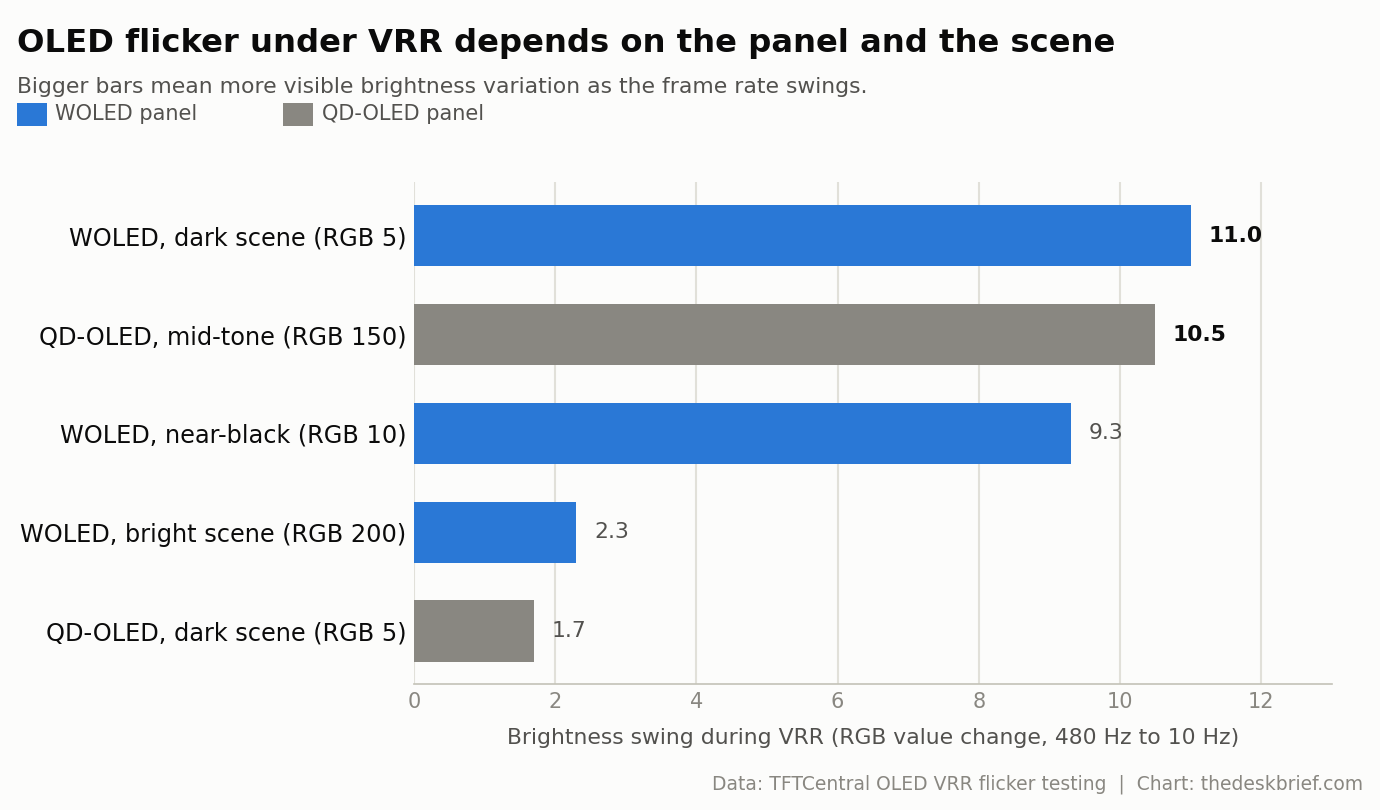
The practical takeaway is smaller than the panic around it. VRR flicker is a gaming condition, not a fixed-refresh desktop condition. Reading email, editing a spreadsheet, or writing code does not create the same rapid frame-time swings. TFTCentral’s fix is free: turn G-Sync or FreeSync off, or cap the frame rate so it stops lurching. That trade is worth understanding before you buy, which is the same buy-for-the-work logic in our gaming monitor versus office monitor breakdown.
New 2026 monitors are adding mitigation rather than claiming that VRR flicker has disappeared. MSI’s MAG 272UP QD-OLED E16 offers three OLED Anti-Flicker Pro levels that narrow the working VRR range, while the ASUS ROG Swift OLED PG27AQDPR uses luminance compensation and a refresh-rate cap. Those controls may reduce visible VRR flicker, but they are not proof that a panel is PWM-free or comfortable for every viewer.
What instrumented tests can and cannot prove
Measurements are the reason this topic is not pure vibes, but they have edges. RTINGS points a photodiode at the screen and records how the light output changes at different brightness levels, which is how it catches PWM and reports a flicker frequency. That is real and repeatable. The IEEE 1789 recommended practice then gives those numbers meaning: flicker in the roughly 3 to 70 Hz range is directly perceptible, the 100 to 400 Hz band still matters, and an increased risk of headaches was observed at 100 Hz once modulation passed about 35 percent. IEEE 1789 recommends running LEDs above roughly 3 kHz, where no observable effect on people has been found.
A 2025 Journal of the Optical Society of America study adds one useful boundary. On a PWM-dimmed OLED smartphone display, participants could still see a stroboscopic effect at 480 Hz and 960 Hz below 40 cd/m², while the effect was invisible at 1,920 Hz and 2,160 Hz under the study conditions. That was a perception test on a phone, not a clinical eye-strain trial or a desktop-monitor verdict, but it shows why frequency, luminance, and duty cycle all matter. Where the tests go quiet is on you specifically. A high frequency lowers the odds of trouble; it does not promise comfort, because modulation depth, waveform shape, and individual sensitivity all still count. There is also temporal dithering, where a panel toggles pixels quickly to simulate colors it cannot show natively. It is a legitimate flicker mechanism that a whole-screen photodiode reading can miss entirely. So a “flicker-free” verdict means the instrument found no backlight PWM. It does not certify that no one will react, which is why a display that passes the test can still bother a specific pair of eyes.
What actually helps if screens bother you
Start by being honest about what is most likely to blame, because it is usually not the flicker. The American Optometric Association attributes most computer vision syndrome to glare, poor room lighting, uncorrected vision, and hours of fixed close focus, and it notes that the symptoms are usually temporary and fade after you stop. Its baseline setup is boring and effective: screen 15 to 20 degrees below eye level, 20 to 28 inches from your eyes, and a 20-second look at something 20 feet away every 20 minutes. Getting the geometry right does more for most people than any panel spec, which is why we keep hammering correct monitor height.
If you genuinely are flicker-sensitive, target the mechanism instead of the whole display. On an OLED, disable VRR or cap your frame rate so gamma stops drifting. On any monitor, dial brightness to match the room rather than crushing it to a low setting where PWM-based screens flash hardest, and reduce glare with placement and lighting before you touch anything else. Sane brightness and contrast defaults help too, which we cover in our guide to monitor color settings.
One thing not to do is buy accessories to solve a problem you have not identified. Blue-light glasses are the usual example, and the evidence that they touch eye strain is thin, as we found when we asked whether blue light glasses work. None of this is medical advice. If discomfort is persistent or painful, an eye exam beats any monitor setting, because the cause might not be the screen at all.
Frequently asked questions
Does OLED cause more eye strain than LCD?
Not inherently, and often less. OLED skips low-frequency backlight PWM, the LCD dimming mechanism most linked to discomfort. Its own flicker risk, VRR-related brightness swing, only appears while gaming with adaptive sync on, and it turns off with a setting. For fixed-refresh desk work, OLED monitor eye strain is not a built-in property of the panel.
Do OLED monitors use PWM?
Desktop OLED monitors do not have an LCD-style LED backlight, so they do not use backlight PWM. They still show a brief brightness dip tied to the refresh rate, and RTINGS does not classify them as fully flicker-free for that reason. Check the measured waveform for the exact model if you know you are flicker-sensitive.
How do I reduce OLED monitor eye strain?
Fix the setup first: monitor height and distance, glare, and regular breaks. If you are flicker-sensitive, turn off VRR or cap your frame rate to stop gamma drift, and set brightness to match the room. Those three changes address the mechanisms that actually cause OLED monitor eye strain for the people it affects.
Is a “flicker-free” rating a guarantee?
No. A certification or test result applies its own threshold and test conditions. It may not account for VRR behavior, temporal dithering, every brightness level, or your personal sensitivity, so a monitor that measures clean can still bother a specific person. Treat the rating as useful evidence, not a promise.
The short version
OLED drops the worst LCD flicker mechanism, low-frequency backlight PWM, so for ordinary fixed-refresh desk work it is a comfortable choice for most people. Its real flicker weakness is VRR, and TFTCentral’s measurements show that swing is large enough to notice in games and easy to switch off. Instrumented flicker ratings are helpful but not a personal guarantee, because test thresholds, dithering, and individual sensitivity can still change the experience. If screens bother you, fix glare, distance, height, and breaks before you blame the panel, and if the discomfort persists, see an optometrist rather than buying another gadget.