
A work from home laptop setup asks one machine to do two jobs that fight each other. A laptop is brilliant because the screen and the keyboard fold into a single slab you can carry anywhere. That same design becomes the problem the moment you sit down for eight hours, because the screen and the keyboard are bolted together at the wrong height for both.
Prices checked and links verified September 2026.
This page contains affiliate links. If you buy through these links, we may earn a small commission at no extra cost to you. Full disclosure.
Put the screen where your eyes want it and your hands float in the air. Drop the keyboard to where your elbows want it and you are staring down at your knees. No laptop posture fixes both at once, which is why the answer is never a better laptop. It is a small pile of cheap parts that let the screen and the keyboard live in two different places.
This guide runs the whole thing from the US$37 version to the US$250 version: what each tier actually solves, and where the money stops buying comfort and starts buying convenience. Every price here is a manufacturer list price I checked this week.
Table of Contents
- Why a Work From Home Laptop Setup Fights You
- The Cheap Fix: Lift the Screen, Add a Keyboard
- One Cable or a Bag of Cables: Hubs and Docks
- What a Dock Can and Cannot Do
- Three Laptop Setups, Priced
- Calls, Camera, and Light
- Who Should Skip This
- Frequently Asked Questions
- The Short Version
Why a Work From Home Laptop Setup Fights You
Ergonomics guidance is blunt about this. OSHA’s computer workstation eTool says that if laptops are used as primary work computers where intensive keyboard use is necessary, you should provide auxiliary, full-sized keyboards and monitors. That is the whole argument in one sentence. A laptop is a fine portable machine and a poor primary workstation on its own. Laptop stands on Amazon (affiliate)
The reason is height. Correct monitor height wants the top of the screen at or just below eye level, about an arm’s length away. A neutral typing position wants your elbows near 90 degrees with relaxed shoulders and straight wrists, the posture the Canadian Centre for Occupational Health and Safety describes for keyboard use. The computer desk ergonomics checklist puts those adjustments in the right order. A laptop flat on a desk can hit one of those targets and never both. Raise it on a stack of books and you now type with your wrists bent up at a keyboard sitting at chin height. Leave it flat and your neck bends down all day.
So the work from home laptop setup problem is not really about the laptop at all. It is about separating the display from the input, and that takes two or three small parts.

The Cheap Fix: Lift the Screen, Add a Keyboard
The entire ergonomic problem disappears for less than the cost of a nice dinner. You need two things: something to raise the laptop screen to eye level, and an external keyboard and mouse so your hands can stay low while the screen goes high.
A folding travel stand like the Nexstand K2 is US$37.35 and collapses to the size of a pencil case, which matters if your desk is also your kitchen table. A fixed aluminium stand like the Rain Design mStand is US$49.90 and never moves, which is better on a permanent desk. Either one gets the screen up. Our guide to laptop stands that actually work goes deeper on which style suits which desk.
For input, a compact Bluetooth keyboard such as the Logitech K380 runs about US$25 to US$40 depending on colour and sale, and a small wireless mouse like the Logitech Pebble M350s is US$24.99 at list. That pairing is the highest-value upgrade in this whole article. It is also the one most people skip, because the laptop keyboard is right there and using it feels free. It is not free. You pay in your neck.
One Cable or a Bag of Cables: Hubs and Docks
Once the screen is up and the keyboard is down, you inherit a new problem: cables. An external monitor, a keyboard dongle, a mouse, a charger, maybe an ethernet cable and a headset, all fighting for a laptop that has three ports if you are lucky. This is where a work from home laptop setup either stays tidy or turns into a nest.
Two products solve it at very different prices. A USB-C hub like the Anker 341 is US$39.99 and adds HDMI, a couple of USB-A ports, an SD reader and pass-through charging on a short pigtail. You still plug it in each morning, but it is one plug instead of six. A full docking station like the Anker 575 is US$199.99, does the same job with far more ports and higher charging, drives up to three displays, and stays on the desk so the laptop reconnects with a single cable.
The honest gap between them is smaller than the price gap. For one monitor, a keyboard, a mouse and a charger, the US$40 hub is genuinely enough. The dock earns its money when you run two or three monitors, want wired ethernet, or are simply tired of hunting for the one cable every morning.
What a Dock Can and Cannot Do
The single-cable trick runs on USB-C Power Delivery, which the USB Implementers Forum standardises. Standard Power Range covers 5, 9, 15 and 20 volts up to 100 watts, and the newer Extended Power Range adds 28, 36 and 48 volts to reach 240 watts. That is the ceiling for the standard. What your specific dock delivers is a separate, usually lower number.
The Anker 575 pushes 85 watts to the laptop. That comfortably charges an ultrabook or a 14-inch machine under load. A 16-inch performance laptop that ships with a 230-watt brick will charge slowly on any dock and can still drain while gaming or running local AI. Check your laptop charger’s wattage before you assume one cable will keep it topped up.
There is a nastier catch. Some laptops refuse to charge over their USB-C or Thunderbolt port at all, by design. I hit exactly this on a Lenovo Legion, where the Thunderbolt port will not charge the machine and the dock has to sit next to the original barrel charger. Spend two minutes searching your model plus the words USB-C charging before you buy any dock.
Three Laptop Setups, Priced
Here is the whole thing as three tiers, most affordable first. The figures below are stand-and-connection hardware only; add US$25 to US$65 for a keyboard and mouse on top of any tier.
| Setup | Core hardware | What it fixes | Best for | Hardware cost |
|---|---|---|---|---|
| Portable | Folding stand (Nexstand K2) | Screen height; packs away flat | Shared or travel desks | US$37 |
| Fixed desk plus hub | Aluminium stand (mStand) plus USB-C hub (Anker 341) | Screen height and one-plug cables for a single monitor | Most home offices | US$90 |
| One-cable dock | Aluminium stand plus dock (Anker 575) | All of the above plus multi-monitor, wired ethernet and 85W charging | Two or more monitors, wired network | US$250 |
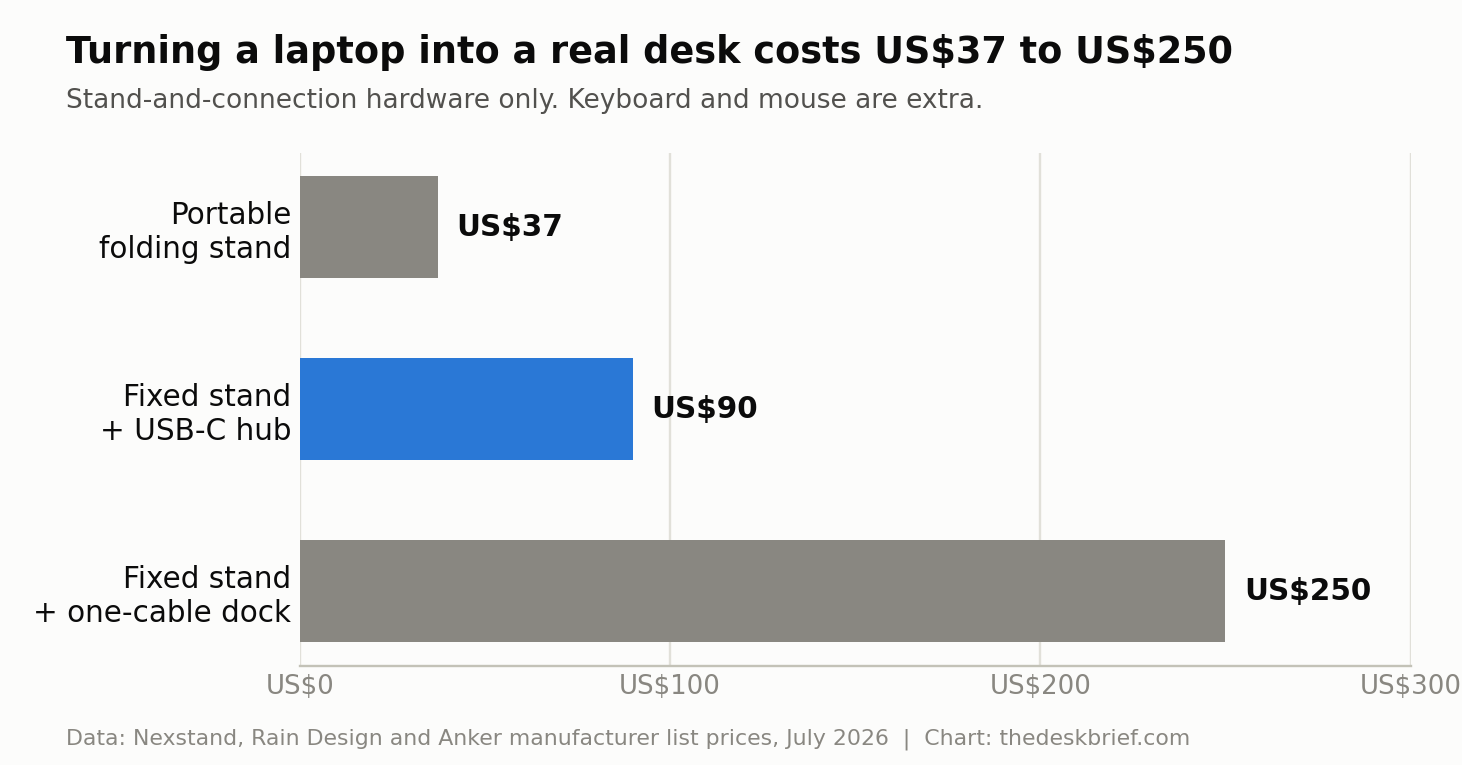
The most affordable work from home laptop setup that actually works is the folding stand plus a keyboard and mouse, roughly US$60 all in. The tier most people should buy is the middle one: a fixed stand and a US$39.99 hub, near US$90 of hardware, which fixes your posture and your cable mess for one monitor. The US$250 dock is the right call only if you already know you want a second screen or a wired connection.
Calls, Camera, and Light
A docked laptop creates one problem the pile of accessories does not: your webcam. Lower the lid and the camera is dead; raise the laptop to eye level and it stares up your nose. If you take a lot of calls, either keep the laptop open beside the monitor as a dedicated camera-and-chat panel, or add a separate webcam at monitor height. A monitor with a built-in webcam sidesteps the whole thing by putting a decent camera where your eyes already are.
Lighting matters more than the camera itself. A cheap sensor with light on your face beats a great sensor backlit by a window, so put your main light in front of you, not behind. And once the desk carries a monitor, a dock and a charger, spend ten minutes on cable management so the whole setup can be wiped down and does not trap a coffee spill.
Who Should Skip This
If your laptop rarely leaves a drawer and you already work at an external monitor with a real keyboard, you own a desktop in everything but name and this guide is redundant. Read our work from home desk setup guide for the rest of the room instead.
Skip the dock specifically if you use one monitor and one charger. The US$40 hub does that job, and the extra US$160 buys ports you will not plug anything into. And skip the whole exercise if you truly only use the laptop for an hour a day on the couch. Ergonomics scale with hours, and an hour of slouching is not worth US$100 of aluminium.
Frequently Asked Questions
What does a good work from home laptop setup cost?
A basic work from home laptop setup that fixes your posture is about US$60: a US$37 folding stand plus a US$25 mouse, with a compact keyboard of your choice. Add a US$40 USB-C hub to tame cables for roughly US$100 all in. A full one-cable dock setup lands near US$250 of hardware, before the monitor.
Do I need a docking station or just a USB-C hub?
For a single monitor, keyboard, mouse and charger, a US$39.99 USB-C hub is enough. Choose a US$199.99 dock only if you run multiple displays, want wired ethernet, or need higher laptop charging. Both connect with one cable each morning; the dock simply stays put on the desk.
Will one USB-C cable charge my laptop and run my monitor?
Often, but not always. USB-C Power Delivery tops out at 100 watts on standard cables and 240 watts on newer ones, and a given dock usually delivers less. The Anker 575 provides 85 watts, so ultrabooks charge fine. Large performance laptops with 200-watt-plus chargers may charge slowly or fail to keep up under load, and a few laptops refuse to charge over USB-C at all.
Can I just prop the laptop on books instead of buying a stand?
You can raise the screen that way, but only if you also add an external keyboard and mouse. Propping the laptop up without separate input just moves the strain from your neck to your wrists. The stand and the keyboard are a pair, and one without the other only trades one ache for another.
The Short Version
A work from home laptop setup is worth building because a laptop alone forces your neck and your wrists to fight over the same slab. Separate them. Raise the screen on a US$37 to US$50 stand, add a keyboard and mouse for US$25 to US$65, and you have solved most of the problem for under US$100.
Add a US$40 USB-C hub if the cables annoy you, and a US$200 dock only if you run multiple monitors or wired ethernet. The dock is a convenience upgrade, not an ergonomic one. Buy the stand and the keyboard first, live with them for a week, then decide whether the one-cable life is worth the rest.