The best monitor for sensitive eyes in this comparison is the Dell UltraSharp U2725QE because it combines verified flicker-free behaviour, sharp 4K text, a matte surface, useful brightness control, and a fully adjustable stand. The ASUS ProArt PA279CRV is the better value. No monitor can promise symptom relief, so buy from a seller with a sensible return policy.
Last updated: October 19, 2026.
My three picks are the Dell UltraSharp U2725QE for a premium one-cable desk, the ASUS ProArt PA279CRV for 4K value, and the BenQ GW2790Q for a tight budget. None can promise symptom relief. This is consumer-tech product analysis citing medical and technical sources, not medical advice, and a monitor does not diagnose or treat an eye condition.
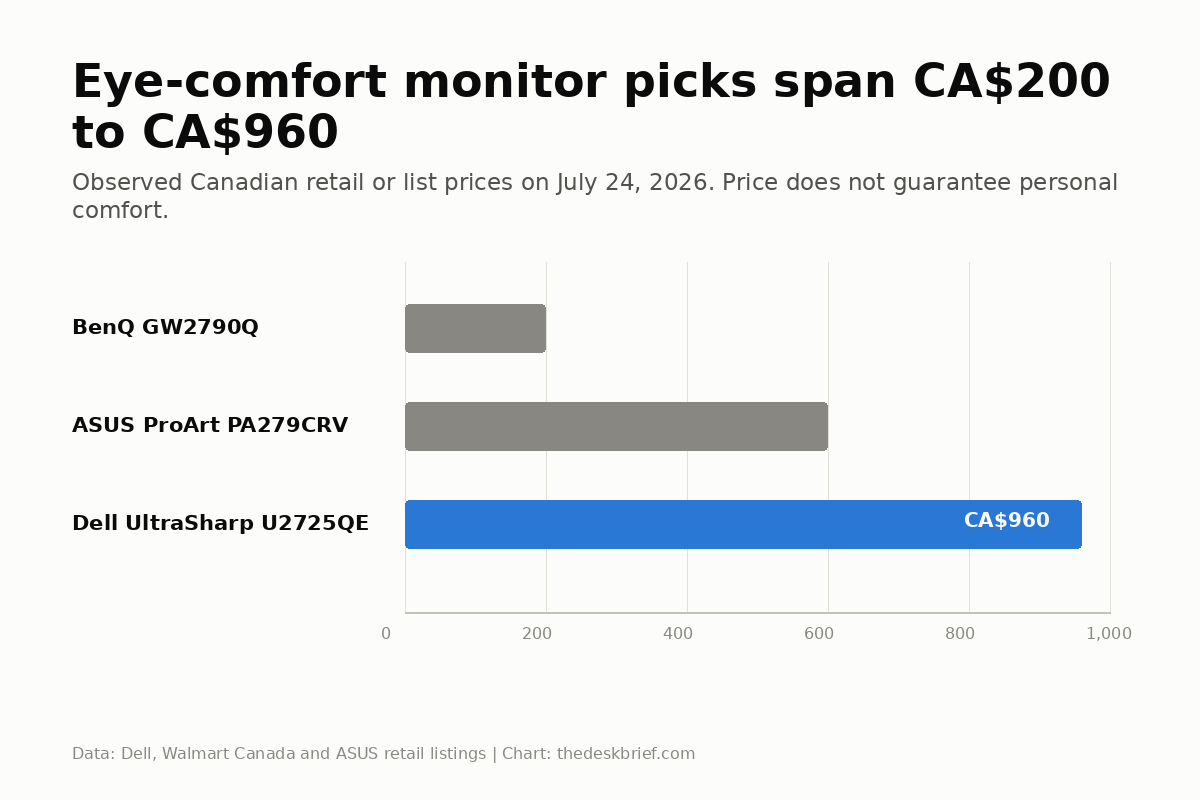
Prices were checked July 24, 2026. Dell’s Canadian list price is CA$959.99, Walmart Canada listed the ASUS at CA$599.98, and Walmart Canada listed the BenQ at CA$199.98. Prices move, so treat them as comparison points rather than permanent deals. I have not used these monitors; measured findings are attributed.
Bottom line: The ASUS ProArt PA279CRV is the clearest option to consider if the trade-offs below fit your setup.
Table of Contents
- Monitor for sensitive eyes: the short list
- What the specifications can and cannot tell you
- Dell U2725QE: best overall office pick
- ASUS PA279CRV: best 4K value
- BenQ GW2790Q: best budget pick
- Setup matters more than the badge
- Who Should Skip This
- Frequently asked questions
- The Short Version
Monitor for sensitive eyes: the short list
| Pick | Panel and clarity | Flicker evidence | Brightness and coating | Price | Main drawback | Product details |
|---|---|---|---|---|---|---|
| Dell U2725QE | 27-inch 4K IPS Black, 163 PPI, 120 Hz | TÜV flicker-free; independent review lists excellent office clarity | 450-nit typical, matte anti-glare, ambient sensor | CA$959.99 list | Expensive; reflection handling is only mediocre | Not listed |
| ASUS PA279CRV | 27-inch 4K IPS, 163 PPI, 60 Hz | ASUS flicker-free; independent review reports flicker-free except local dimming | 39 to 383 nits measured, anti-glare | CA$599.98 | 60 Hz; weak HDR and IPS contrast | See card below |
| BenQ GW2790Q | 27-inch 1440p IPS, 109 PPI, 100 Hz | BenQ and TÜV flicker-free certification | 350-nit spec, matte, ambient brightness feature | CA$199.98 | No USB-C and less crisp text | Not listed |
This is a specification-led shortlist, not a claim that these three displays feel comfortable to every person. Flicker sensitivity, glare tolerance, scaling preference, colour spectrum, temporal dithering, room lighting, and prescription needs vary. Buy from a seller with a sensible return policy.
What the specifications can and cannot tell you
Start with dimming. A monitor advertised as flicker-free should avoid low-frequency pulse-width modulation during ordinary brightness control, but the label is not perfectly standardized. Independent oscilloscope or high-speed camera measurements are better than a badge alone. Also check whether optional local dimming or blur-reduction modes reintroduce pulsing.
Next is text clarity. At 27 inches, 4K gives about 163 PPI while 1440p gives about 109 PPI. Both can be readable, but 4K makes curves and small type cleaner when the operating system scales correctly. Higher PPI does not require smaller text. Increase scaling and keep the detail.
A matte coating diffuses sharp reflections, which usually makes window and lamp placement easier. It can add a slight grain over white backgrounds. Brightness range matters at both ends: a monitor must get bright enough for daylight and dim enough for evening work without destroying contrast or using an objectionable dimming method.
Stand adjustment is not an accessory. Height, tilt, swivel, and pivot let you align the display without stacking books or bending your neck. Use the correct monitor-height guide once the screen is on the desk.
That is the basis of this best monitor for eye strain shortlist: observable display behaviour and useful desk adjustment first, comfort branding second.
Top pickDell U2725QE: best overall office pick
The Dell UltraSharp U2725QE is my best overall pick because it covers the unglamorous office requirements unusually well. The 27-inch 3840 x 2160 panel gives 163 PPI. The 120 Hz refresh rate makes scrolling and cursor motion smoother than a 60 Hz office display. Its enhanced IPS Black panel is rated at a 3000:1 contrast ratio, 450 nits typical SDR brightness, and a 600-nit HDR peak.
Dell’s official launch material lists TÜV Rheinland Eye Comfort 5-star certification, improved ComfortView Plus, an ambient-light sensor, and a matte anti-glare treatment. The sensor can adjust brightness and colour temperature automatically, though anyone who dislikes automatic changes can turn that behaviour off and get the color settings right manually instead.
RTINGS calls the U2725QE excellent for office work, citing fantastic text clarity, strong ergonomics, and enough brightness for most glare. Its honest negative is reflection handling: RTINGS rates that only mediocre. Matte does not repeal physics. A bright window directly behind you can still win.
The connectivity is the reason to pay the premium. Thunderbolt 4 supplies up to 140 W to a laptop, a downstream Thunderbolt port supports daisy chaining, and the monitor includes a KVM, 2.5GbE, multiple USB-A and USB-C ports, DisplayPort, and HDMI 2.1. That can replace a separate dock. If you do not need the hub, CA$959.99 is hard to justify.
Best valueASUS PA279CRV: best 4K value
The ASUS ProArt PA279CRV keeps the useful 27-inch 4K format and drops the price to CA$599.98. It is a 60 Hz IPS display with a matte anti-glare surface, 99% DCI-P3 and 99% Adobe RGB coverage, factory calibration, USB-C with 96 W charging, a USB hub, DisplayPort daisy chaining, and a stand with 130 mm height adjustment, tilt, swivel, and pivot.
As an Amazon Associate I earn from qualifying purchases.
Disclosure: This page contains affiliates. If you buy through them, The Desk Brief may earn a commission at no extra cost to you.
Manufacturer UK prices checked October 19, 2026, include VAT: Dell UK listed the U2725QE at £567, down from £630, and ASUS UK listed the PA279CRV at £364. BenQ’s UK site does not sell the GW2790Q; its GW2790 and GW2790QT listings are different models, not equivalents. UK readers can search Amazon UK for the Dell U2725QE or ASUS ProArt PA279CRV.
ASUS ProArt PA279CRV 27 Inch 4K UHD USB-C HDR Professional Monitor for Mac
Price and availability may change.
View Current PriceASUS specifies flicker-free technology. An independent DisplayNinja review reports a flicker-free backlight unless local dimming is enabled and measured a 39-nit minimum and 383-nit maximum. That wide SDR range is more relevant to daily comfort than the weak DisplayHDR 400 badge.
The compromise is motion. Sixty hertz is perfectly functional for documents but visibly less smooth than Dell’s 120 Hz during scrolling. IPS contrast is also modest, and the built-in speakers are not a reason to buy it. For office work and sharp text, though, the PA279CRV spends money on the panel, stand, and USB-C connection rather than a gaming feature set.
Best budgetBenQ GW2790Q: best budget pick
At CA$199.98, the BenQ GW2790Q is the value answer. It uses a 27-inch 2560 x 1440 IPS panel at 100 Hz, which is a sensible step up from 1080p at this size. The screen is matte, rated at 350 nits, and includes an ambient-light feature that can adjust brightness. ENERGY STAR independently lists the same 27-inch size, 1440p resolution, and 350-nit maximum luminance.
BenQ says its flicker-free technology operates at all brightness levels, and TÜV Rheinland certifies the model’s flicker-free and low-blue-light features. I did not find an independent instrumented PWM measurement for this exact model, so I am treating that as a certified manufacturer claim rather than lab confirmation.
Text density is the tradeoff. At roughly 109 PPI, the BenQ is less crisp than either 4K pick. It also lacks USB-C, height adjustment, swivel, and pivot. The included stand only tilts, so budget for a VESA arm if the default height is wrong. Two HDMI inputs, DisplayPort, and basic speakers cover ordinary desktop use.
The GW2790Q also has an ePaper picture mode, but it remains an LCD. The mode changes contrast and colour; it does not turn the panel into reflective E Ink. If that distinction matters, the e-ink monitor buyer’s guide covers the expensive specialist alternatives.
Setup matters more than the badge
A good monitor in a bad position is still a bad setup. Use the correct monitor height guide to establish a practical position, then increase operating-system scaling until text is easy to read without leaning forward. The sharpest panel cannot help if every menu is set too small.
Place the monitor perpendicular to windows when possible. A matte surface reduces defined reflections but cannot remove a bright light source. Match white-screen brightness to the room, and avoid working with a bright display in an otherwise dark space.
Take breaks from near focus and blink normally. The 20-20-20 timer provides a simple look-away prompt. The rule is widely recommended, though evidence for that exact timing is modest. It is a reminder, not a treatment.
Do not buy a monitor solely for a blue-light mode. The blue-light glasses evidence shows why wavelength claims need a specific outcome behind them. Hardware low-blue-light modes can preserve colour better than an orange software filter, but neither replaces distance, usable text size, glare control, or appropriate vision correction.
Who Should Skip This
Skip the Dell if you do not need Thunderbolt, a KVM, Ethernet, or 140 W laptop charging. The ASUS gives the same 27-inch 4K pixel density for CA$360.01 less. The Dell is a dock with a very good monitor attached; paying for the dock and ignoring it is poor value.
Skip the ASUS if 120 Hz motion matters or you want convincing HDR. Its 60 Hz panel and basic edge-lit HDR are productivity compromises. Skip the BenQ if you are sensitive to text softness at 27-inch 1440p or need a height-adjustable stand out of the box.
Skip all three as a self-prescribed medical solution. A display can remove one technical trigger such as low-frequency backlight flicker or a sharp reflection. It cannot identify why a particular person has persistent discomfort. A return policy is part of the specification here.
Frequently asked questions
Is OLED the best monitor for eye strain?
Not automatically. OLED removes the LCD backlight but many models use brightness modulation or compensation behaviour that some people notice. Subpixel layouts can also affect text clarity. Our full look at OLED monitors and eye strain covers the tradeoffs, so check instrumented measurements for the exact model rather than buying the panel label.
Is 4K better than 1440p for eye comfort?
At the same 27-inch size, 4K makes text and curves sharper. That can improve readability when scaling is set well, but it is not a medical outcome. A 1440p display with larger text may be more comfortable than a 4K display configured too small.
What does flicker-free actually mean?
Usually it means the backlight avoids visible or low-frequency PWM during normal brightness control. Definitions and test conditions vary. Look for independent measurements and check special modes such as local dimming or motion-blur reduction separately.
How bright should a monitor be?
There is no universal percentage. A white document should look appropriate beside paper in the same room, not like a lamp. Bright rooms need more output; dark rooms need less. The useful specification is a broad, stable brightness range.
The Short Version
The Dell U2725QE is the best monitor for eye strain shortlist if you want verified office quality, 4K text, 120 Hz, full adjustment, and a serious Thunderbolt hub. The ASUS PA279CRV is the rational 4K value at CA$599.98. The BenQ GW2790Q is the CA$199.98 budget choice, with 1440p, 100 Hz, matte coating, and certified flicker-free operation. Buy on measured or explicit specifications, then fix distance, scale, glare, and height.