You can run an LLM locally in about ten minutes, and most of that is the download. The install is one command or one installer. What actually stops people is the screen right after it: a list of files with the same model name and different endings, Q4_K_M and Q8_0 and fp16, ranging from under 3GB to 55GB, with nothing on the page explaining which one your machine can hold.
This guide walks the practical path through that. Which runtime to install, which model to pull first, what those quantization letters cost you in disk and memory, and how to point the apps you already use at a model running on your own machine. If you are still deciding how much memory to buy, our RAM for local AI guide sizes that question separately. Here the assumption is that you are working with the computer already on your desk.
One honest expectation first. A 4-billion-parameter model on a laptop with 16GB of RAM is genuinely useful for summarising, drafting, rewriting and pulling structure out of messy text. It is not going to match a frontier cloud model on hard reasoning, and going in expecting that is how people end up uninstalling everything a week later.
If you need to choose the model before following the installation path, the best local LLM guide matches current downloads to memory and use case.
Table of Contents
- The three ways to run an LLM locally
- Ollama, from install to first answer
- Picking your first model
- What quantization actually costs you
- Wiring a local model into apps you already use
- The parts that will annoy you
- When a local model is the wrong answer
- How to Run an LLM Locally FAQ
- The Short Version
The three ways to run an LLM locally
Almost everything running on consumer hardware today sits on top of one project: llama.cpp, a plain C and C++ inference engine with no dependencies. Its README lists backends for Metal on Apple Silicon, CUDA for NVIDIA, HIP for AMD, Vulkan and WebGPU, plus integer quantization from 1.5-bit up to 8-bit. It also ships llama-server, described in the repository as a lightweight, OpenAI API compatible HTTP server. If you want compile flags and hardware-specific tuning, this is the layer you want.
Ollama wraps that engine in a command line tool and a background server. You type a model name, it fetches the weights, picks a sensible quantization, offloads what it can to your GPU and drops you into a chat. LM Studio does the same job through a desktop app with a model browser, so you never touch a terminal. All three are free, and the differences are about interface rather than output quality.
My recommendation is the boring one. Start with Ollama even if you dislike terminals, because the commands are three words long and every tutorial you will find assumes it. Move to LM Studio if you want to browse and compare models visually, and only reach for raw llama.cpp when you have a specific reason, like a GPU that needs a build flag nobody has packaged yet.
Ollama, from install to first answer
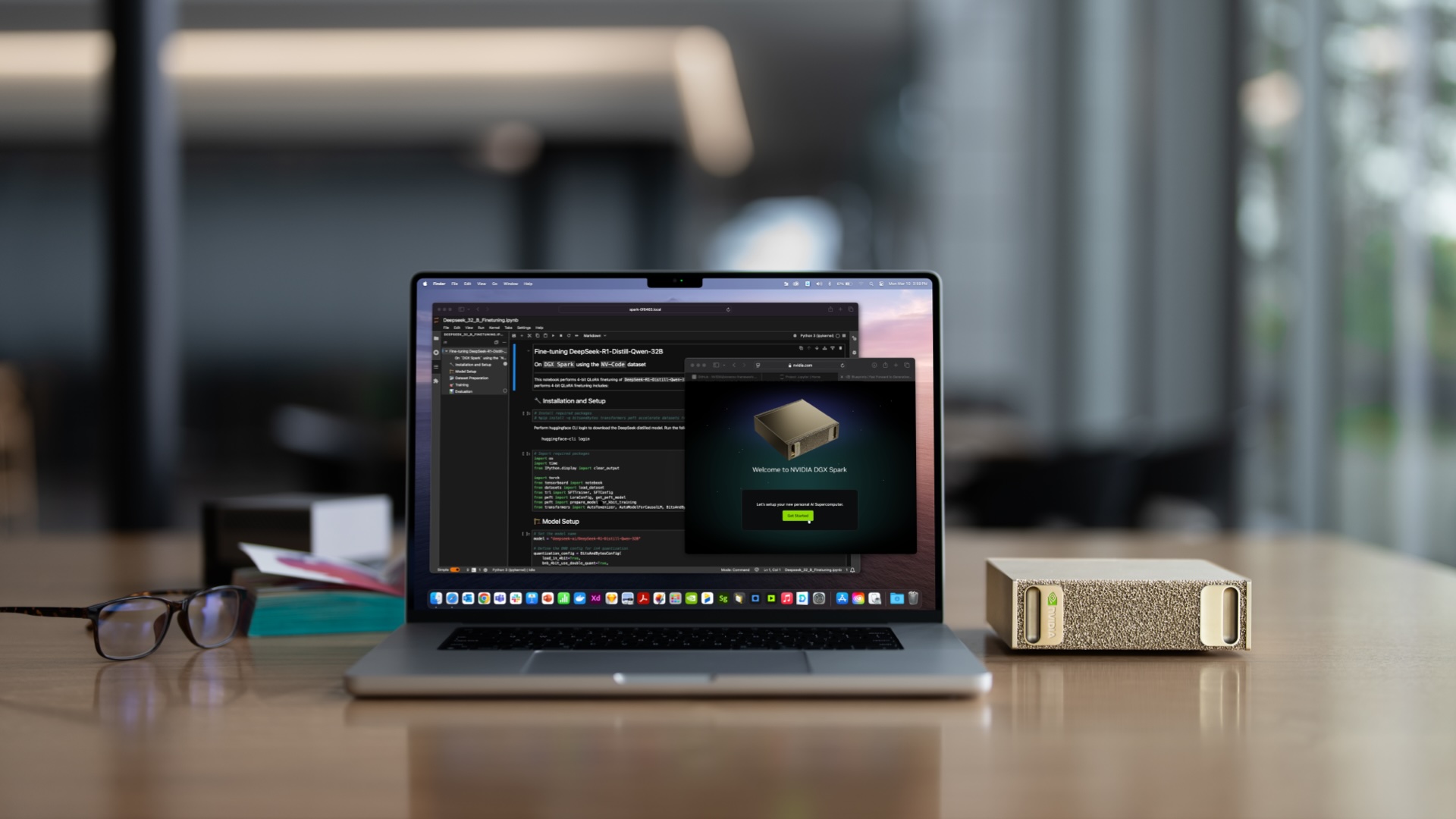
Grab the installer for macOS, Windows or Linux from ollama.com, run it, then open a terminal. The whole first session is one command, and it does the downloading for you:
ollama run gemma3:4b     # downloads 3.3GB, then opens a chat prompt
ollama ls                # lists what you have already downloaded
ollama ps                # shows which model is loaded in memory right now
ollama rm gemma3:4b      # deletes a model when you want the disk back
The first run is slow because it is pulling gigabytes over your connection. Every run after that starts in seconds. If you would rather download without chatting, ollama pull takes the same model names, and ollama serve starts the background API on its own when you need it running without a chat window open.
That is the entire setup. The reason people think it is harder is that the interesting decisions come after the install, and they are all about matching a file size to the memory you actually have.
Picking your first model
Ollama’s public model library lists a download size next to every tag, which is the most useful number on the page. As of July 2026 the sizes that matter for a normal desk machine look like this:
- Gemma 3 4B: 3.3GB. The safe first pull on any 16GB machine.
- Qwen3 8B: 5.2GB. Noticeably better at multi-step instructions.
- Gemma 3 12B: 8.1GB. Comfortable on 32GB, tight on 16GB.
- Qwen3 14B: 9.3GB. Same tier, stronger on structured output.
- Gemma 3 27B: 17GB. Wants 32GB minimum and real GPU offload.
- Qwen3 30B (a3b): 19GB. A mixture-of-experts model that runs faster than its size suggests.
The working rule is that the file has to fit in free memory with room left over, not just fit on disk. The weights load into RAM or VRAM, and then the conversation itself needs more on top, growing with how long the chat gets. An 8.1GB model on a 16GB laptop that is also running a browser and Slack will page to disk and crawl. The same file on 32GB is fine.
Start one tier below what you think you can afford. A 4B model that answers instantly gets used every day; a 27B model that takes forty seconds per reply gets abandoned by Thursday. You can always pull the bigger one later, and deleting it costs one command.
What quantization actually costs you
Those Q4 and Q8 suffixes are the compression level. LM Studio’s model download documentation puts it plainly: these are all copies of the same model, provided in varying degrees of fidelity, where the Q stands for quantization, meaning the files are compressed in size while giving up some degree of quality. Its own advice is to choose a 4-bit option or higher if your machine can run it.
The size difference is not subtle. Strip that compression out and local models simply would not fit on a normal computer.
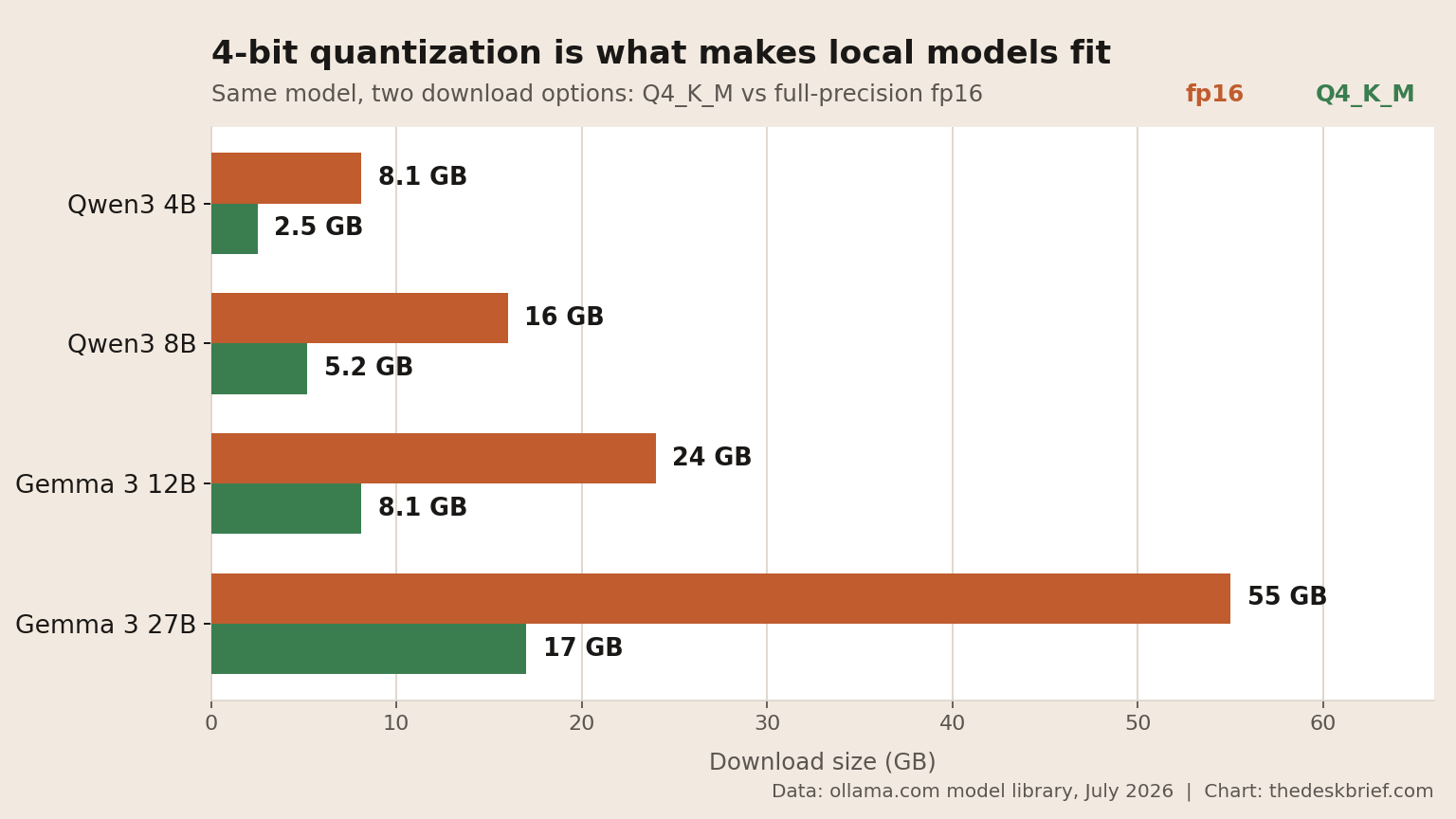
Gemma 3 27B is 17GB at Q4_K_M and 55GB at full precision. Qwen3 8B is 5.2GB against 16GB. That is the difference between a model that loads on a laptop and one that does not load at all, and in day to day writing and summarising work the quality gap between them is small enough that most people never notice it.
So the default is easy: take Q4_K_M unless you have a specific reason not to. Step up to Q8_0 only when you have memory to spare and the task is precision-sensitive, like generating code that has to compile or extracting exact figures from documents. The 1.5-bit and 2-bit options that llama.cpp supports exist for squeezing very large models onto small hardware, and they degrade in ways that are obvious once you use them.
Wiring a local model into apps you already use
A chat window in a terminal is a demo. The reason to run an LLM locally is that both major runtimes expose an OpenAI-compatible API on your own machine, so anything that can point at an API base URL can point at your computer instead of a cloud provider.
Ollama      http://localhost:11434/v1/
LM Studio   http://localhost:1234/v1
Ollama’s documentation lists chat completions, completions, models, embeddings and the Responses API behind that address. LM Studio’s covers the same ground on port 1234 and notes that existing OpenAI clients in Python, JavaScript and C# work by changing the base URL and nothing else. In practice that means editor extensions, note apps with a custom-endpoint field, and your own scripts all work without a rewrite.
This is where local stops being a novelty. Feeding a client contract or a folder of financial statements to a model that never leaves your desk is a different risk conversation than pasting it into a web form. If you want to go further and give a local model tools and memory, our home AI agent setup guide covers that layer.
The parts that will annoy you
Cold starts are the first surprise. Loading 8GB of weights off an SSD into memory takes real seconds, and if a different model was loaded a moment ago, you pay that cost again on every switch. Settle on one model for daily work instead of hopping between three.
Long conversations get slower and hungrier. The context grows as you chat, and it lives in memory alongside the weights, so a session that started fast can crawl an hour later. Starting a fresh chat is the fix, and it is a habit worth building early.
Then there is disk. Pulling four models to compare them is how a 512GB laptop suddenly has 40GB free. ollama ls shows what you have accumulated and ollama rm takes it back, but nothing prompts you to do it. If you are shopping for a machine specifically for this, both the Beelink GTR9 Pro and the RTX Spark laptops are worth reading before you spend, and current RAM prices should factor into the timing.
When a local model is the wrong answer
If your machine has 8GB of RAM and integrated graphics, the honest advice is to skip this. You can technically load a 1B model, and it will produce text that reads like a confident intern who skimmed the brief. The setup is free, but your afternoon is not.
Skip it too if your actual need is hard reasoning, current information, or long document analysis at high accuracy. Local models trail the frontier cloud models on exactly those tasks, and no amount of quantization tuning closes that gap. Where local wins is privacy, cost after the download, offline availability and never hitting a rate limit.
The setup most people land on is both. A local model handles the routine volume, the drafting and the material you would rather not upload, and a cloud model handles the hard problems. That split costs nothing to try, which is the best argument for spending ten minutes on the install.
How to Run an LLM Locally FAQ
Do I need a GPU to run an LLM locally?
No, but it changes the experience. llama.cpp runs on CPU and lists backends for Metal, CUDA, HIP and Vulkan, so a discrete GPU or Apple Silicon takes the load and answers arrive at conversational speed. On CPU alone a 4B model is usable and anything above about 12B tests your patience.
Which quantization should I download?
Q4_K_M, unless you have a reason. It is what LM Studio recommends as a floor, what Ollama serves by default on most tags, and it cuts a 55GB file to 17GB in the case of Gemma 3 27B. Move up to Q8_0 only for precision work with memory to spare.
Is Ollama or LM Studio better for beginners?
LM Studio if you want to see and compare models before downloading, Ollama if you want the shortest path from nothing to a working answer. They both sit on llama.cpp, so the model output is the same. Installing both costs nothing and takes about five minutes.
Can a local model use my files and the internet?
Not on its own. A freshly installed model has no file access and no network, which is the point of running it locally. Both runtimes support connecting documents and tools on top, and that is a deliberate second step rather than a default.
The Short Version
Install Ollama, type ollama run gemma3:4b, and you have a working local model in the time it takes to download 3.3GB. Everything past that point is refinement rather than setup.
Take Q4_K_M quantization by default, because it is the difference between 17GB and 55GB on Gemma 3 27B with a quality cost most desk work never notices. Pick a model one tier smaller than your machine can technically hold, since speed is what determines whether you keep using it. Point your existing apps at localhost port 11434 for Ollama or 1234 for LM Studio, and they will treat your computer like any other OpenAI-compatible endpoint.
Skip the whole exercise on 8GB of RAM with integrated graphics, and do not expect a local model to beat a frontier cloud model on hard problems. Run both, send the private and repetitive work to the machine you own, and you get the practical half of the benefit for the cost of one download. That is the realistic reason to run an LLM locally in 2026.